
User Manual for NOC
The NOC Issued shall remain Valid for a Period of 6 Months.The NOC shall be re-issued only upon reciept of a Non-Utilization letter from the Respective State Medical Council
Help Desk
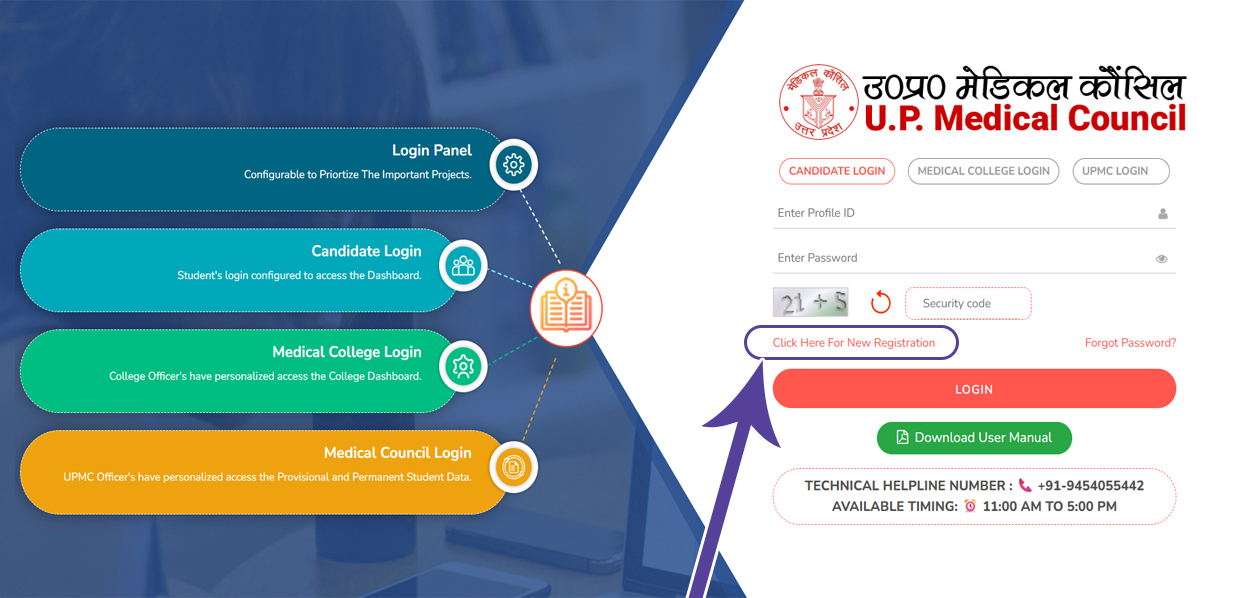
1. Click Here For New Registration
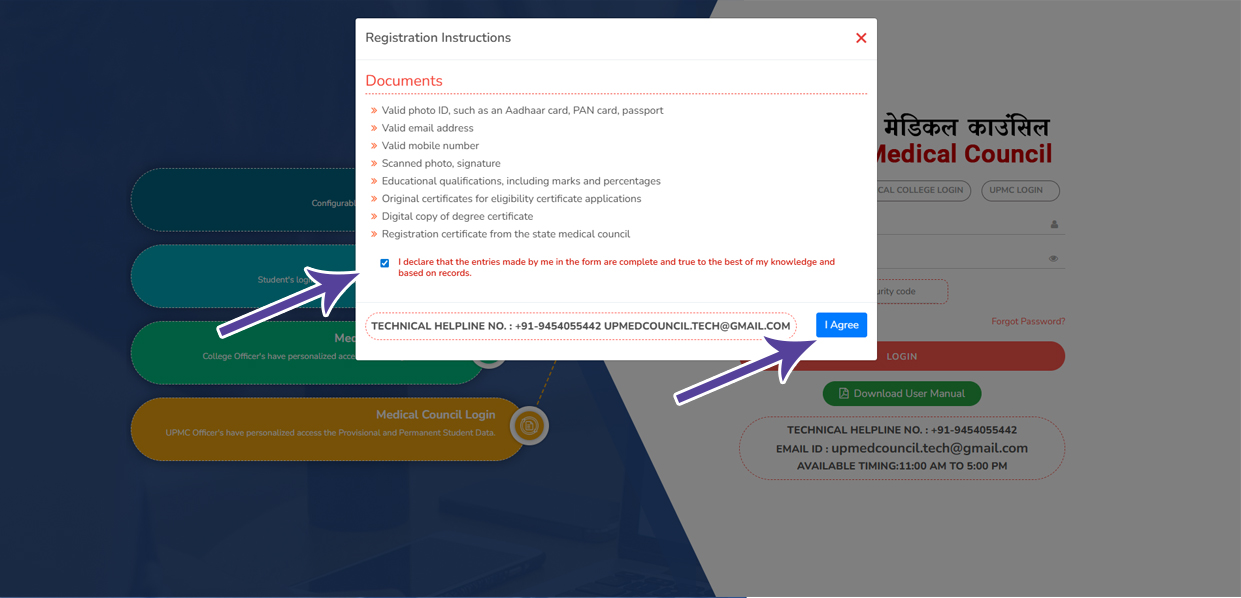
2. Read the instructions carefully, tick the declaration checkbox, and click “I Agree” to proceed next step
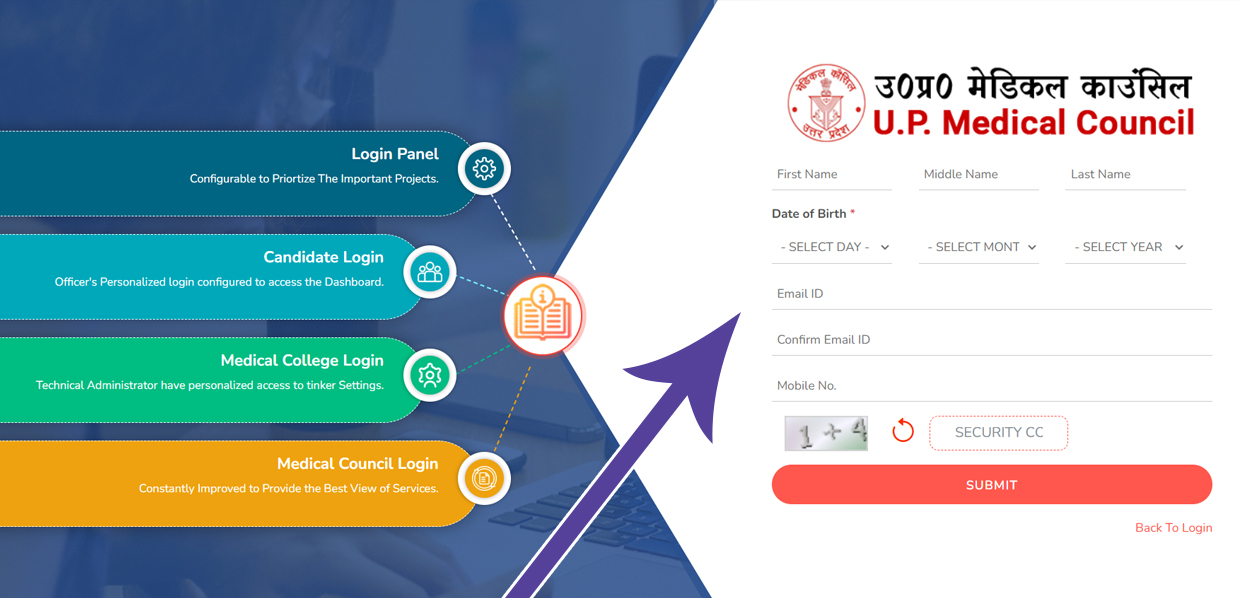
3. Registration - Please fill in all the required details to proceed with the registration.
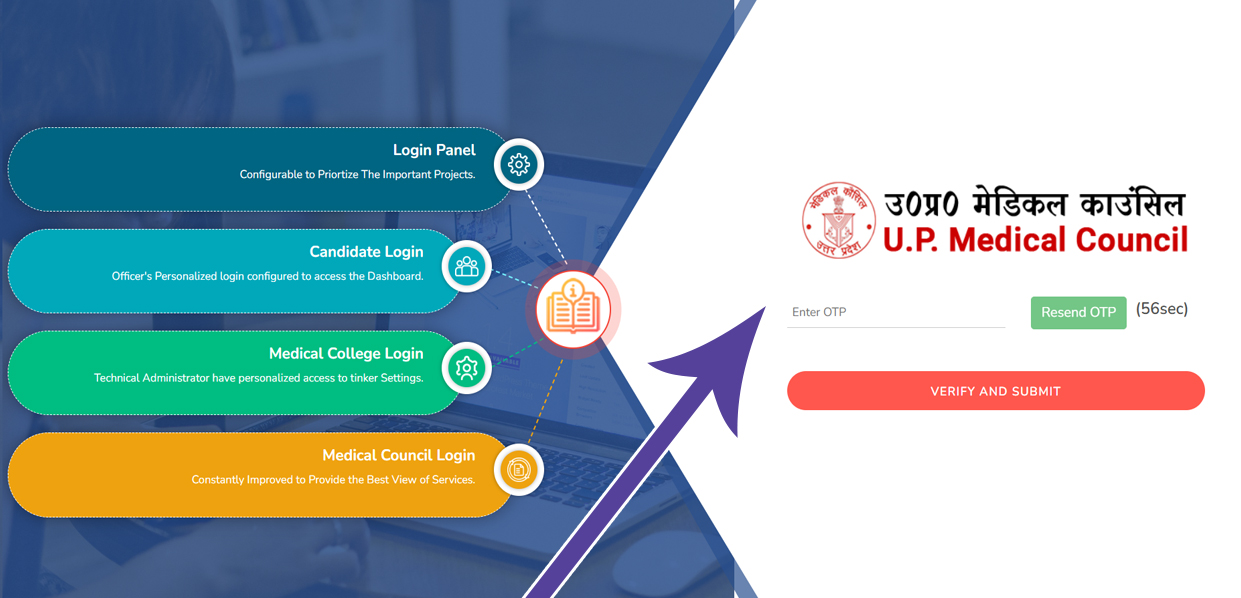
4. OTP Verification – Enter the OTP sent to your mobile. After verification, your login details will be sent to the same number.
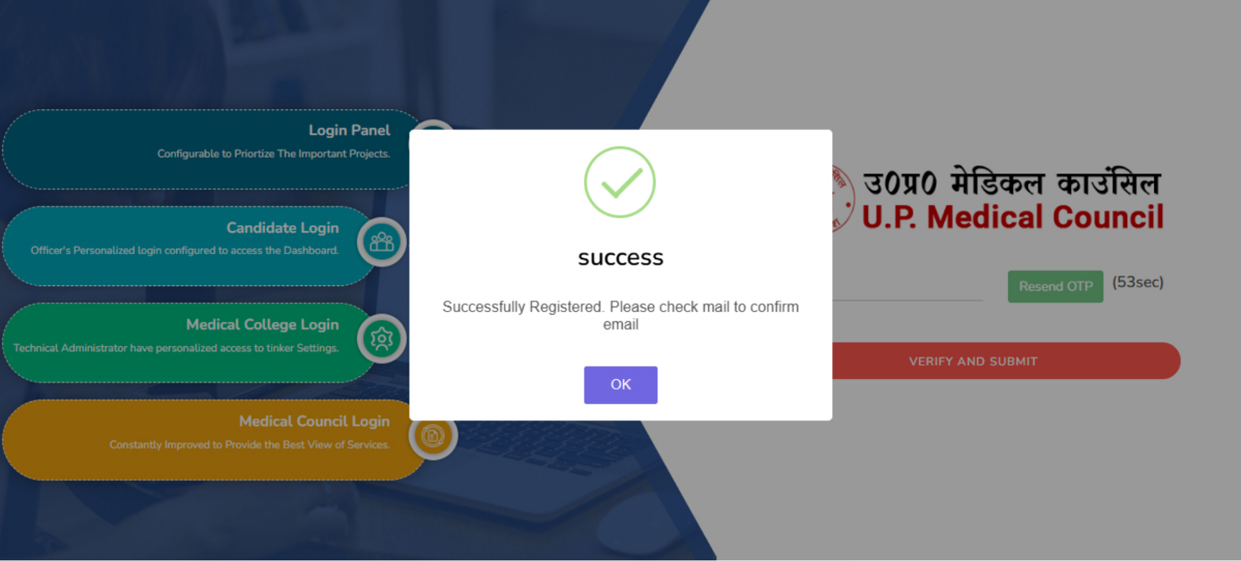
5. After OTP verification You Get One Popup Messgae for Email Confirmation
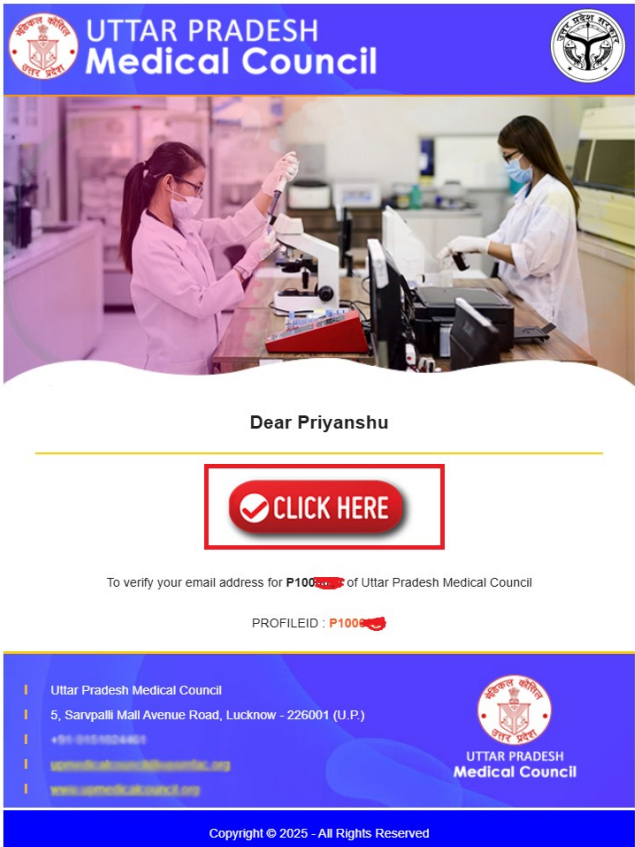
6. Email Confirmation - After OTP verification, you can proceed to verify your email address by
clicking the "Verify Email" button below.
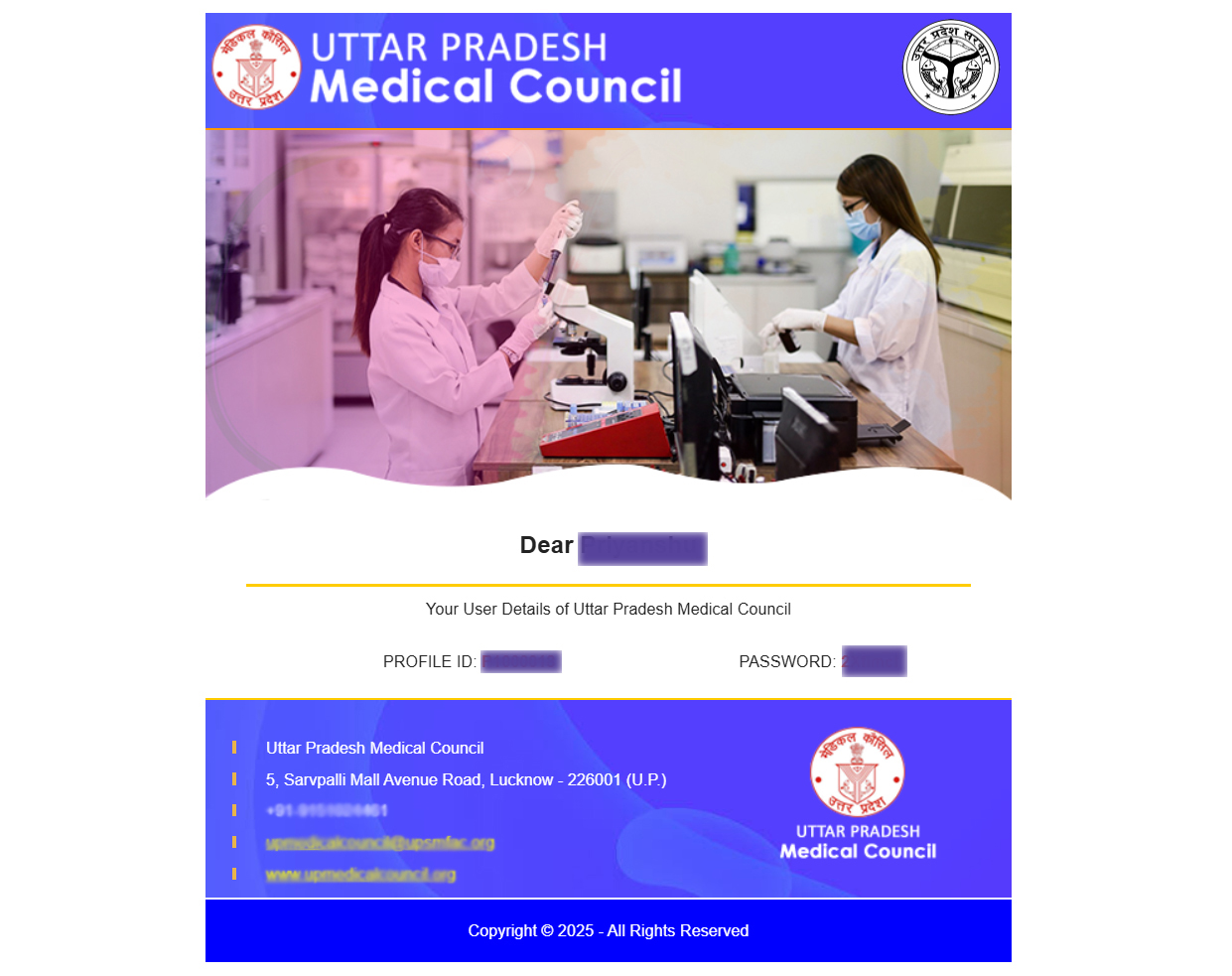
7. After email verification, your login details will also be sent to your email address.
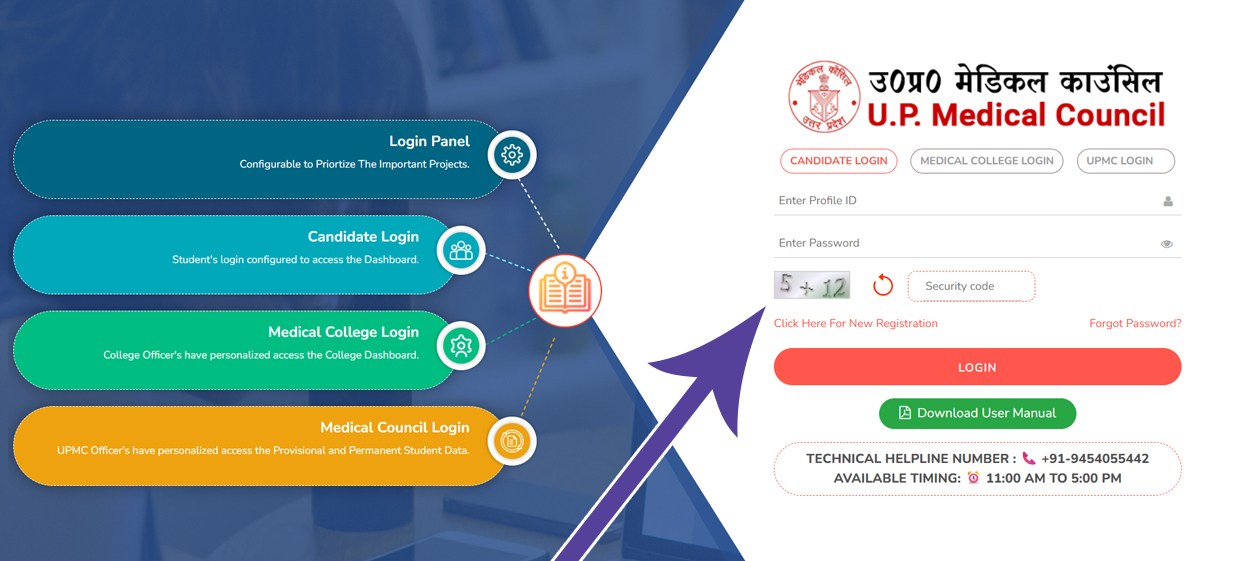
8. Fill in the login details you received in your email.
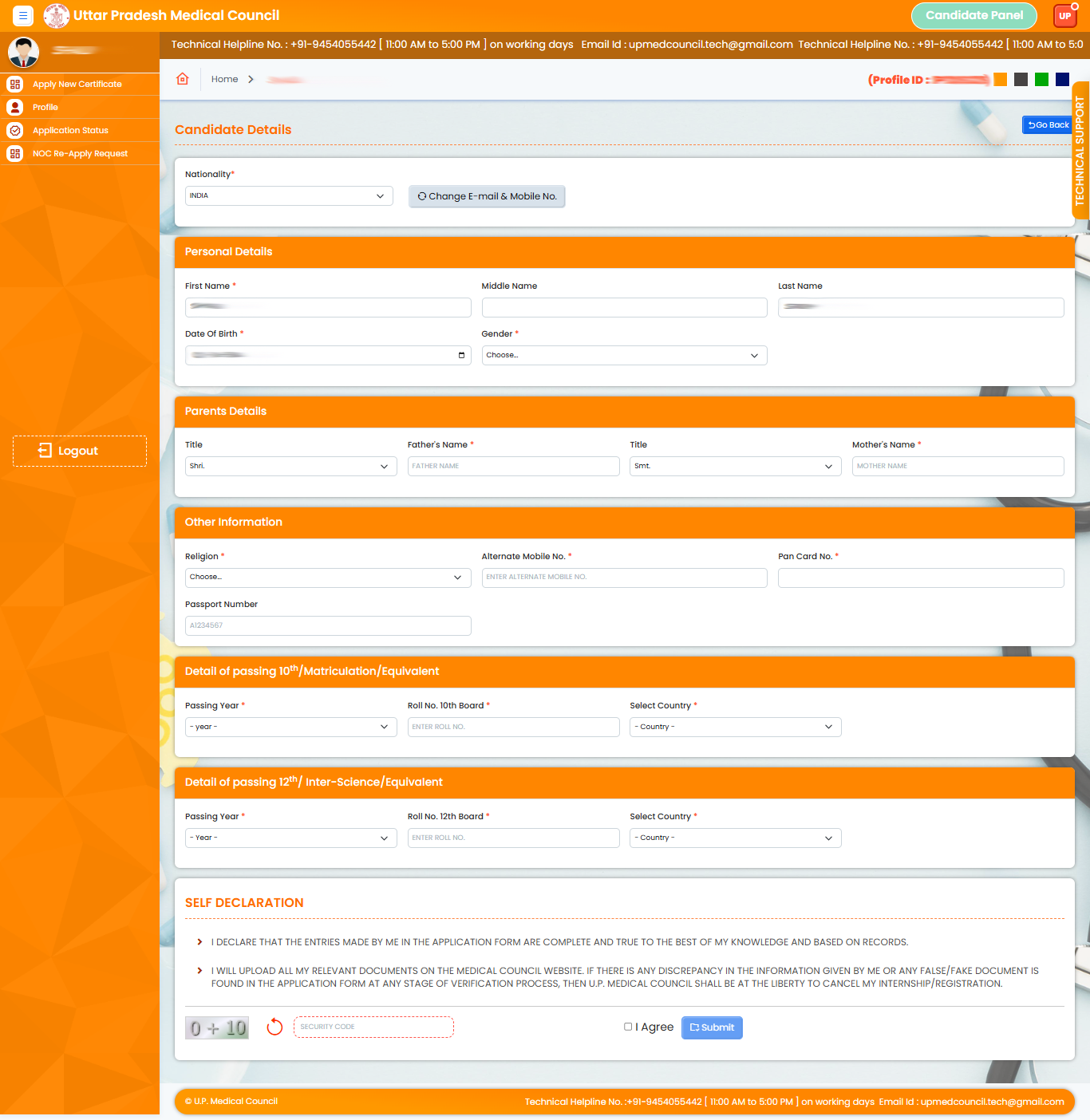
9. Enter all required student details, complete the captcha, tick the Self Declaration checkbox, and click Submit.
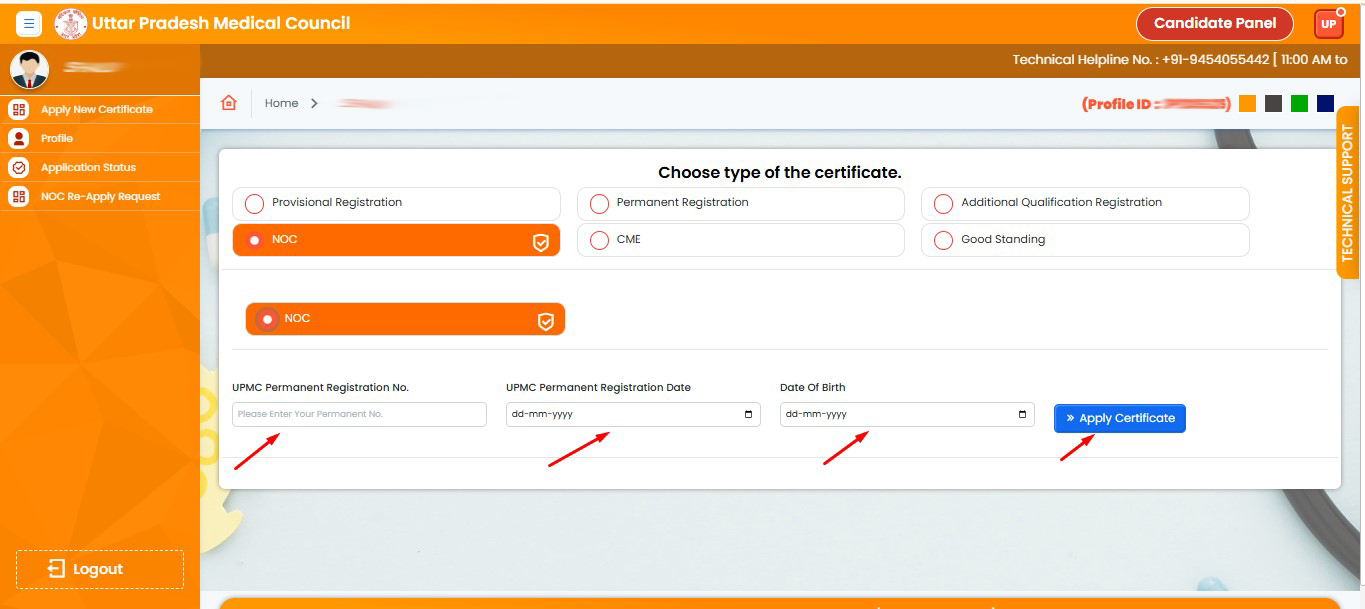
10. Select the NOC option,Enter your Permanent Registration No,Registration Date and Date of Birth, and click Apply Certificate.
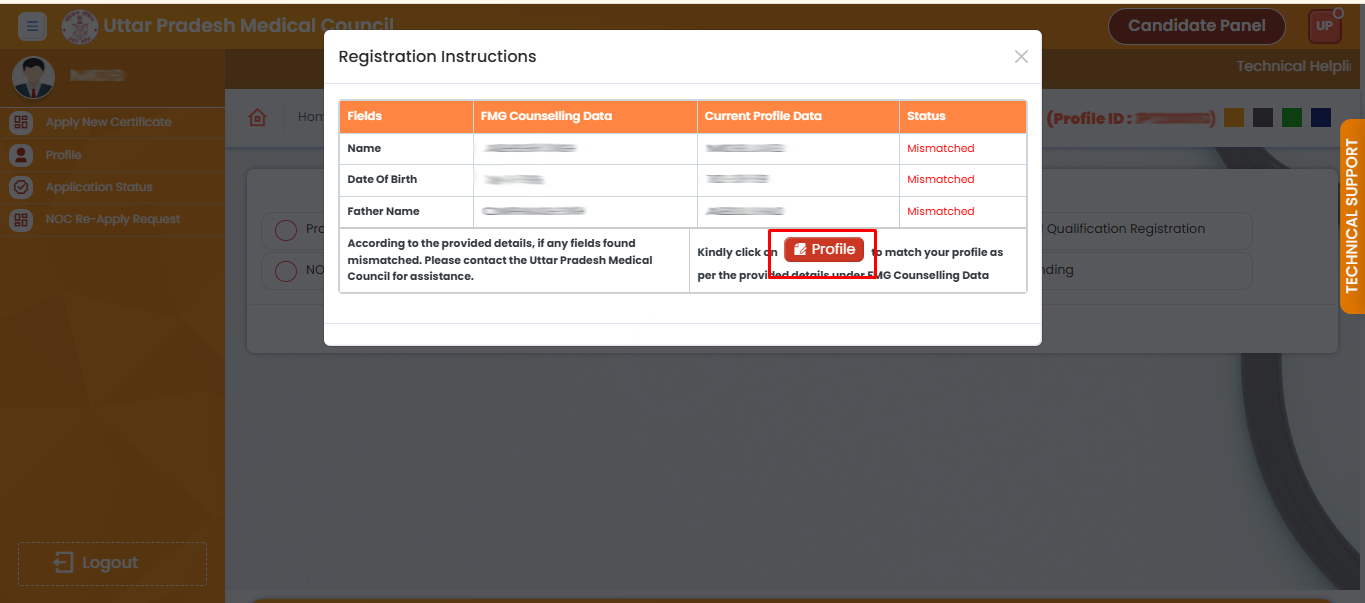
11. After Click Apply Certificate to open the popup and verify your details. If any information does not match, go to your profile and correct it.
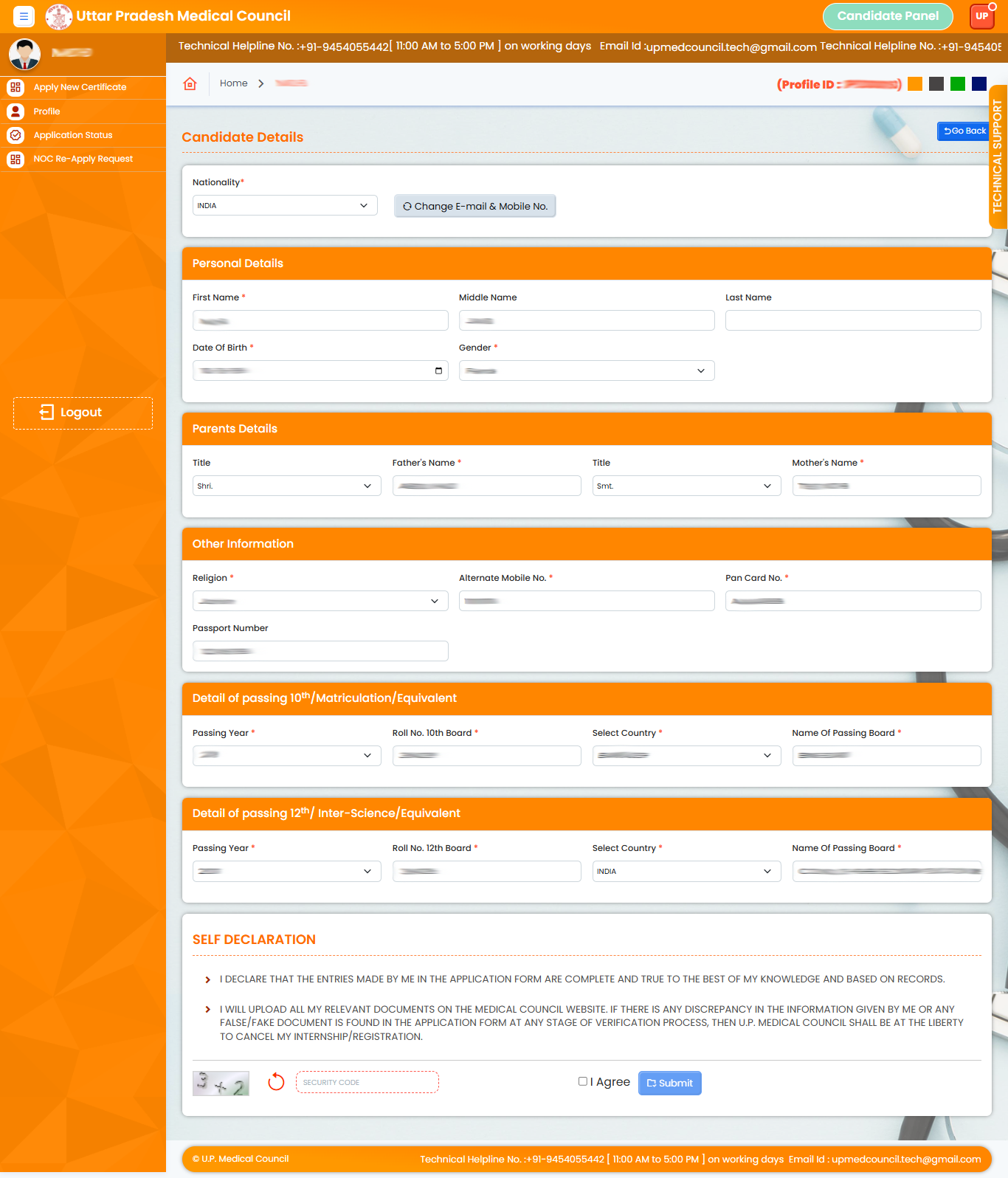
12. Enter the correct data again for the fields that were mismatched.
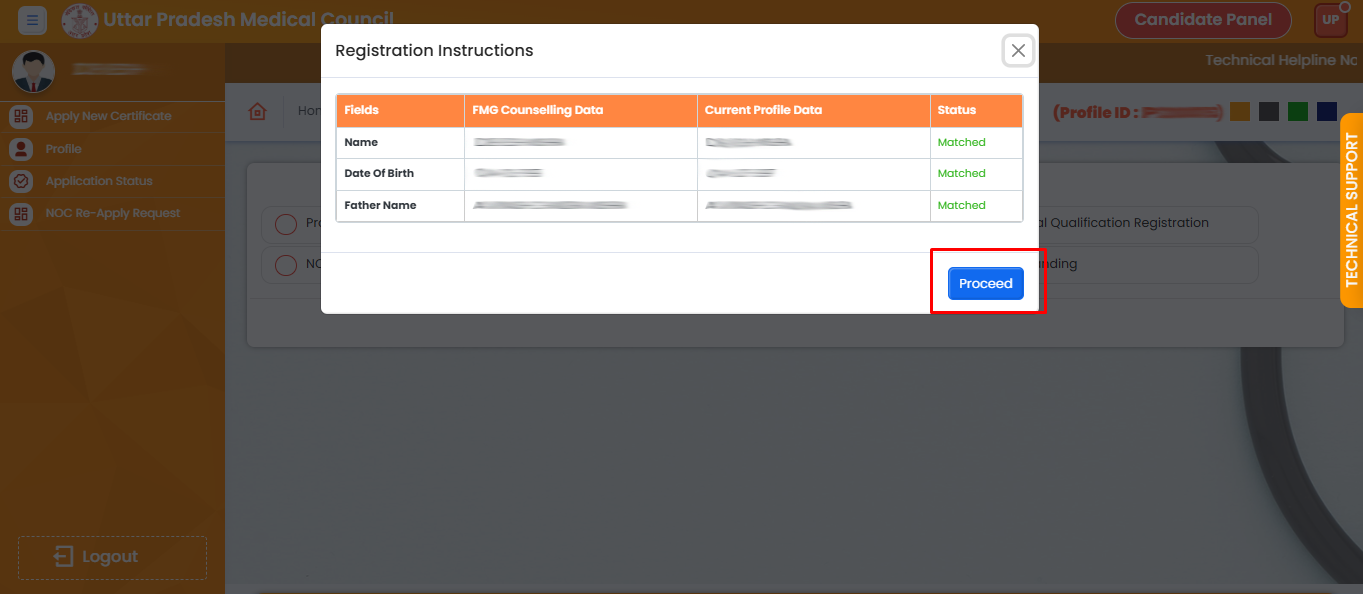
13. After all details match, click the Proceed button
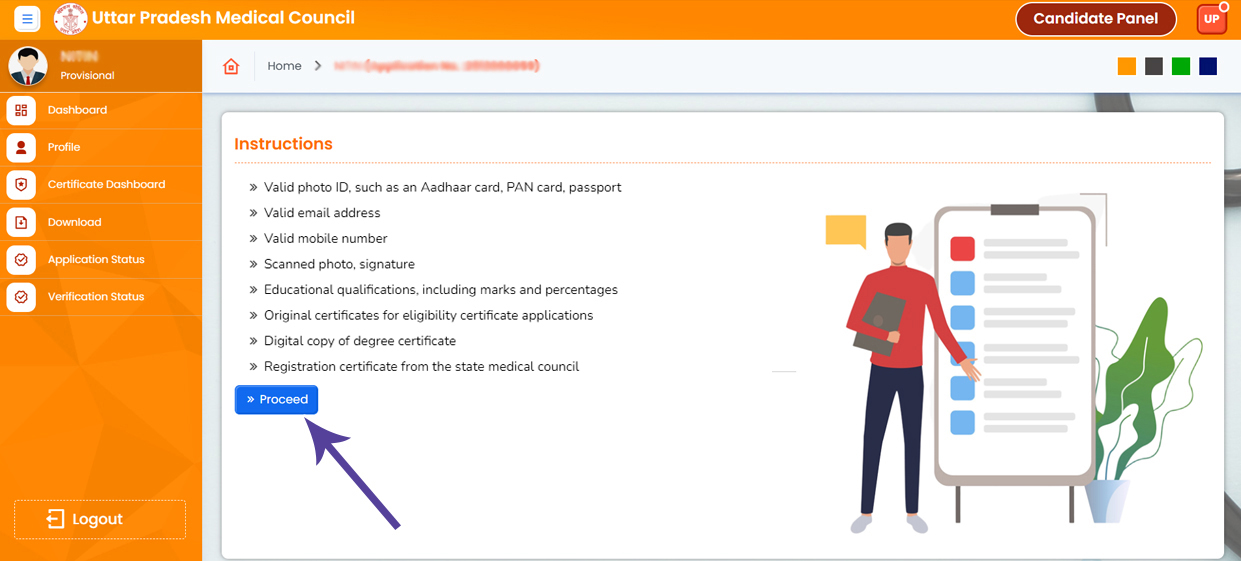
14. Read the instructions carefully and click the Proceed button.
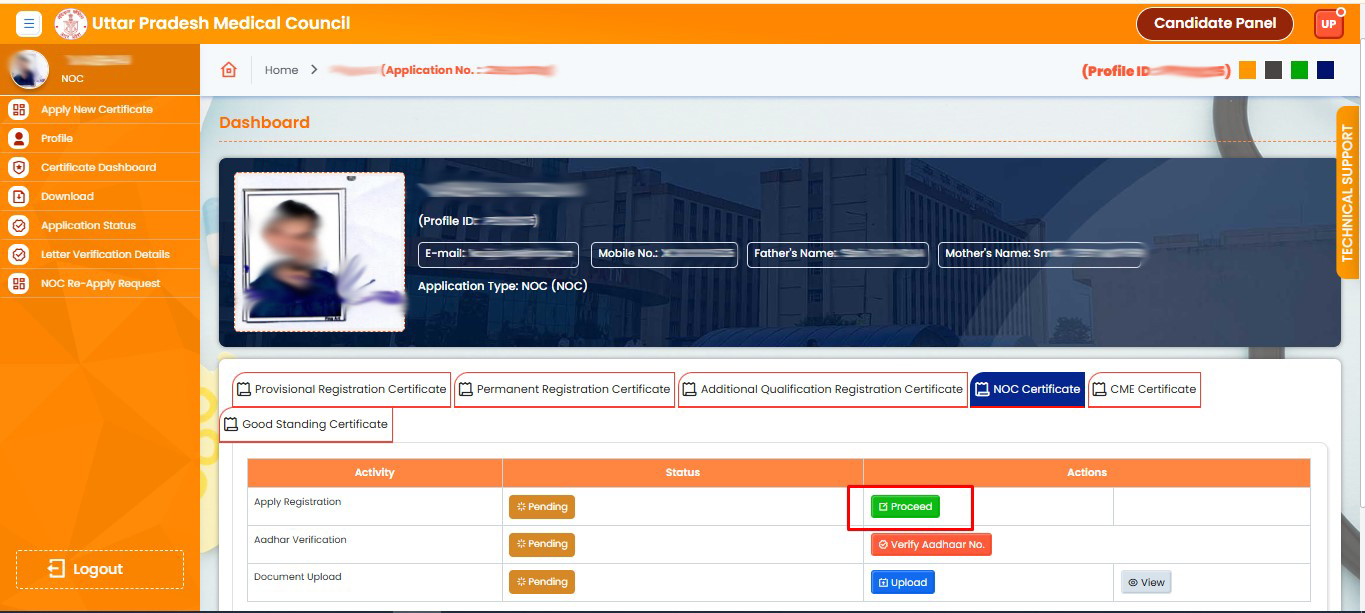
15. Click on Proceed button.
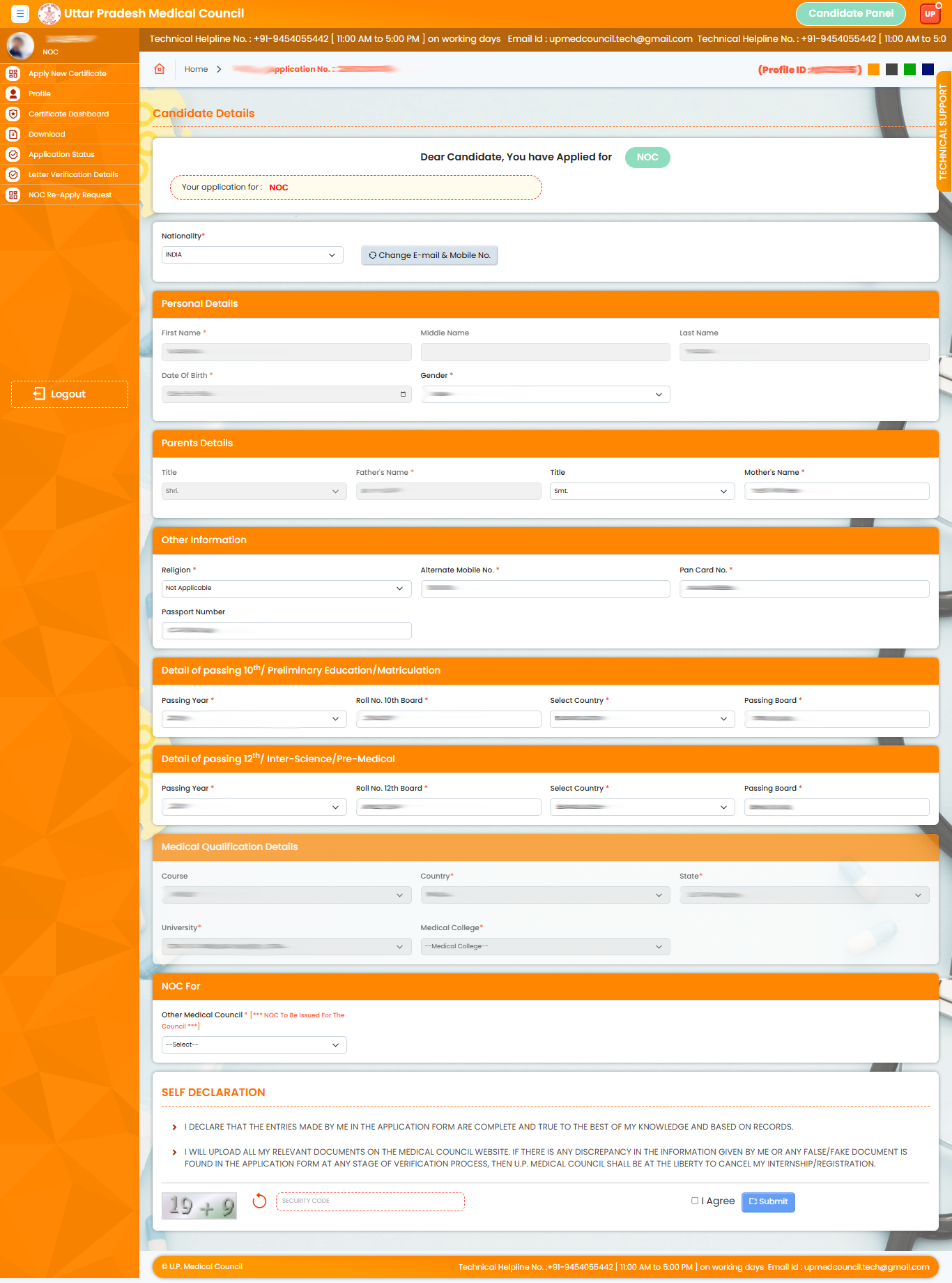
16. Now fill the form details. The fields that are disabled cannot be changed.Fill the Captcha and Click the Submit Button
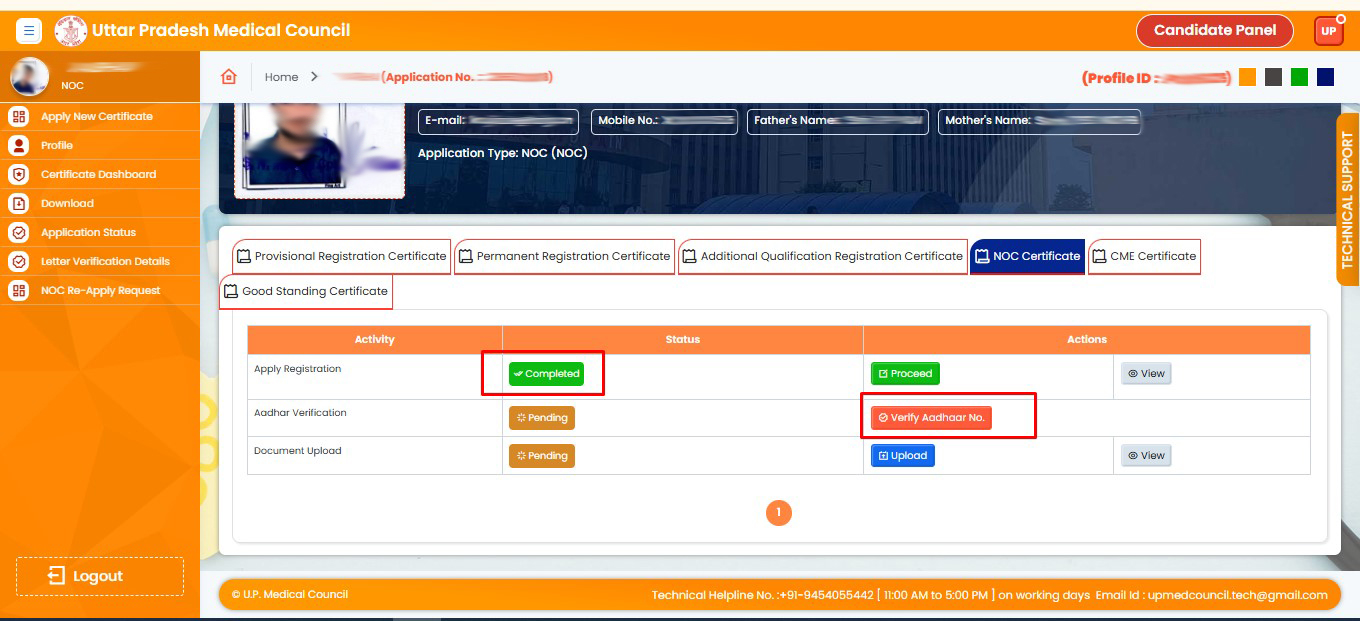
17. Aadhar verification is pending so click on Verify Aadhaar No button.
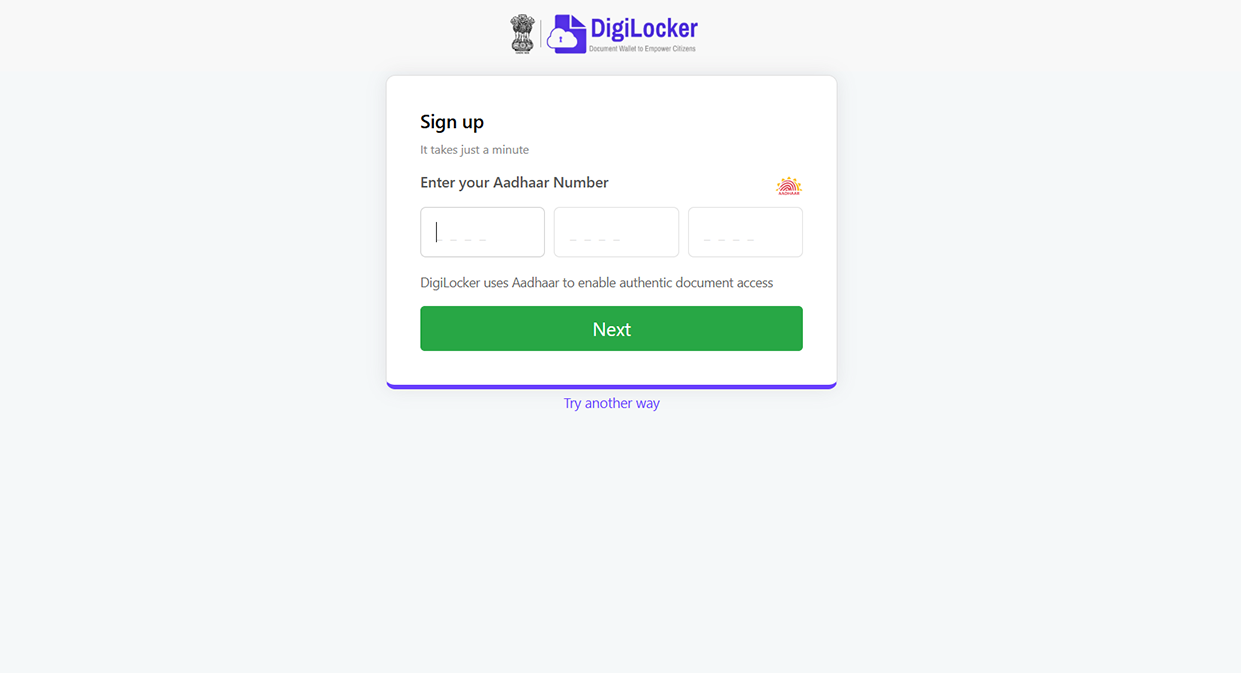
18. Please enter your aadhaar card number
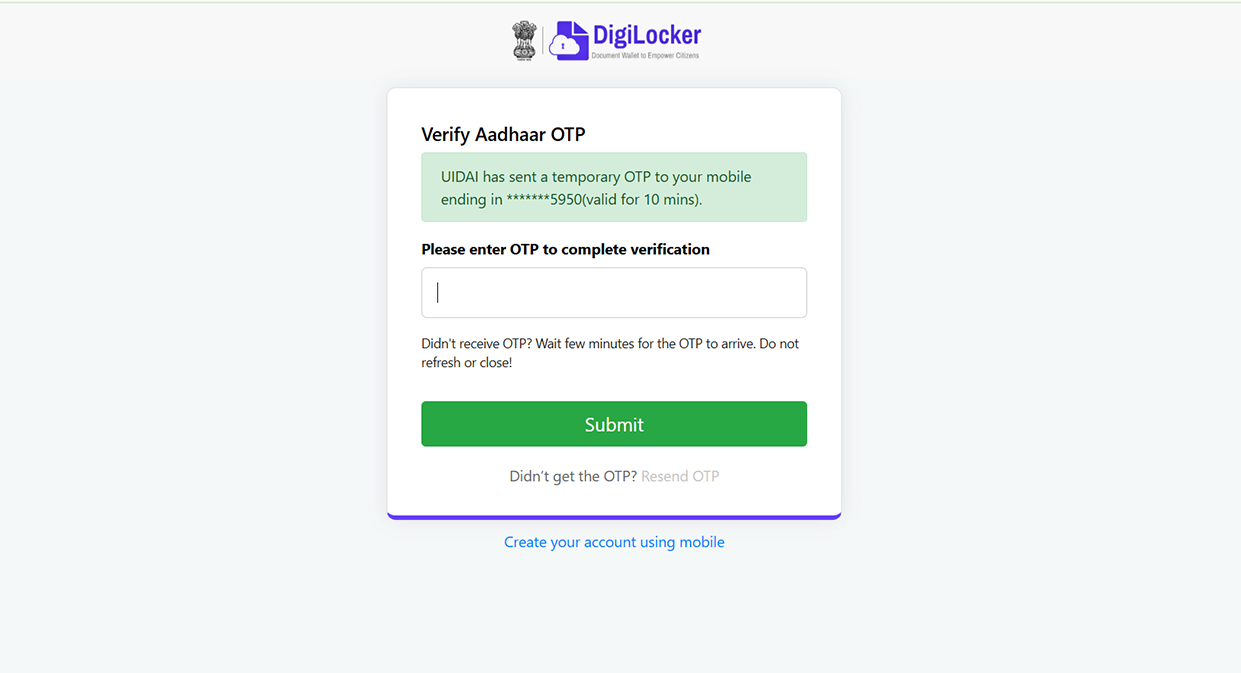
19. Check your Aadhaar-linked mobile number for the OTP.
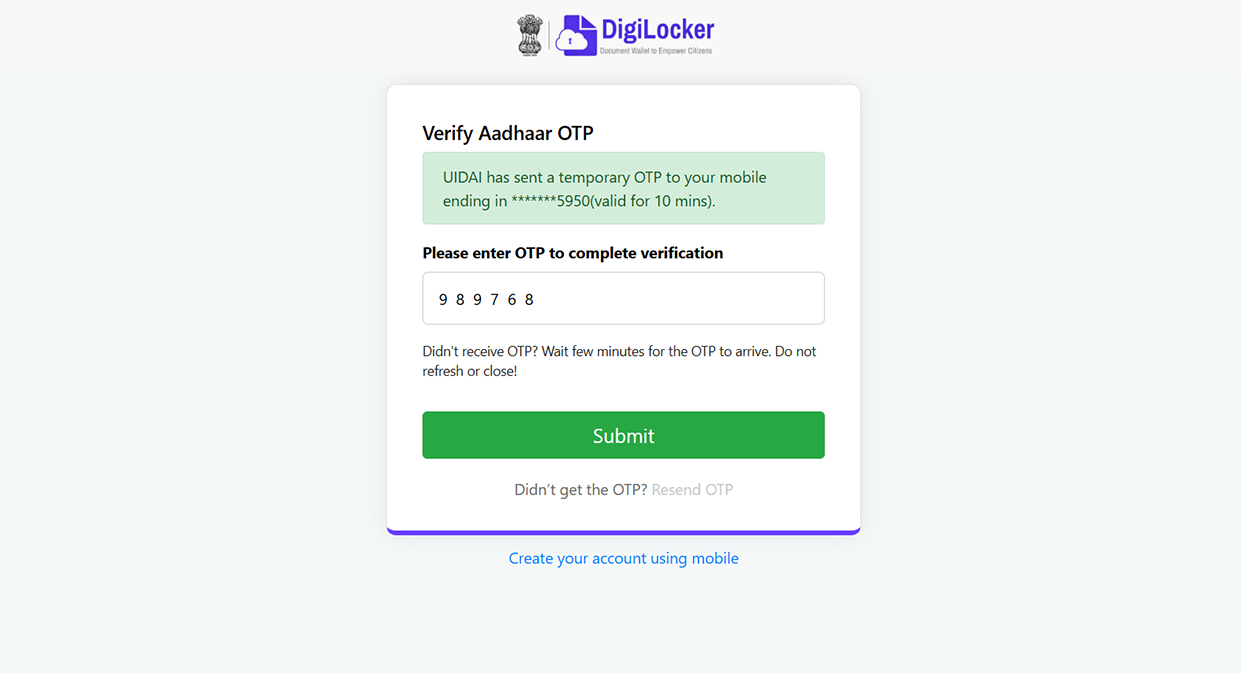
20. Please enter the OTP sent to your Aadhaar-linked mobile number to verify your identity.
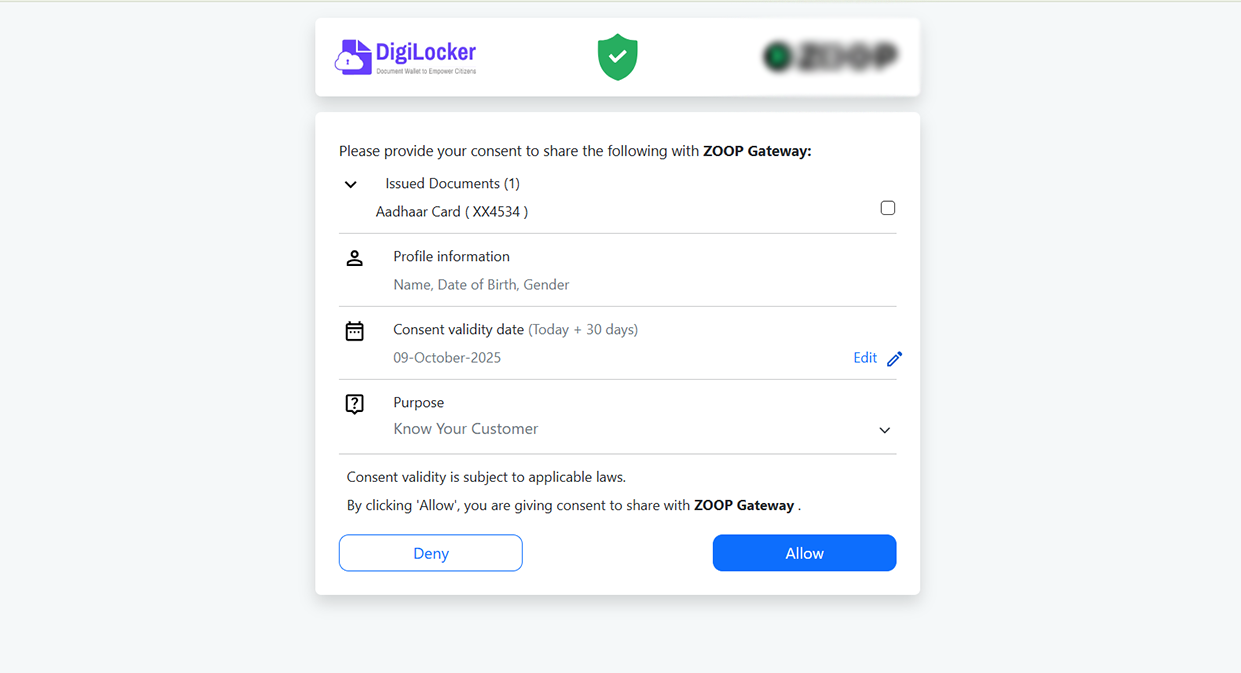
21. Please tick the checkbox and click on the Allow button to continue.
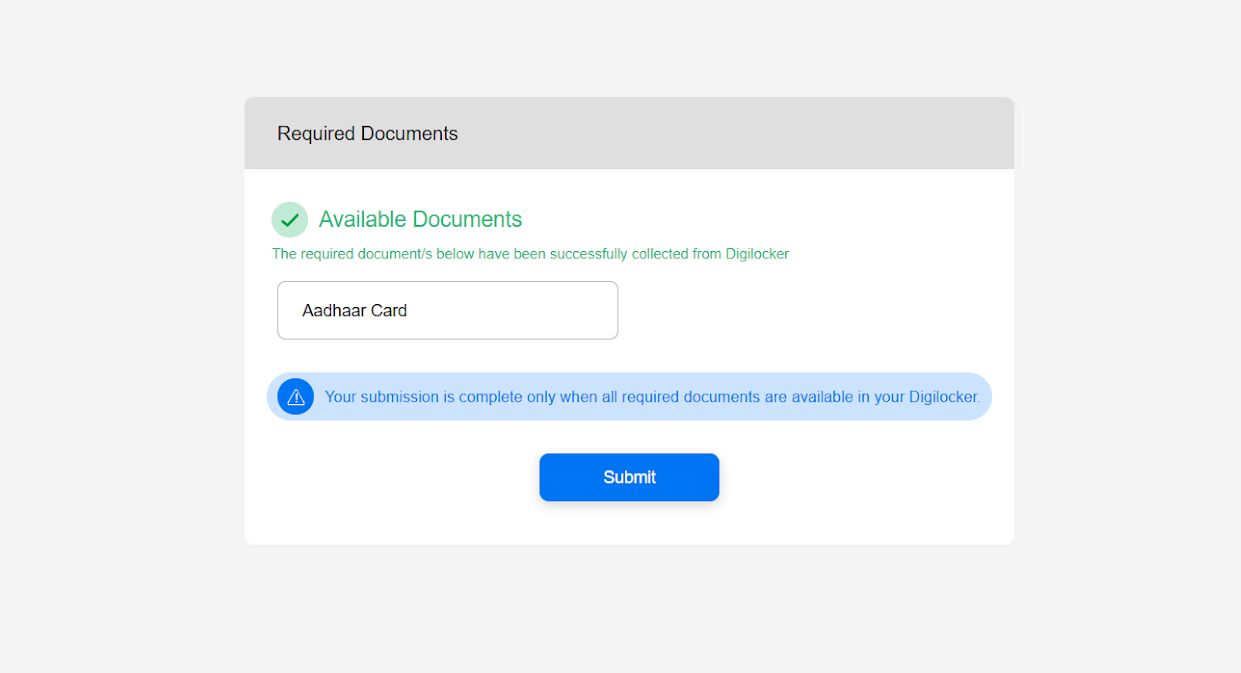
22. And click Submit.
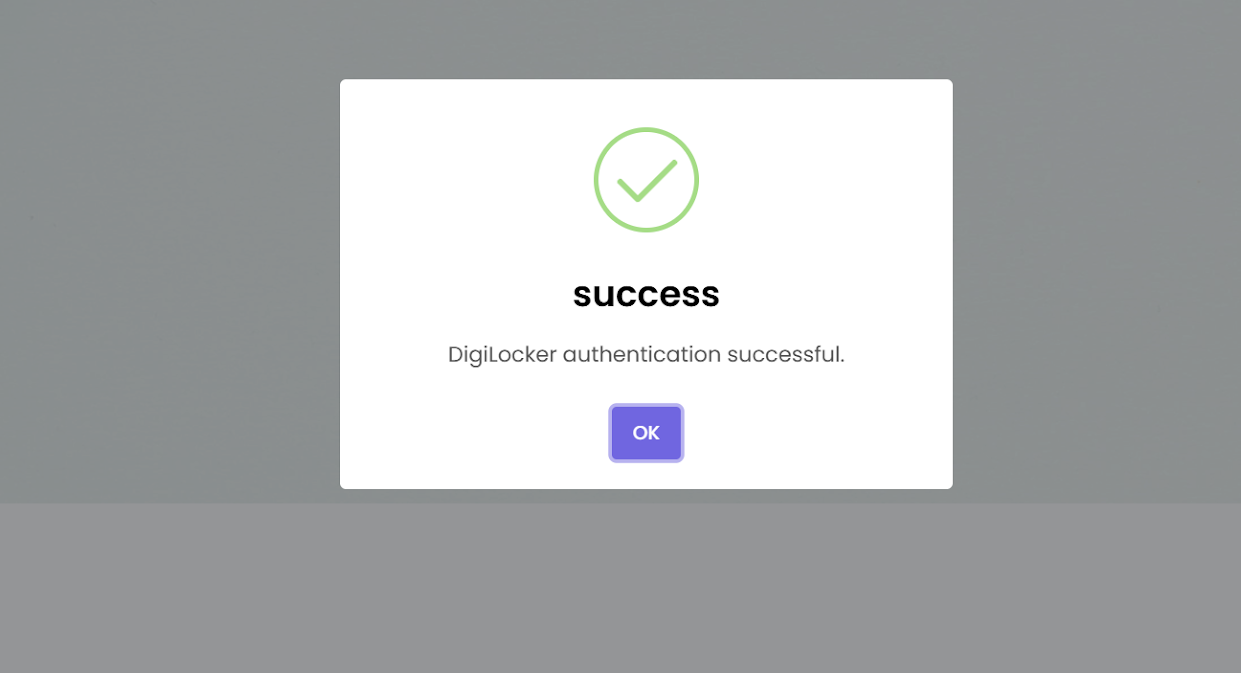
23. Your Aadhaar has been successfully verified through DigiLocker.
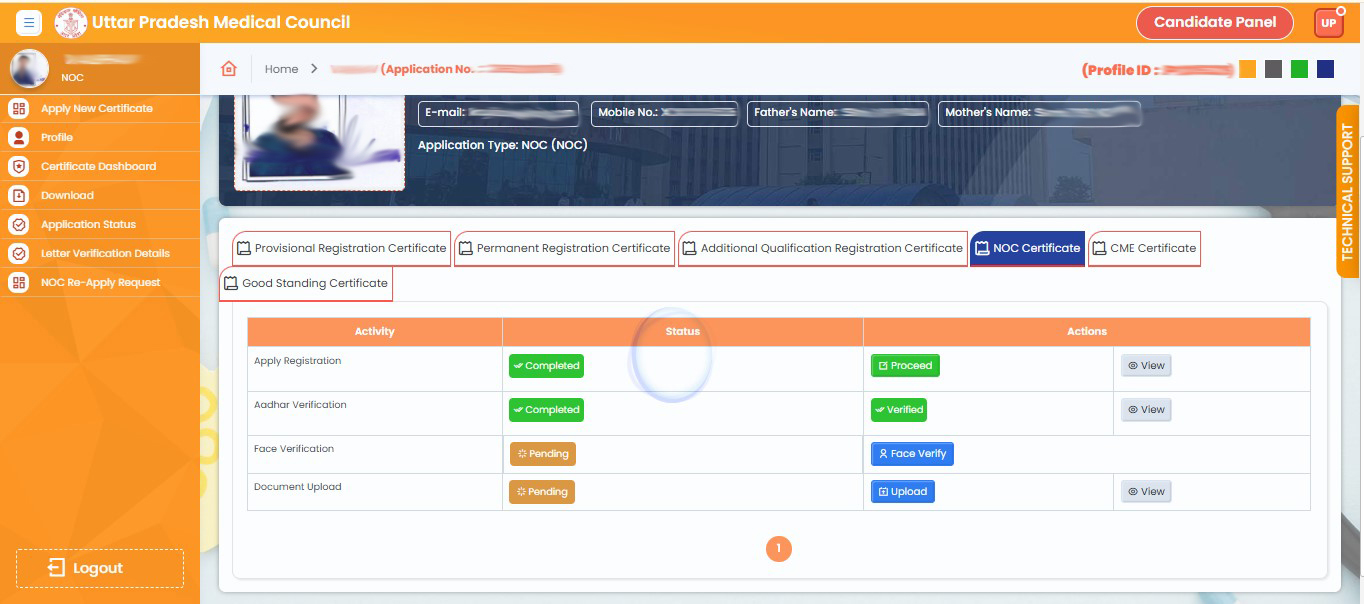
24. Please click here to proceed with face verification.
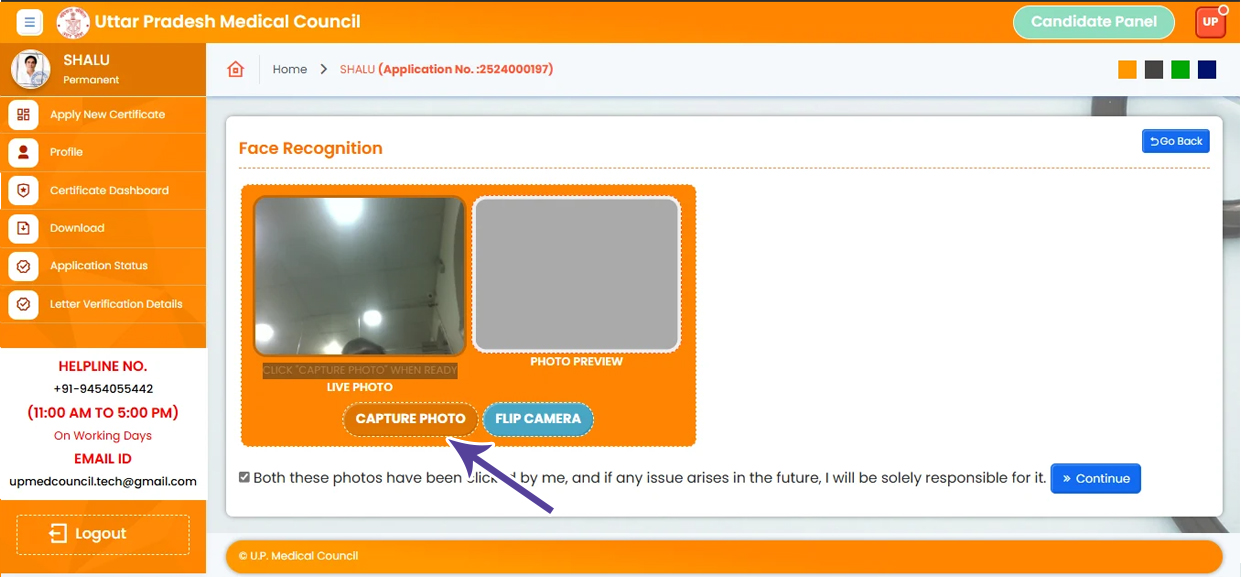
25. Capture your image to proceed with face verification.
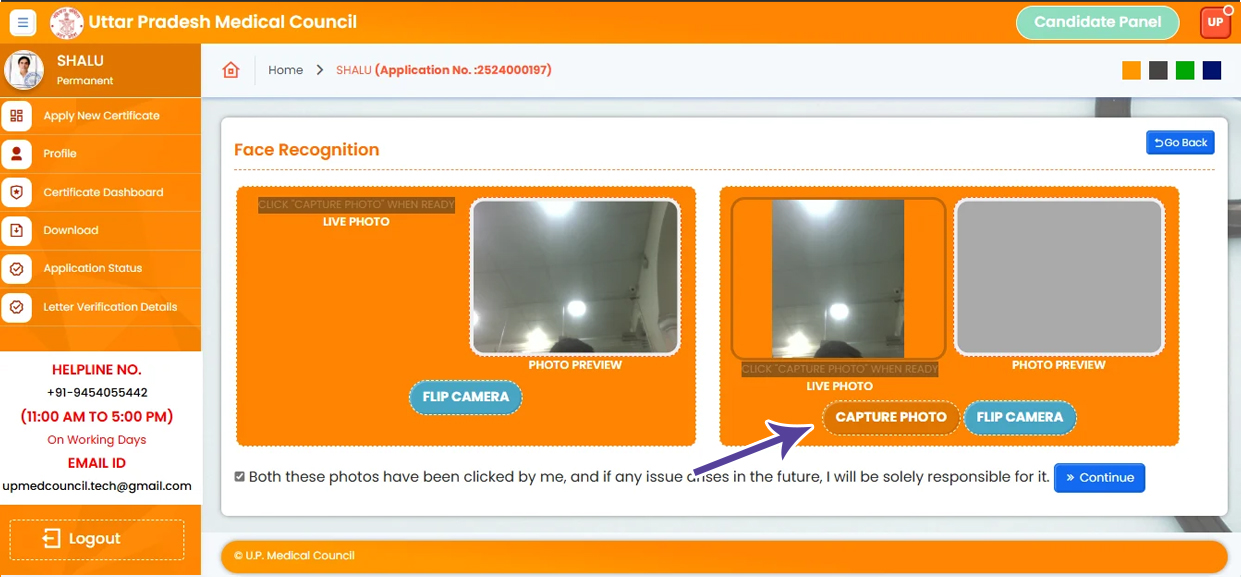
26. Capture your image Again to complete face verification.
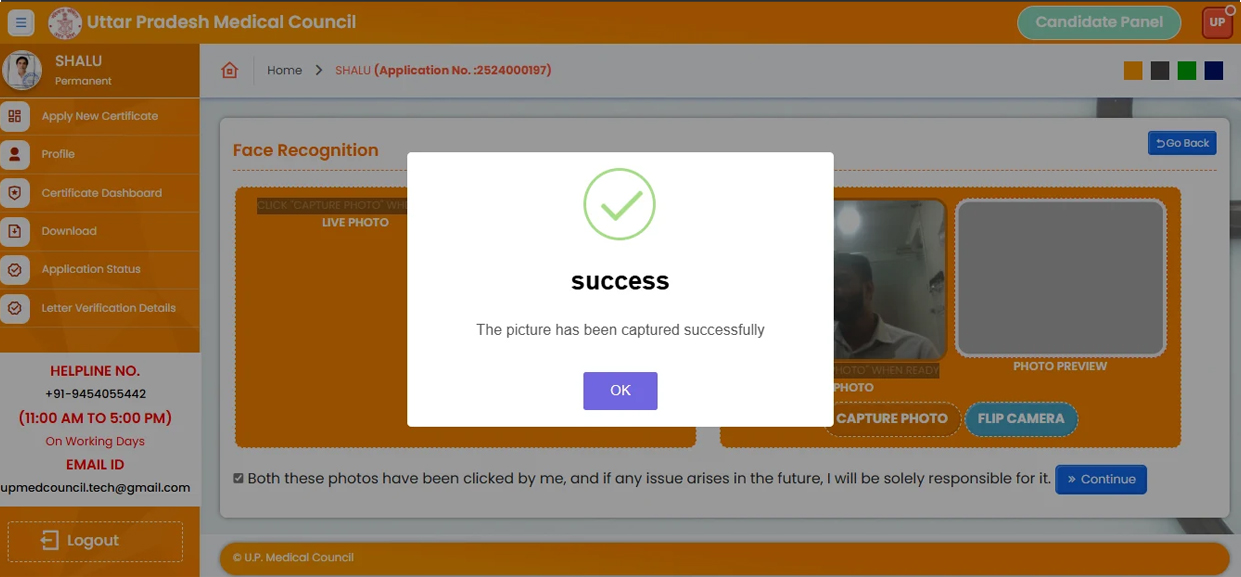
27. Face image successfully captured. Proceeding to the next step.
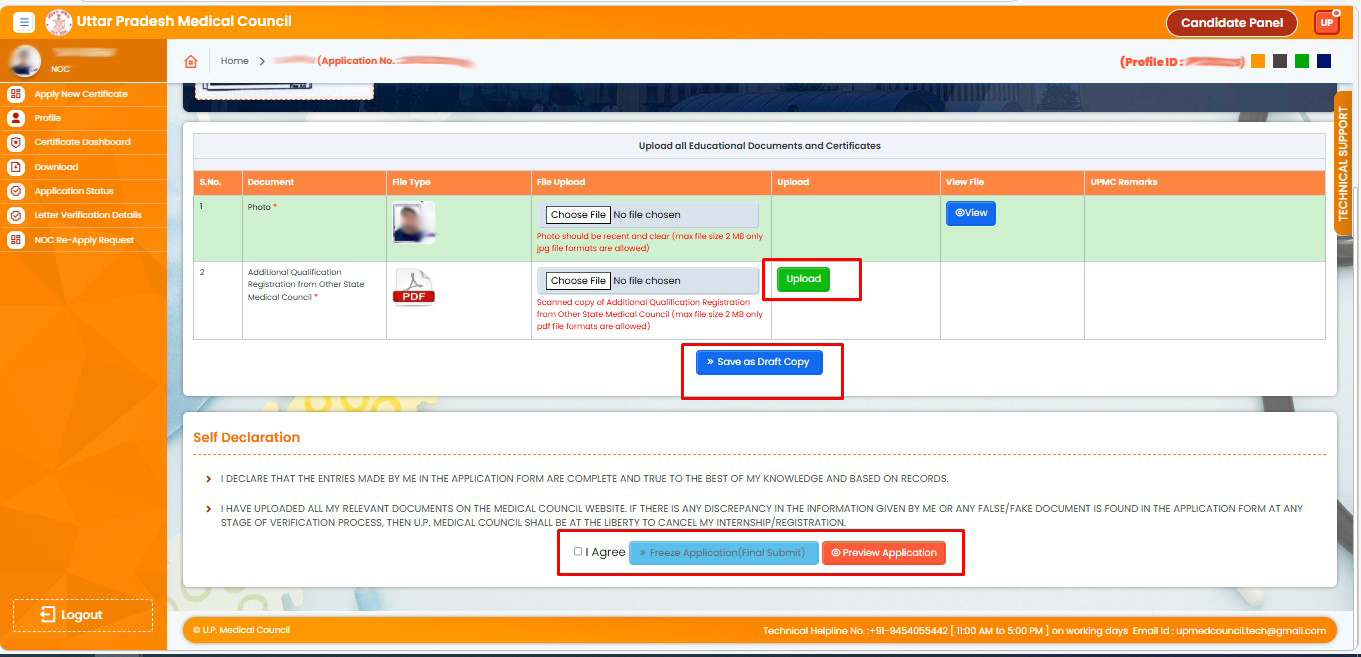
28. Now upload all your documents as per the given list. After saving the draft, you can Freeze Application (Final Submit) & Preview Application.
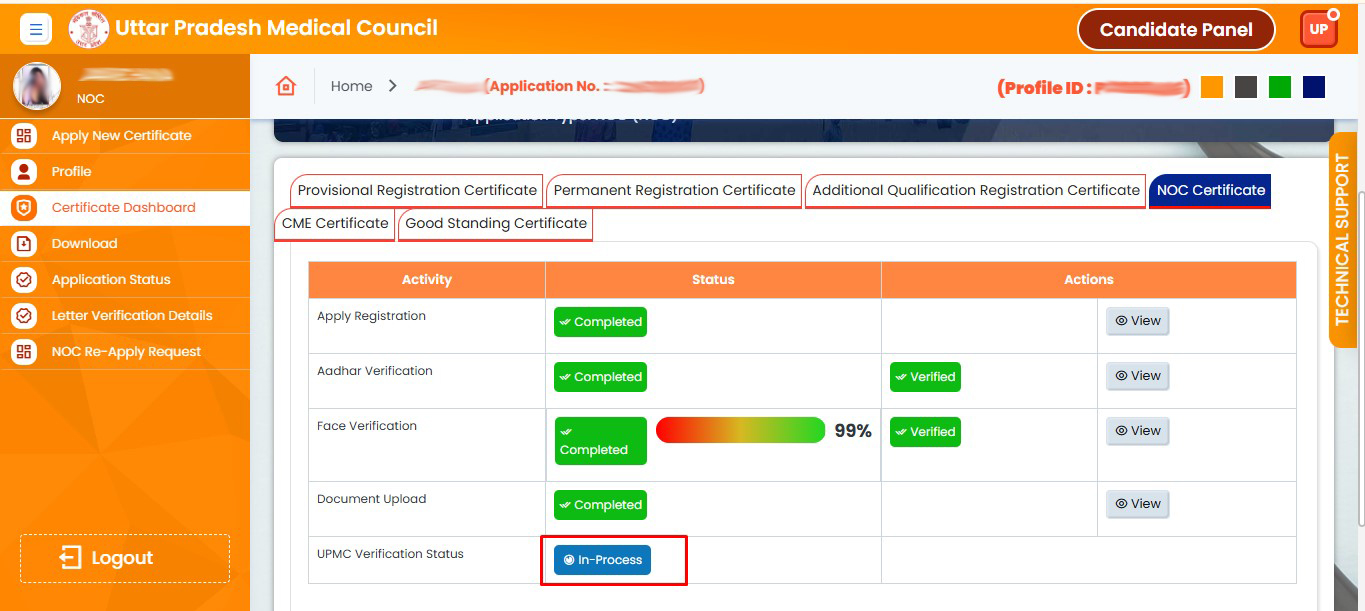
29. After uploading all documents,UPMC will review them. Once approved, the 'Completed will appear here.
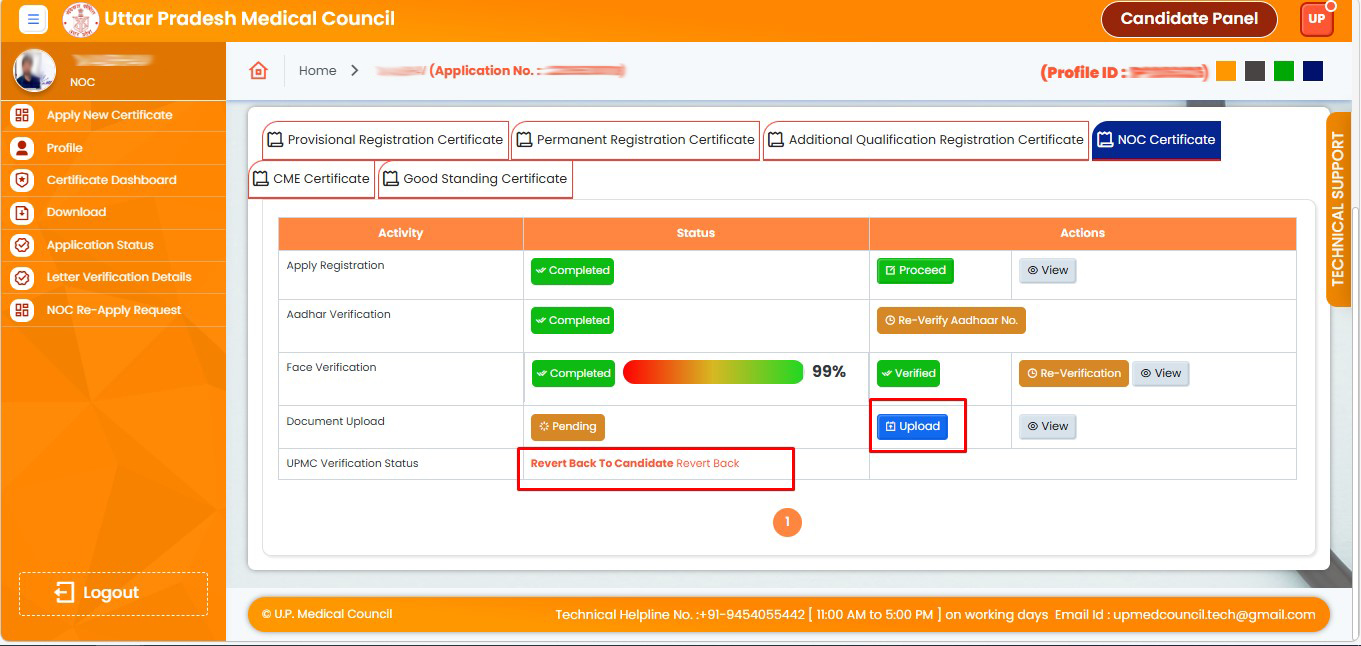
30. Your application has been returned by the UPMC. Please re-upload your documents.If there is an issue with your application or documents, your application will be returned by the UPMC. Please re-upload your documents.
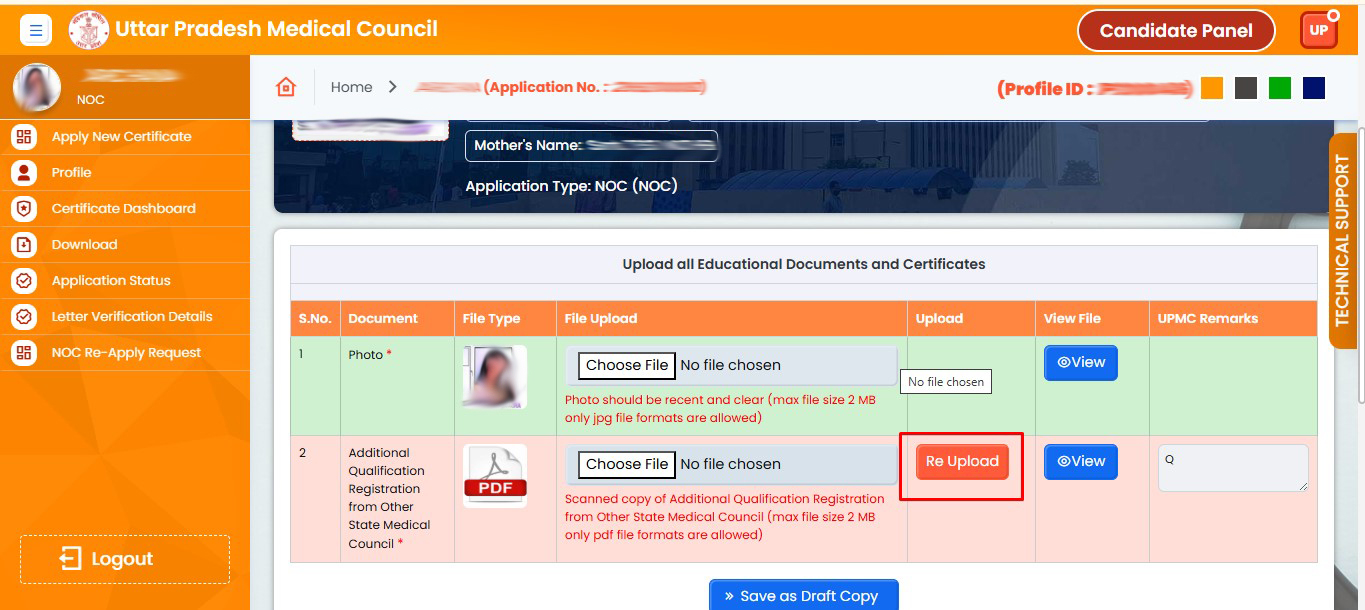
31. Choose the document, then click "Re-upload"
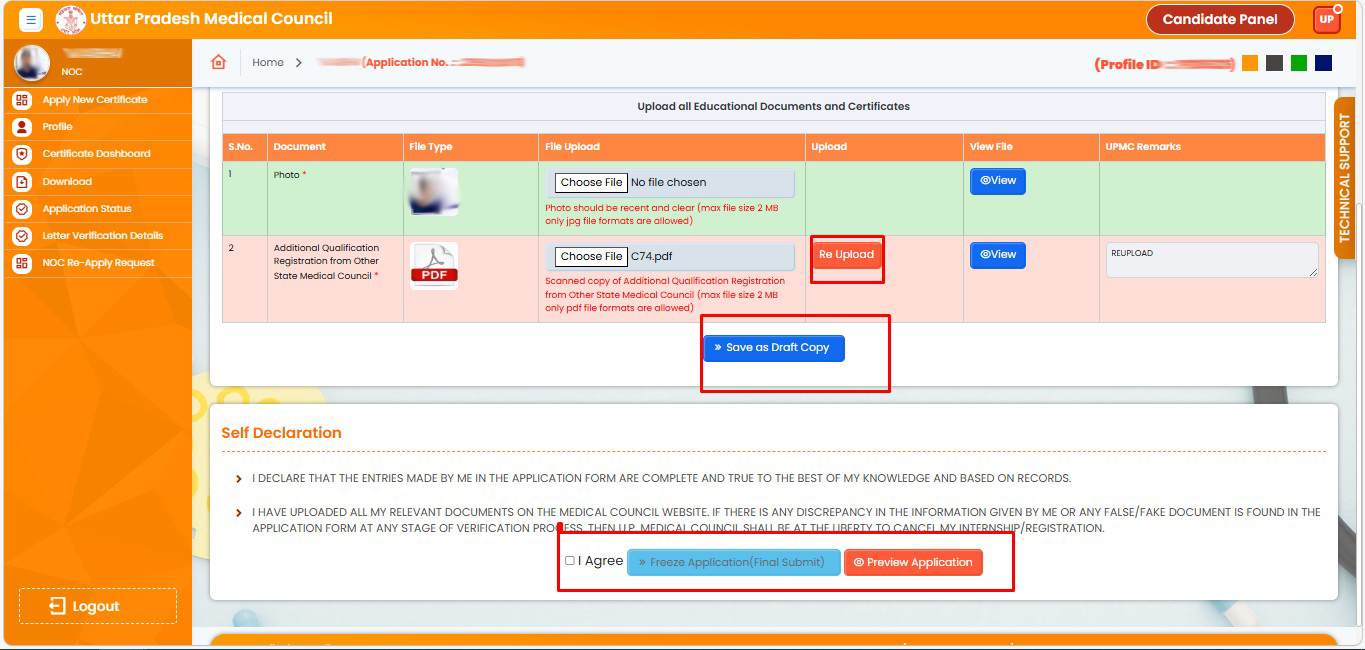
32. Upload all re-uploaded documents, click on "Save as Draft", and then agree to finalize (freeze) the application
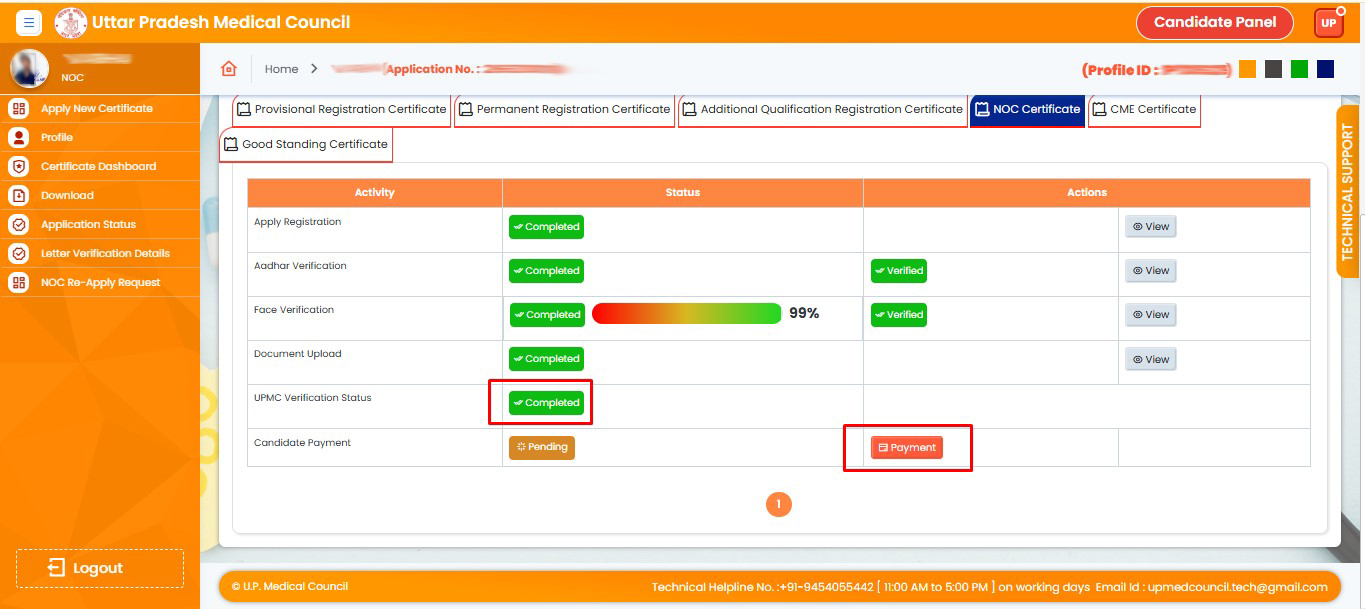
33. After your details are verified by the UPMC, just click the Payment button to continue.
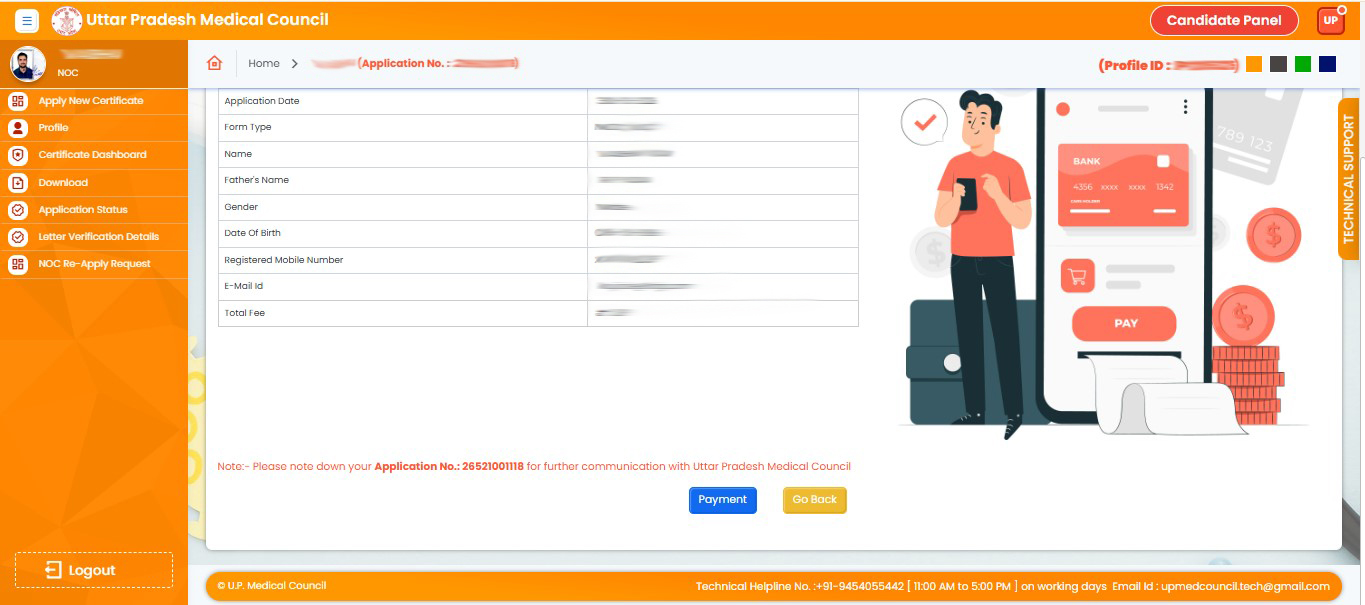
34. Please proceed with your payment now.
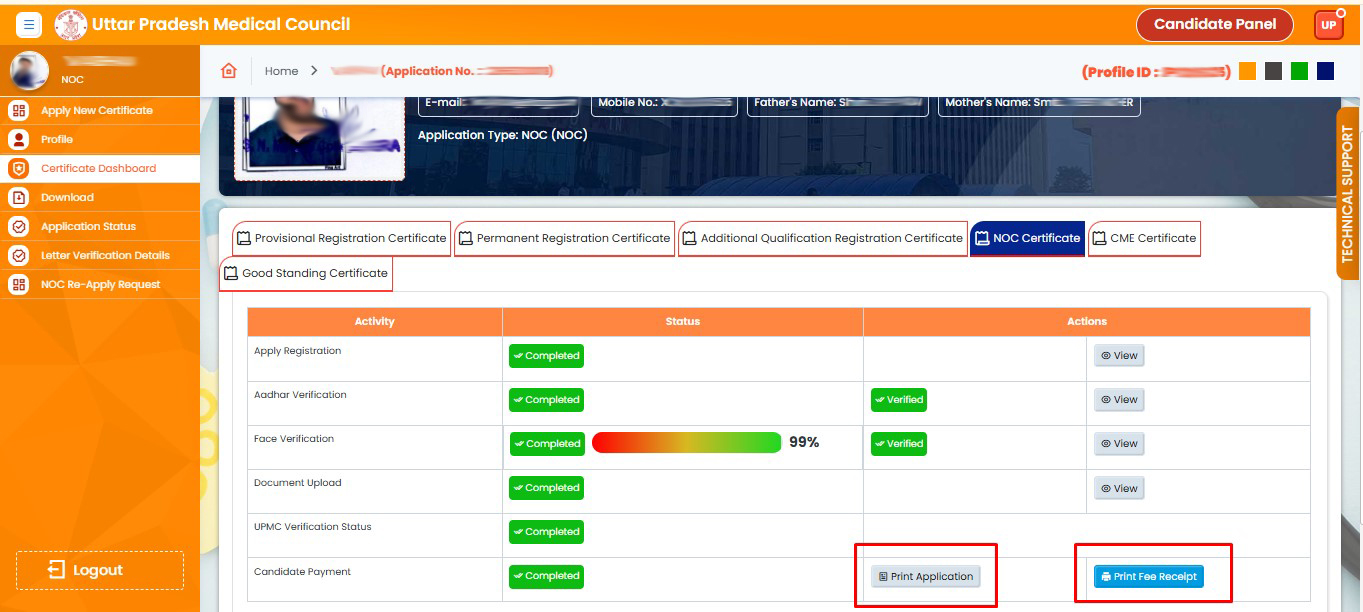
35. You can now see that your payment reciept and view your Application Print as well.
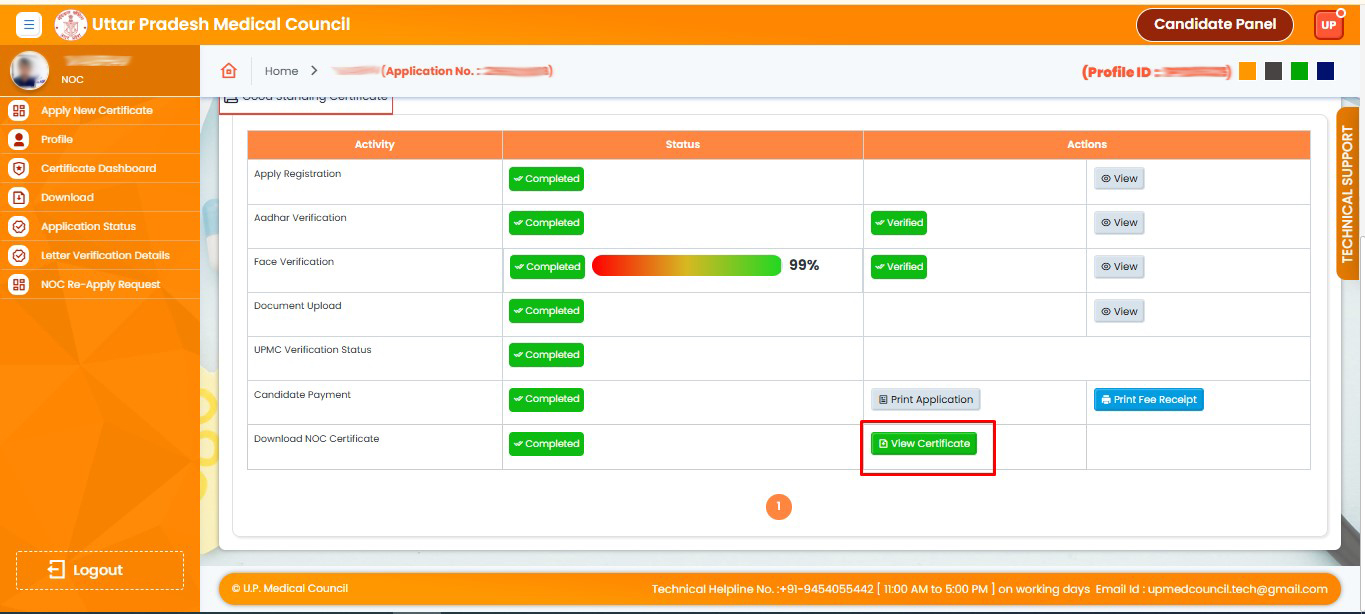
36. Your NOC Certificate has been sent by UPMC. You can now download it.
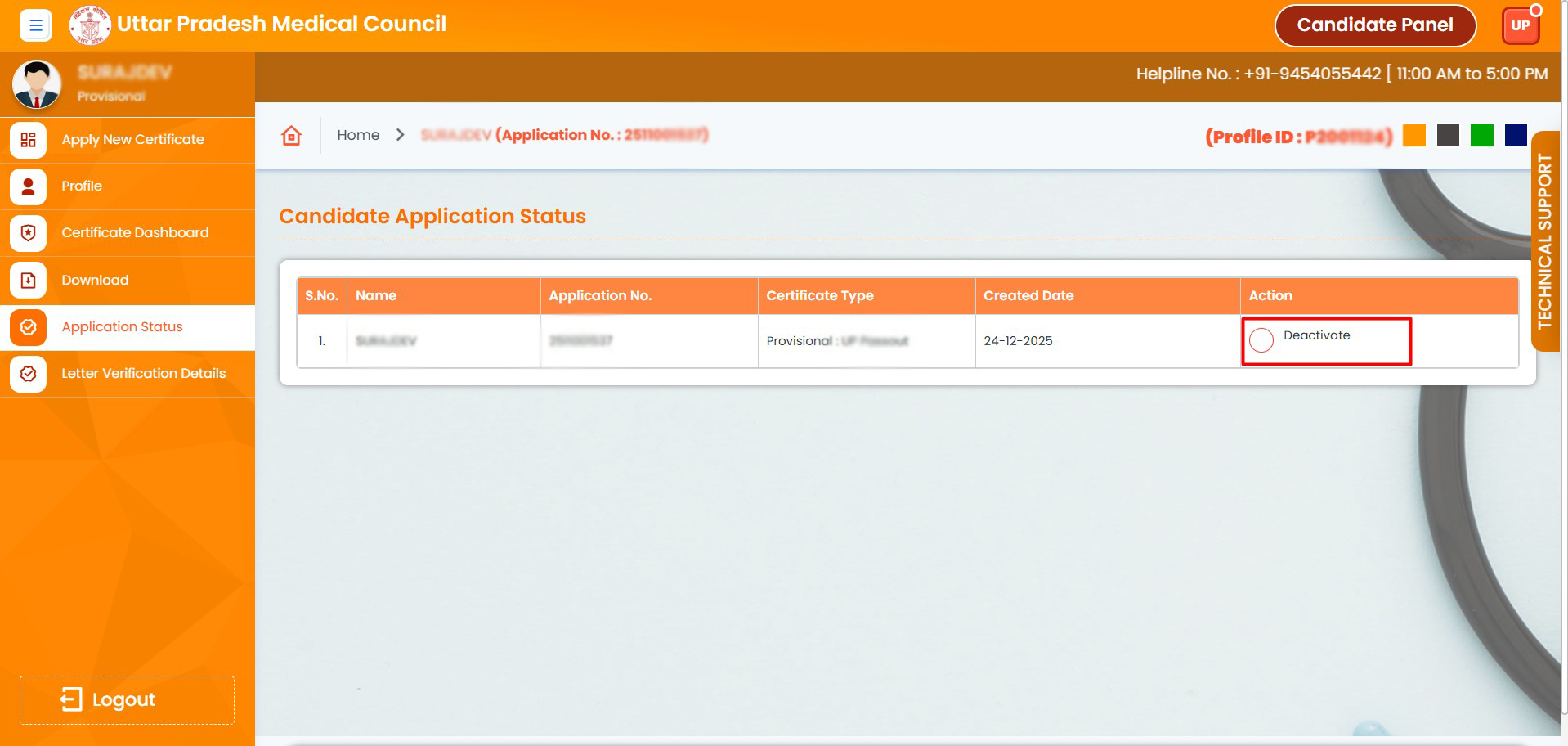
37. Please click on the "Deactivate" button to deactivate your application
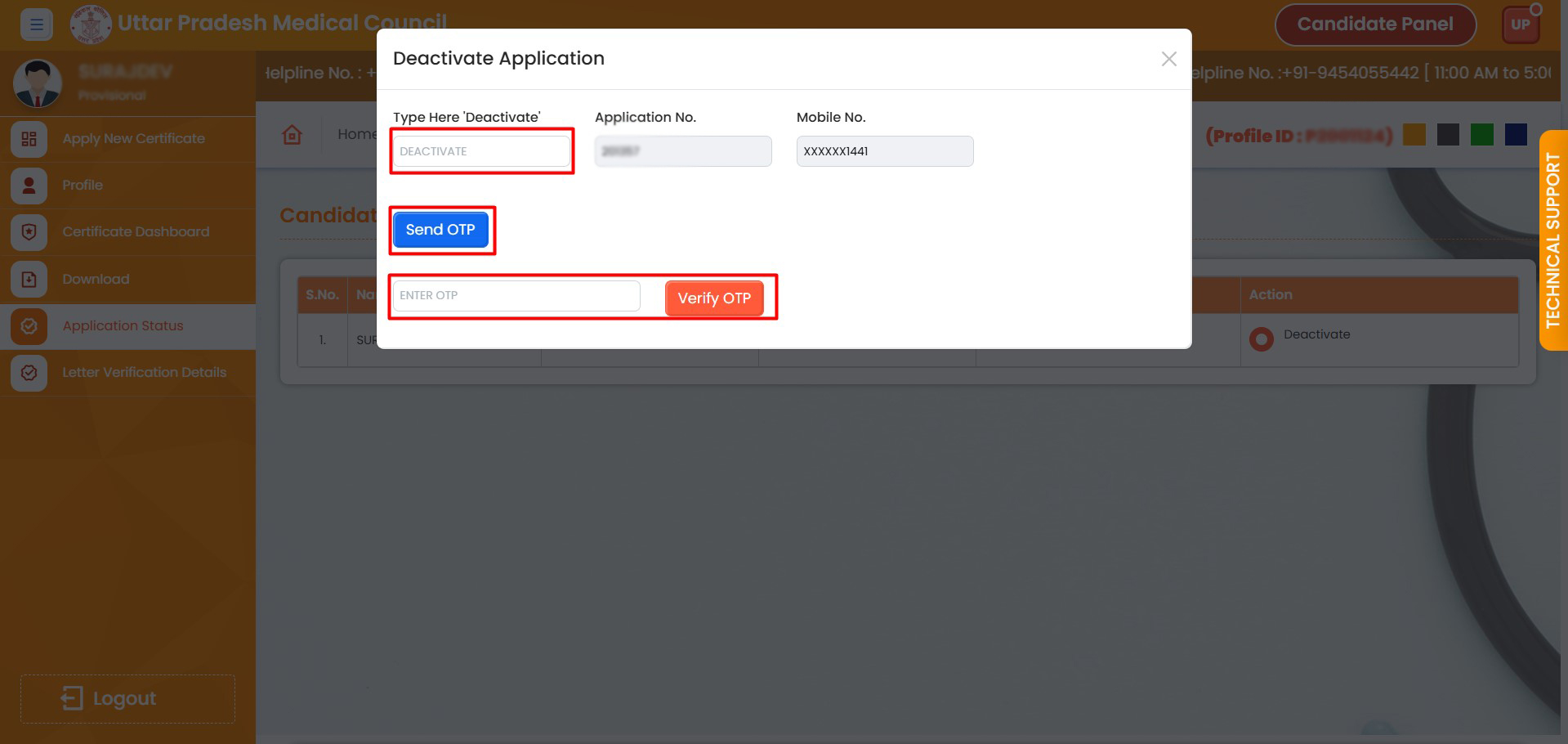
38. Enter "Deactivate" in the field, click "Send OTP", then enter the OTP and verify.
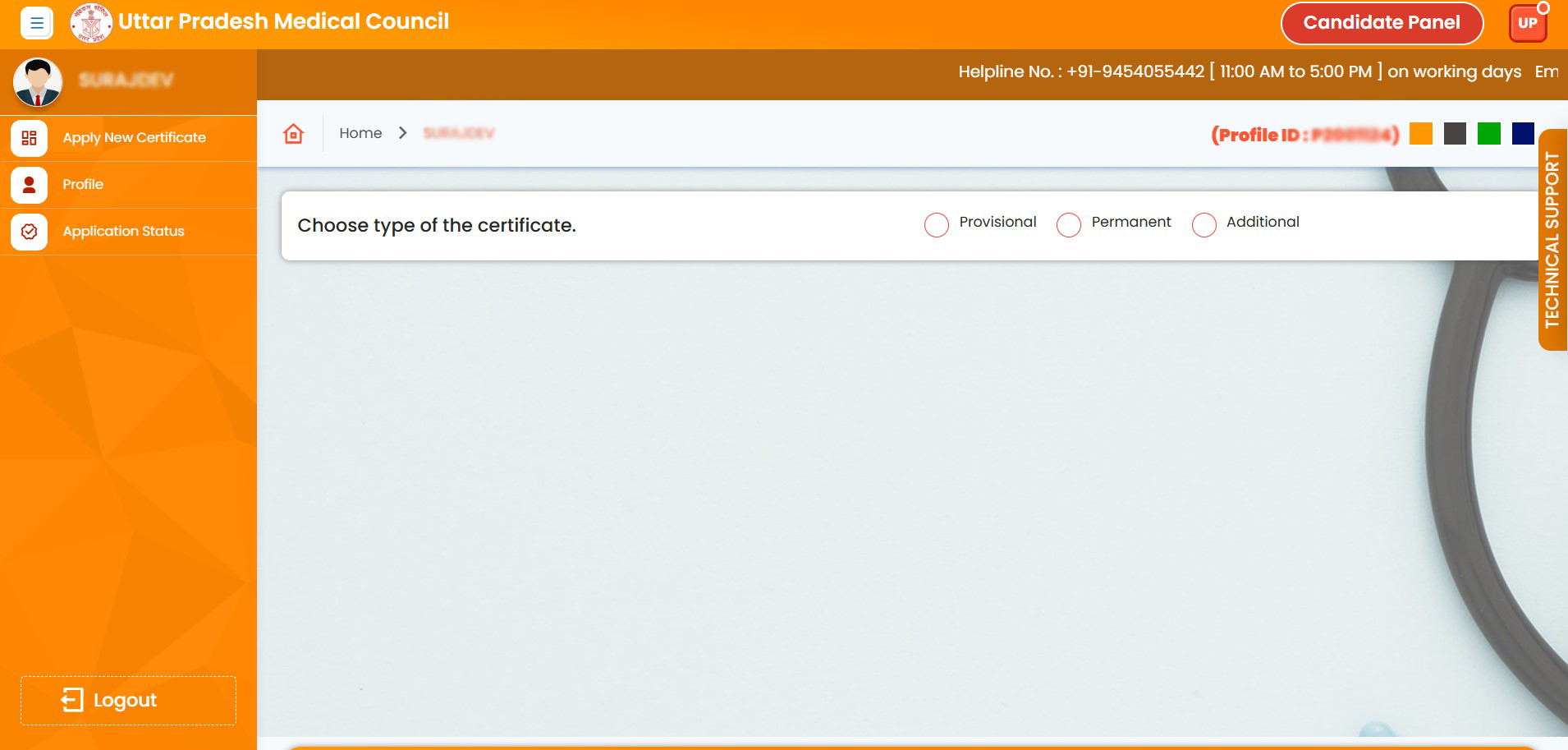
39. Your application has been deactivated. You can apply again for a fresh application