
User Manual for Permanent Other State
Help Desk
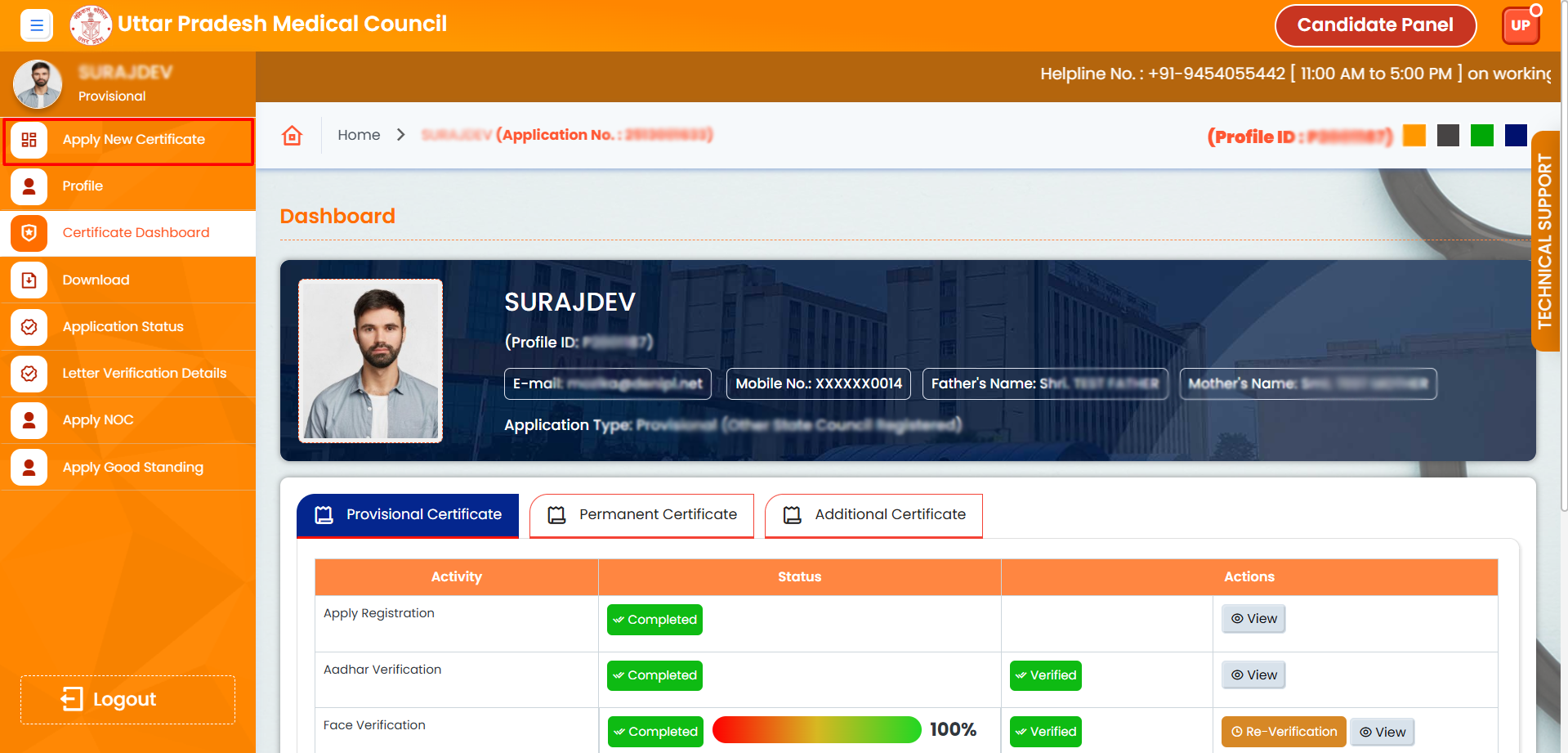
1. Click on the ‘Apply New Certificate’ menu to apply for a new certificate.”
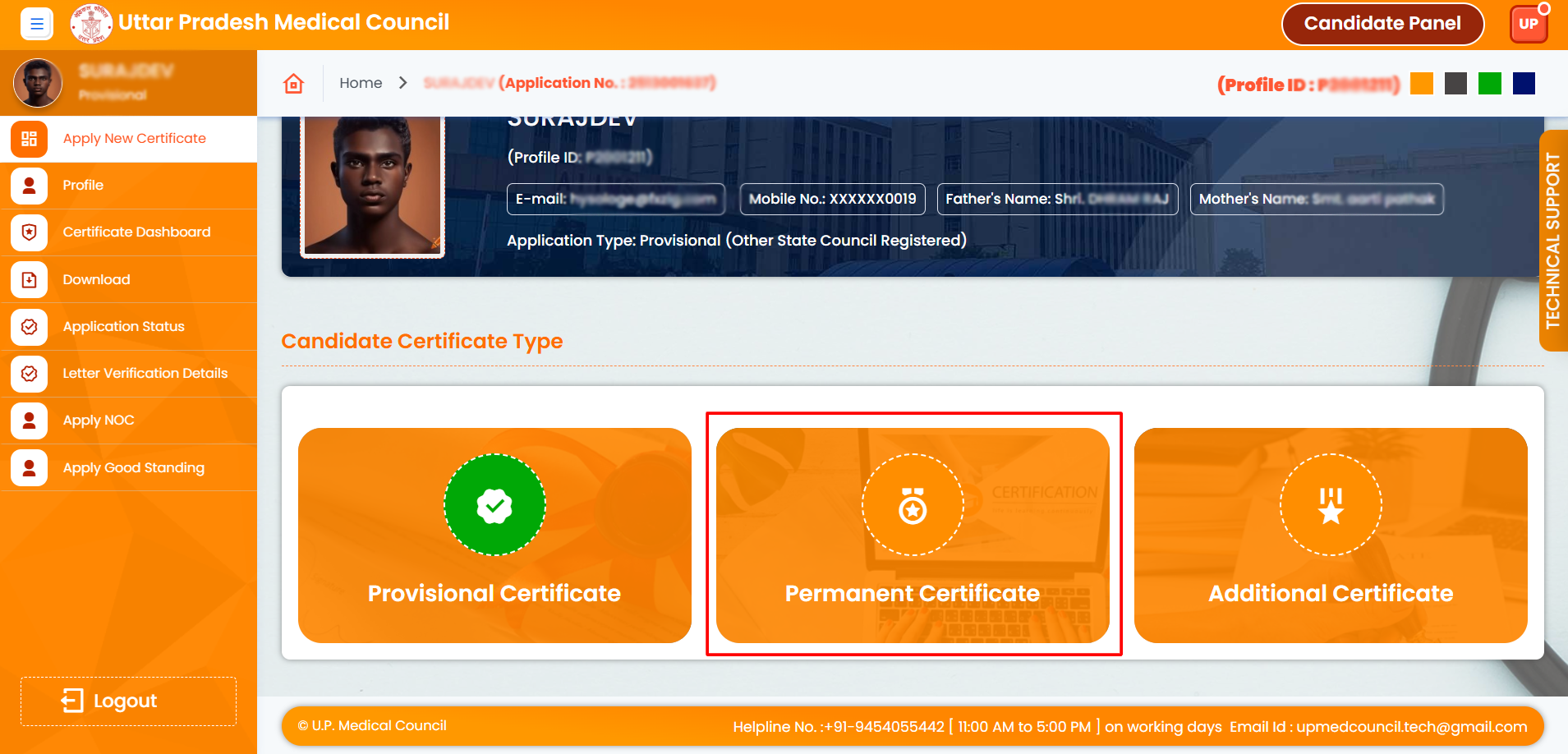
2. To apply for a Permanent Certificate, click on the ‘Permanent Certificate’ card. Your Provisional Certificate must be completed first.
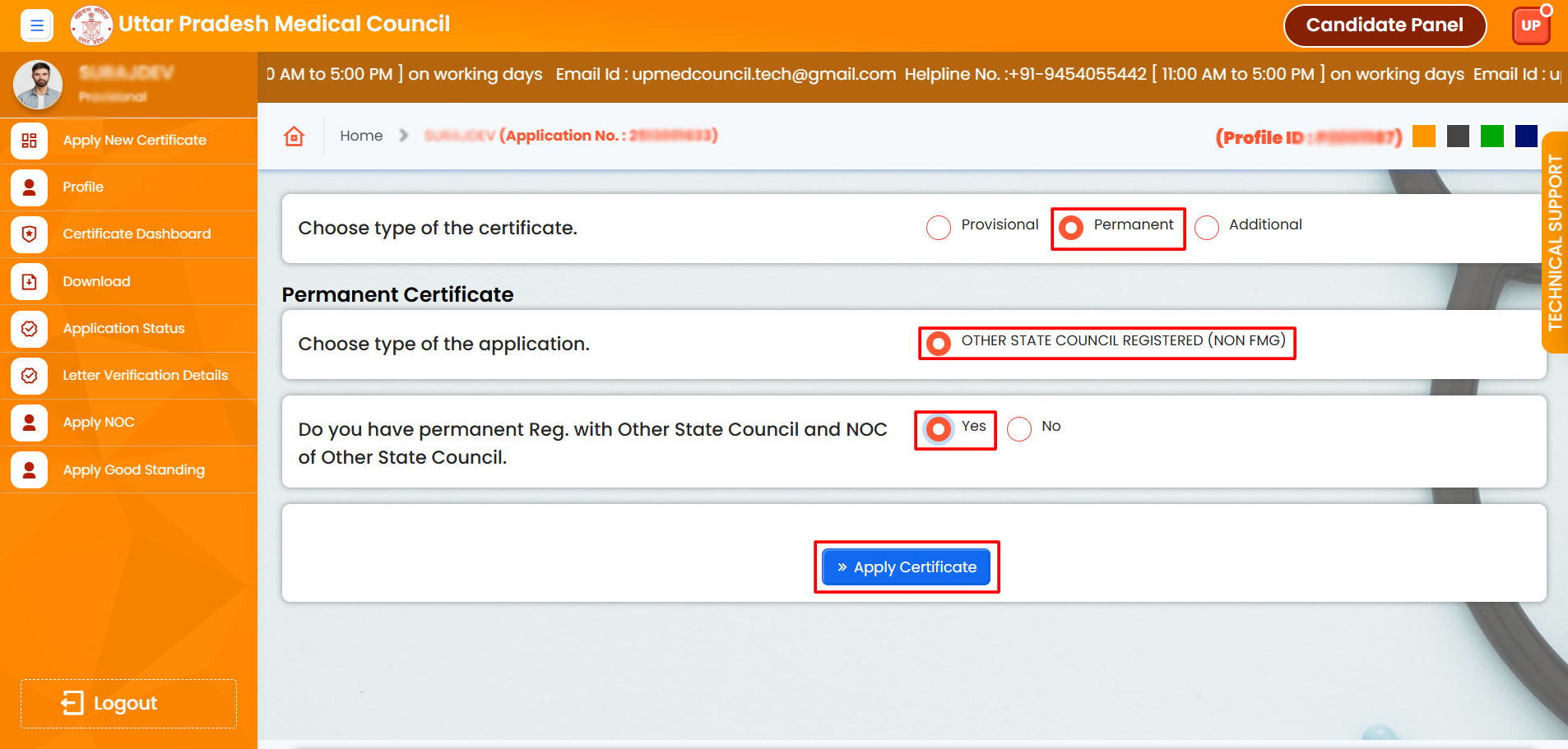
3. Click on the ‘Permanent’ radio button, then select the ‘Other State Council Registered (NON FMG)’ radio button. After that, click on the ‘Yes’ radio button and finally click on the ‘Apply Certificate’ button.
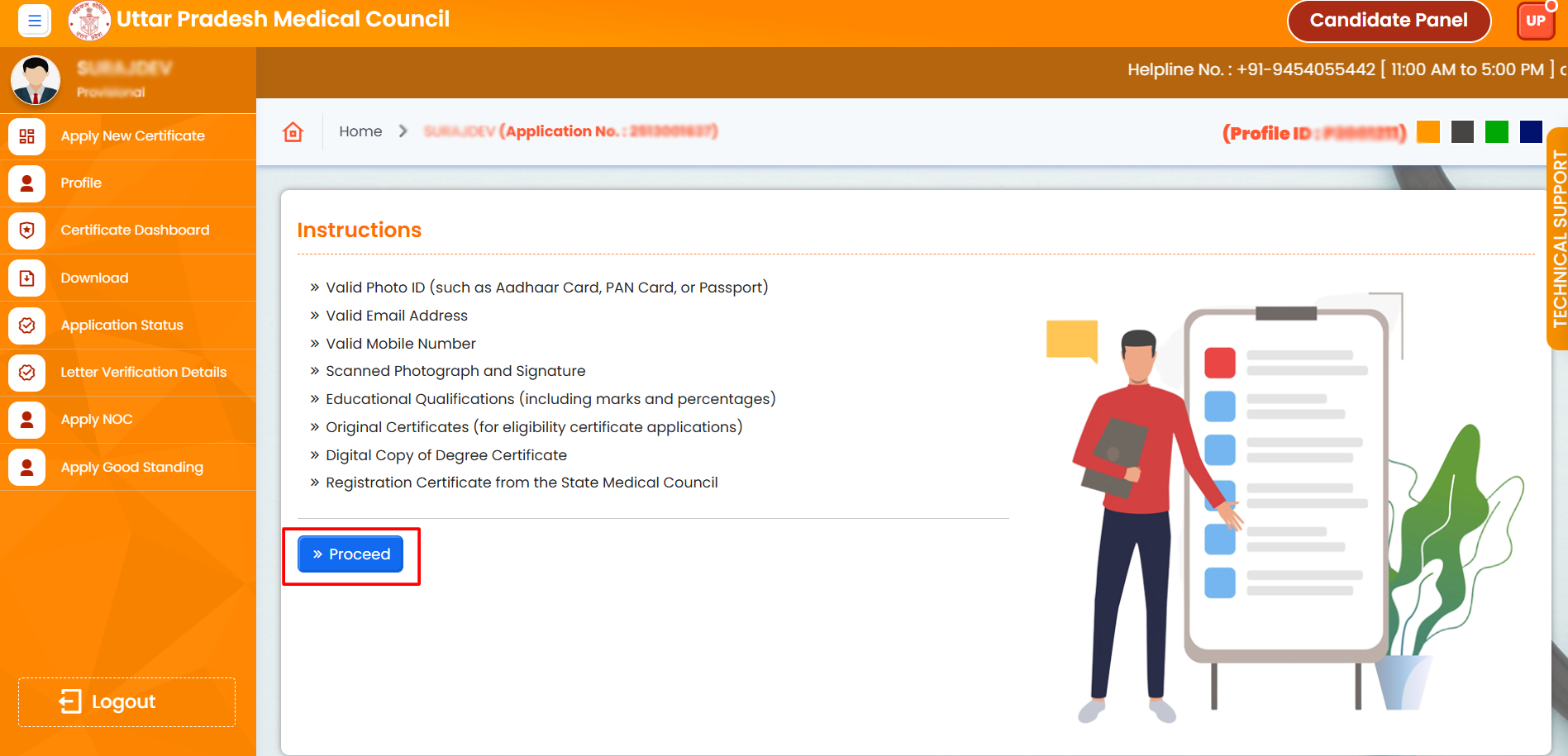
4. Click on the ‘Proceed’ button
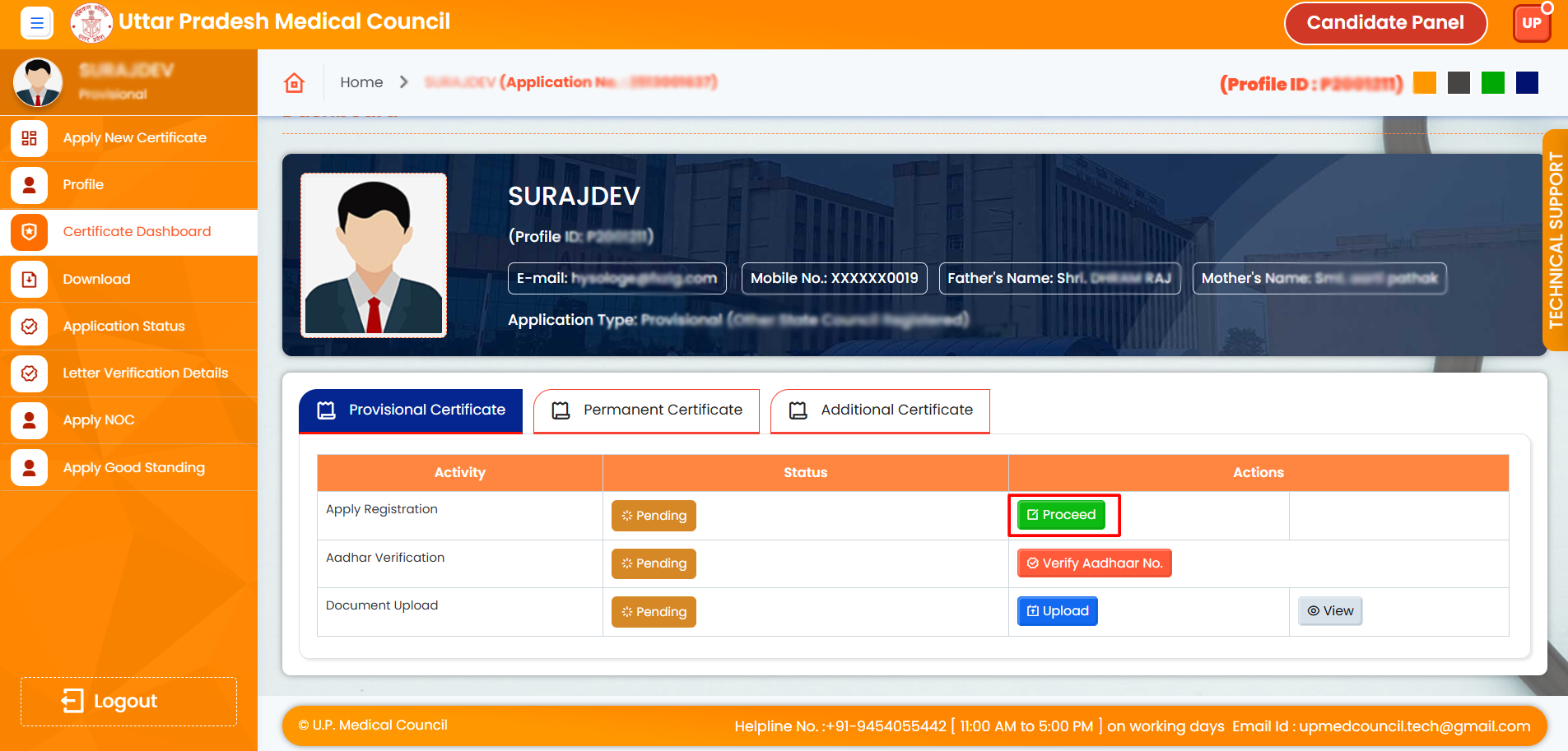
5. Click on the ‘Proceed’ button under Apply Registration.
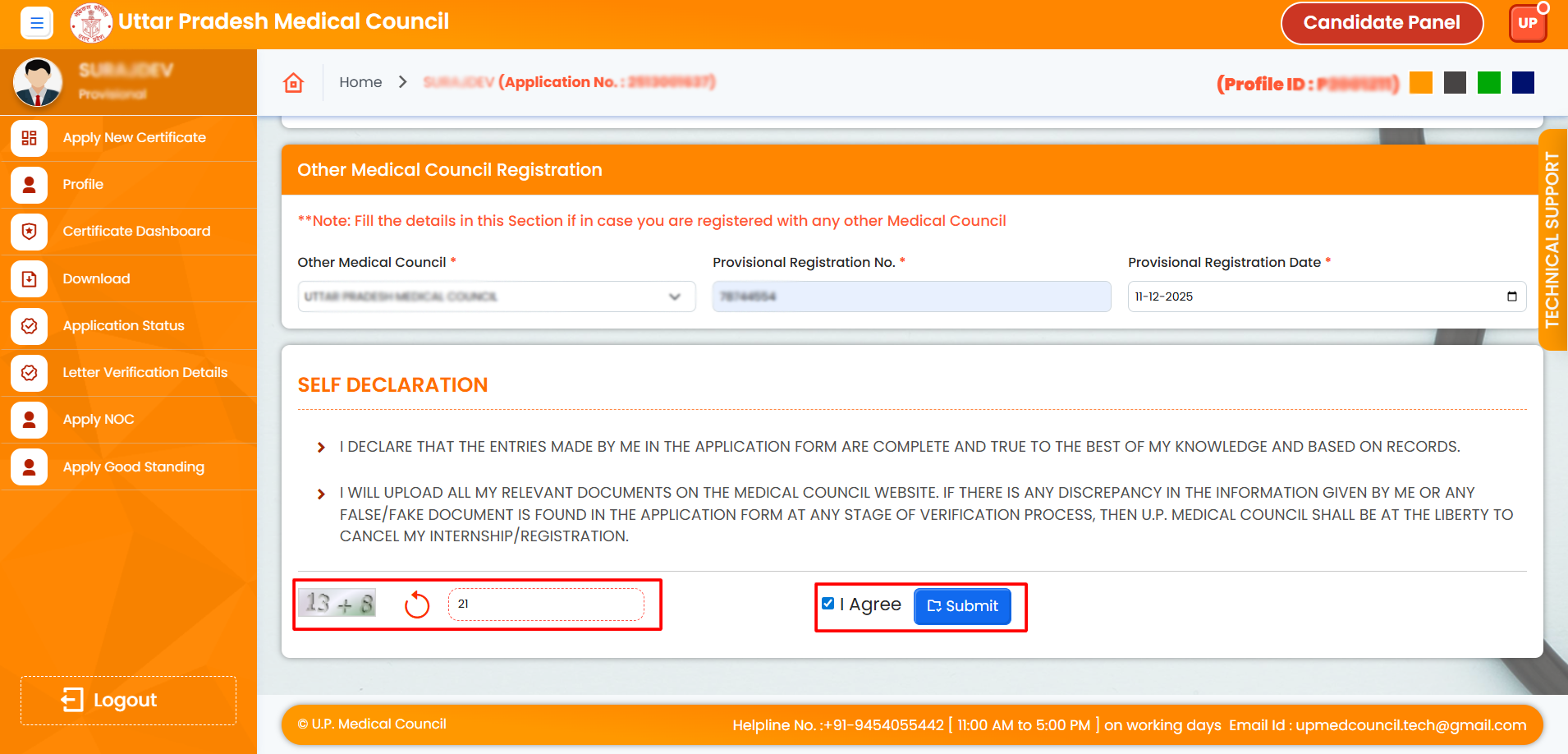
6. Please enter the required data in the required fields, enter the correct captcha, check the ‘I agree’ option, and then click on the Submit button.
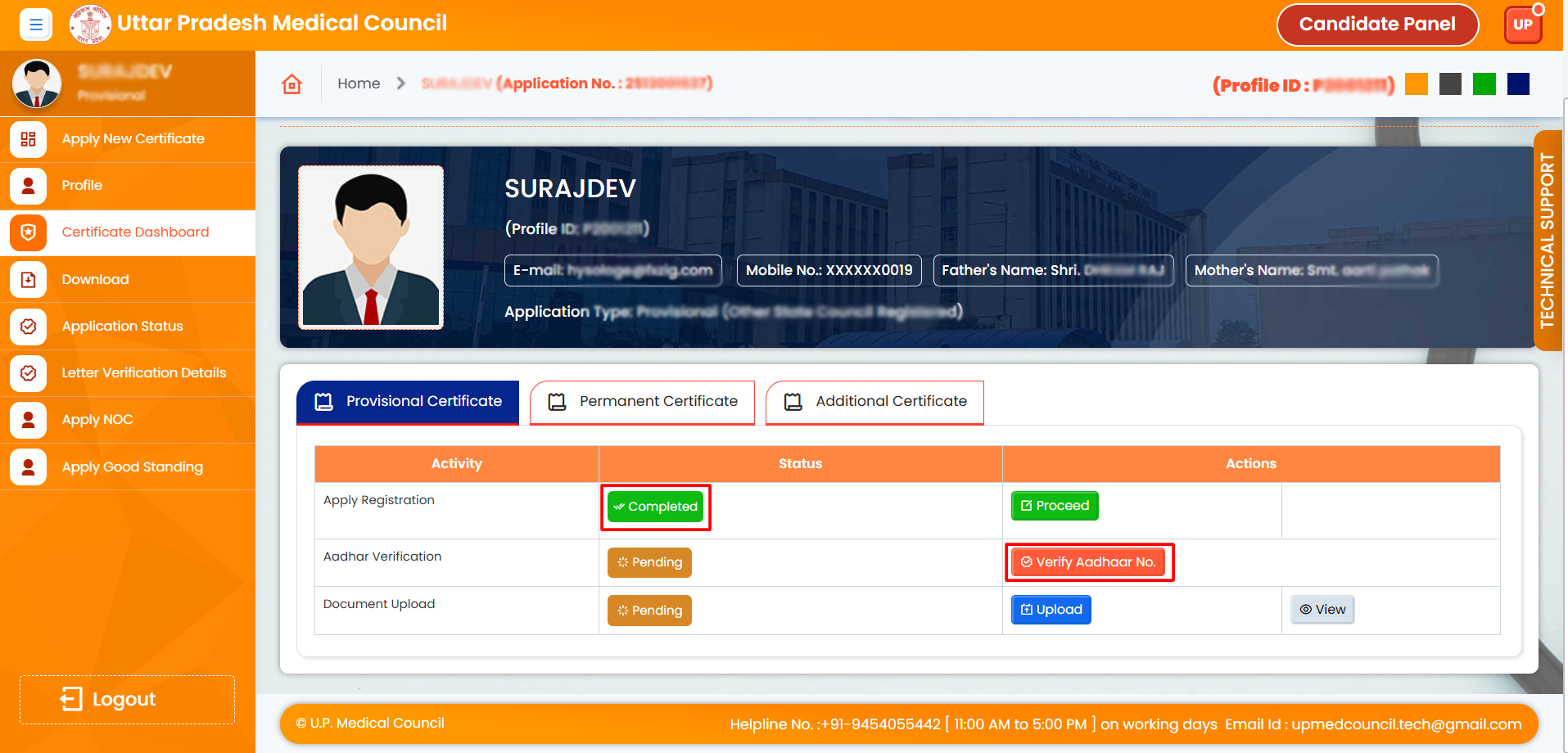
7. After completing Apply Registration, click on the ‘Verify Aadhar No’ button and verify your Aadhar.
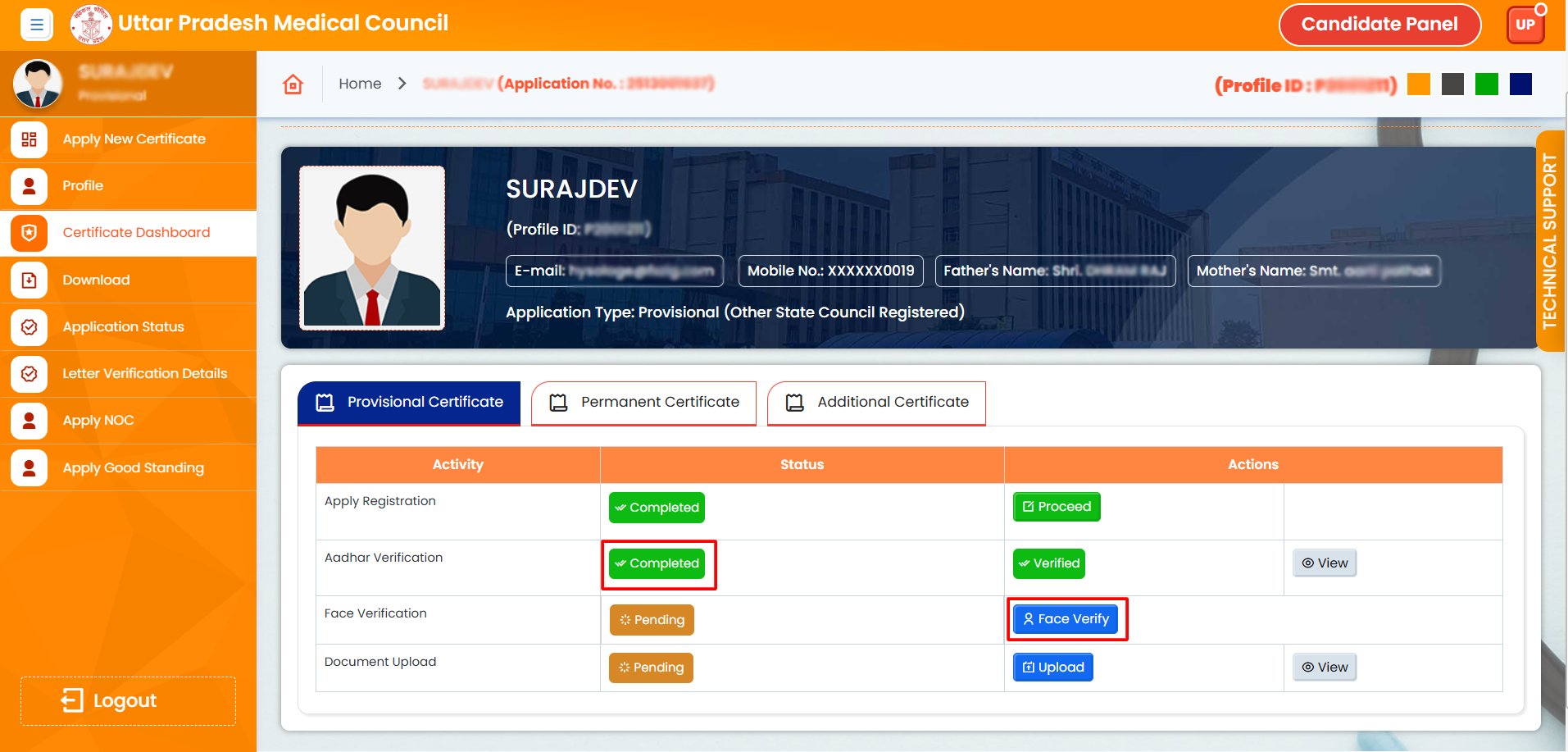
8. After completing Aadhar verification, click on the ‘Face Verify’ button

9. Click on ‘Capture Photo’ and take your first photo

10. Click on ‘Capture Photo’ and take your second photo, then click on the ‘Continue’ button.
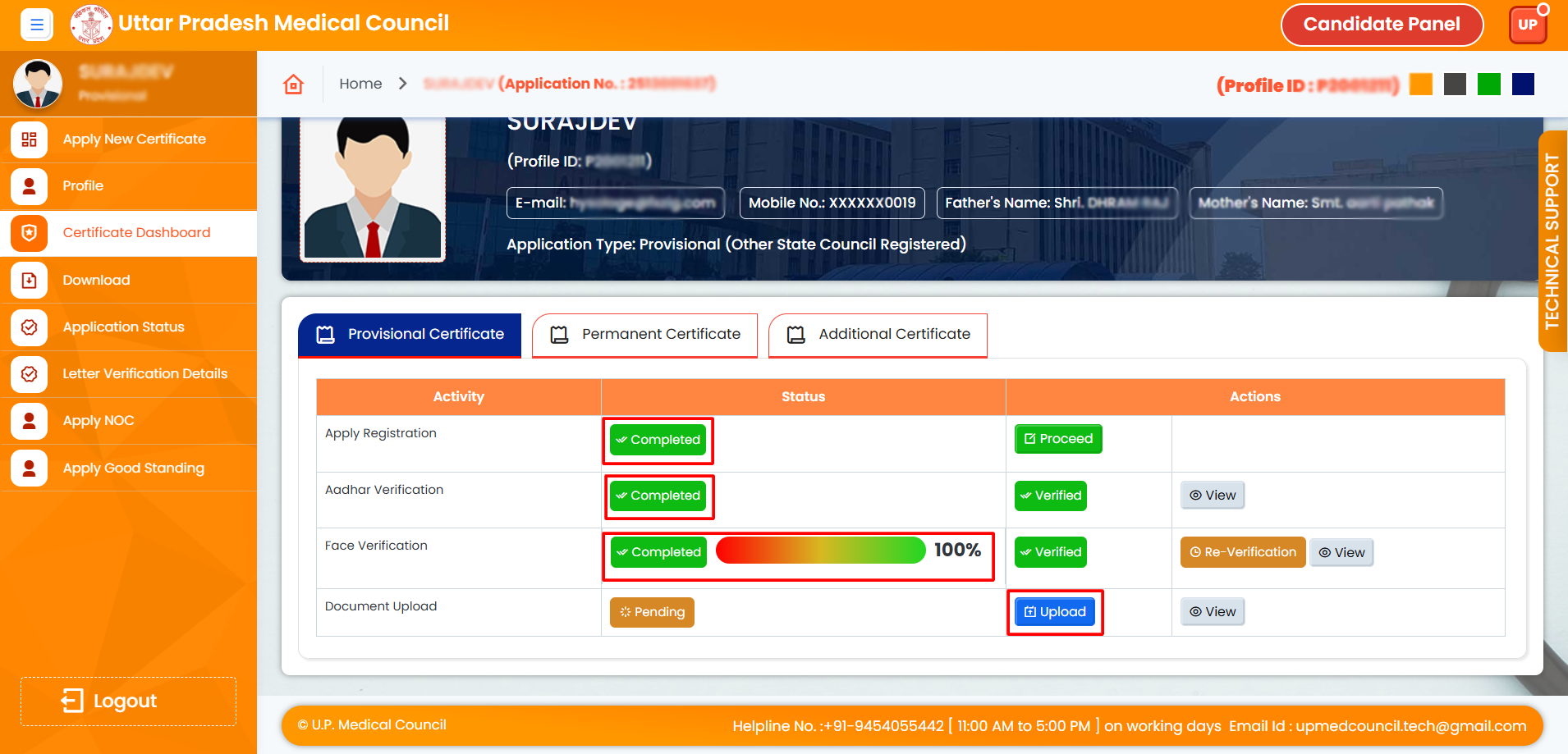
11. After completing Face Verification, click on the ‘Upload’ button.
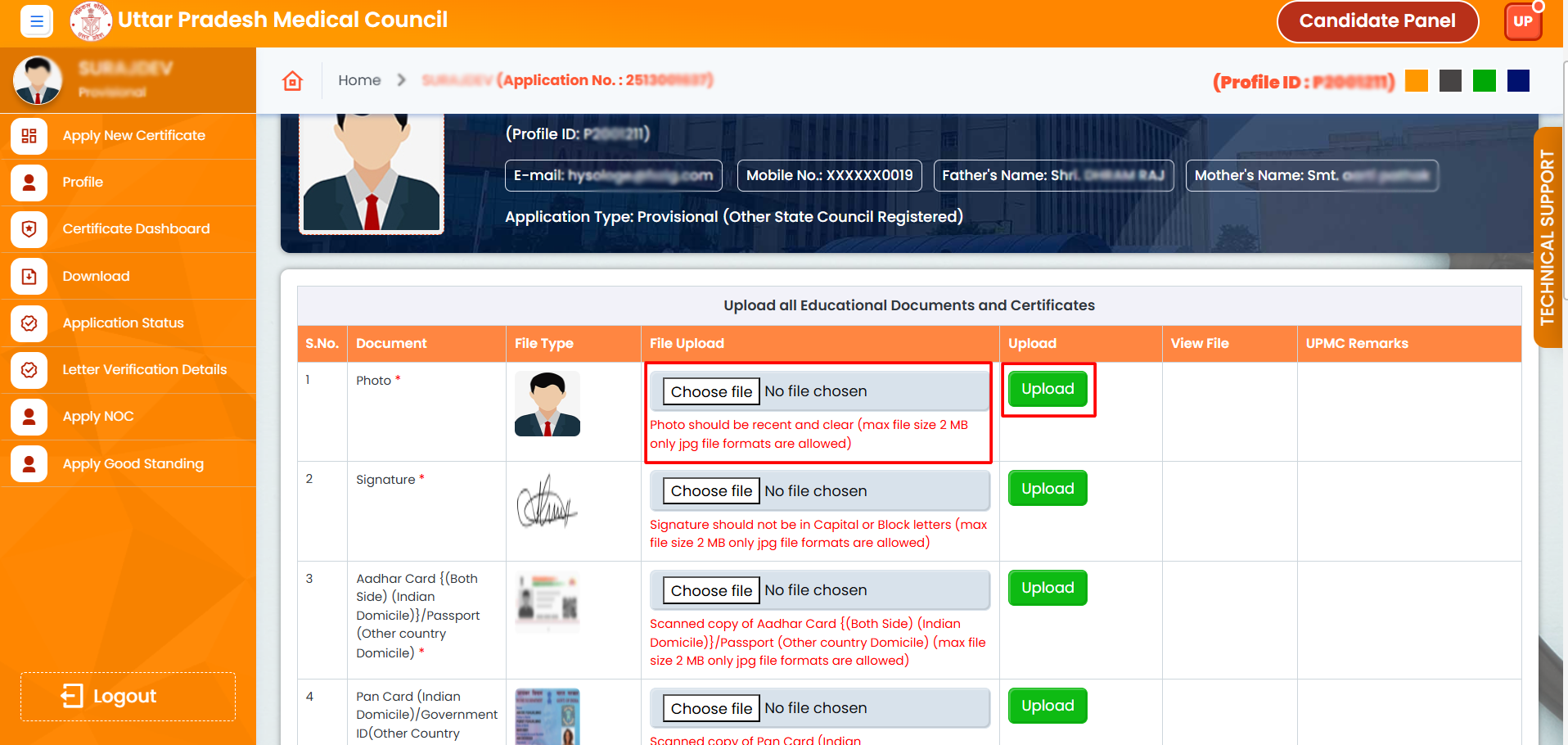
12. Choose the document and click on the ‘Upload’ button.
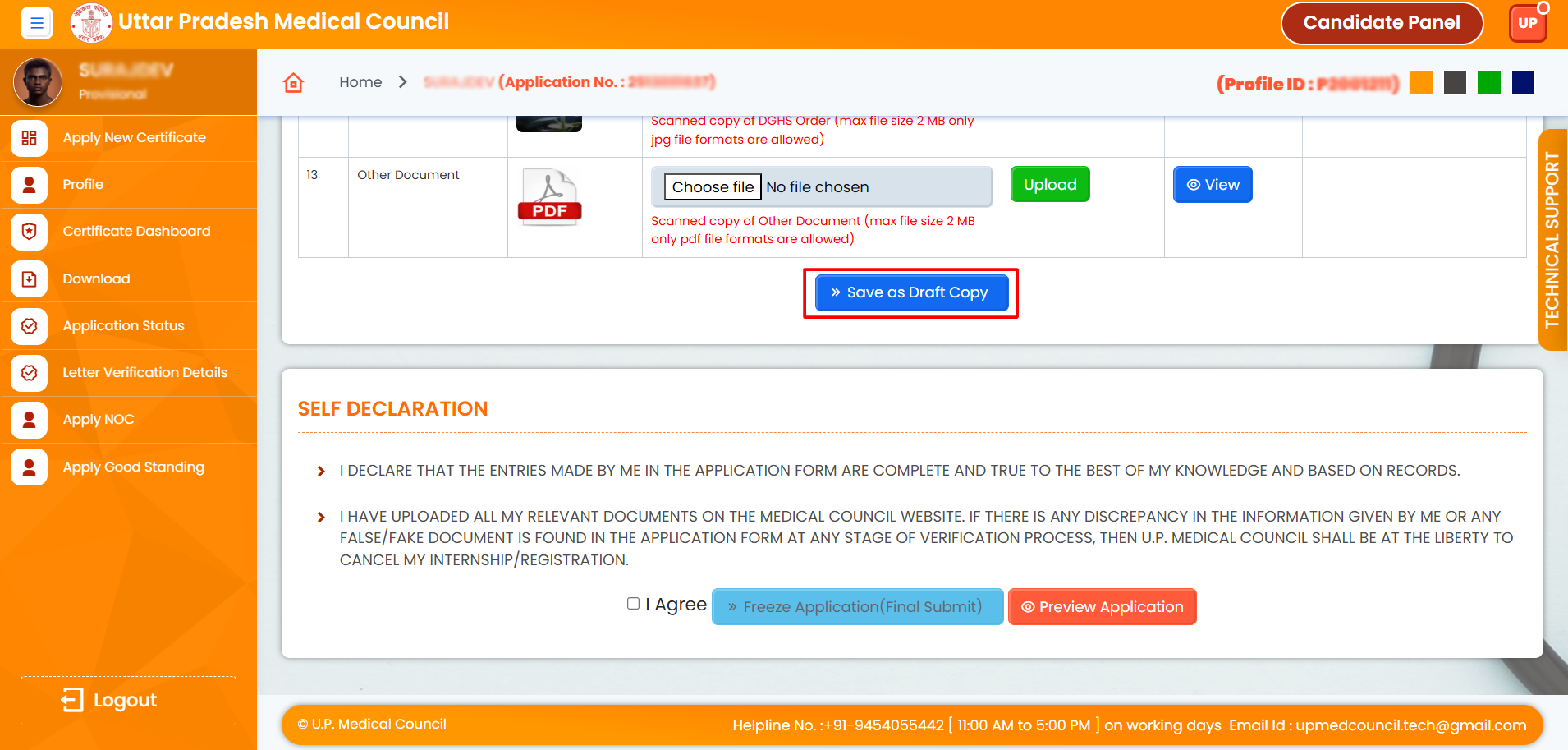
13. After uploading all the required documents, click on ‘Save as Draft Copy’.
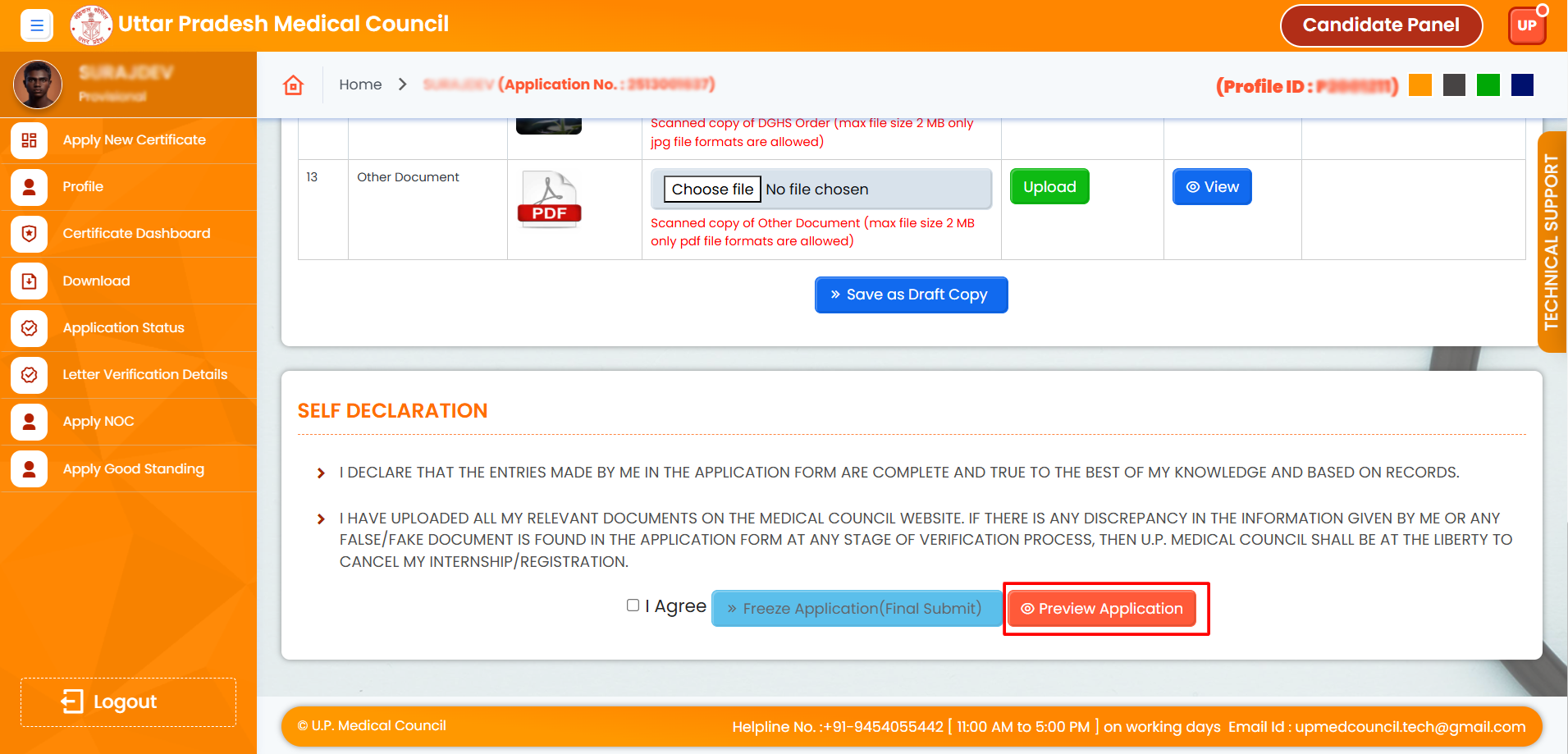
14. Click on ‘Preview Application’ and check your application.
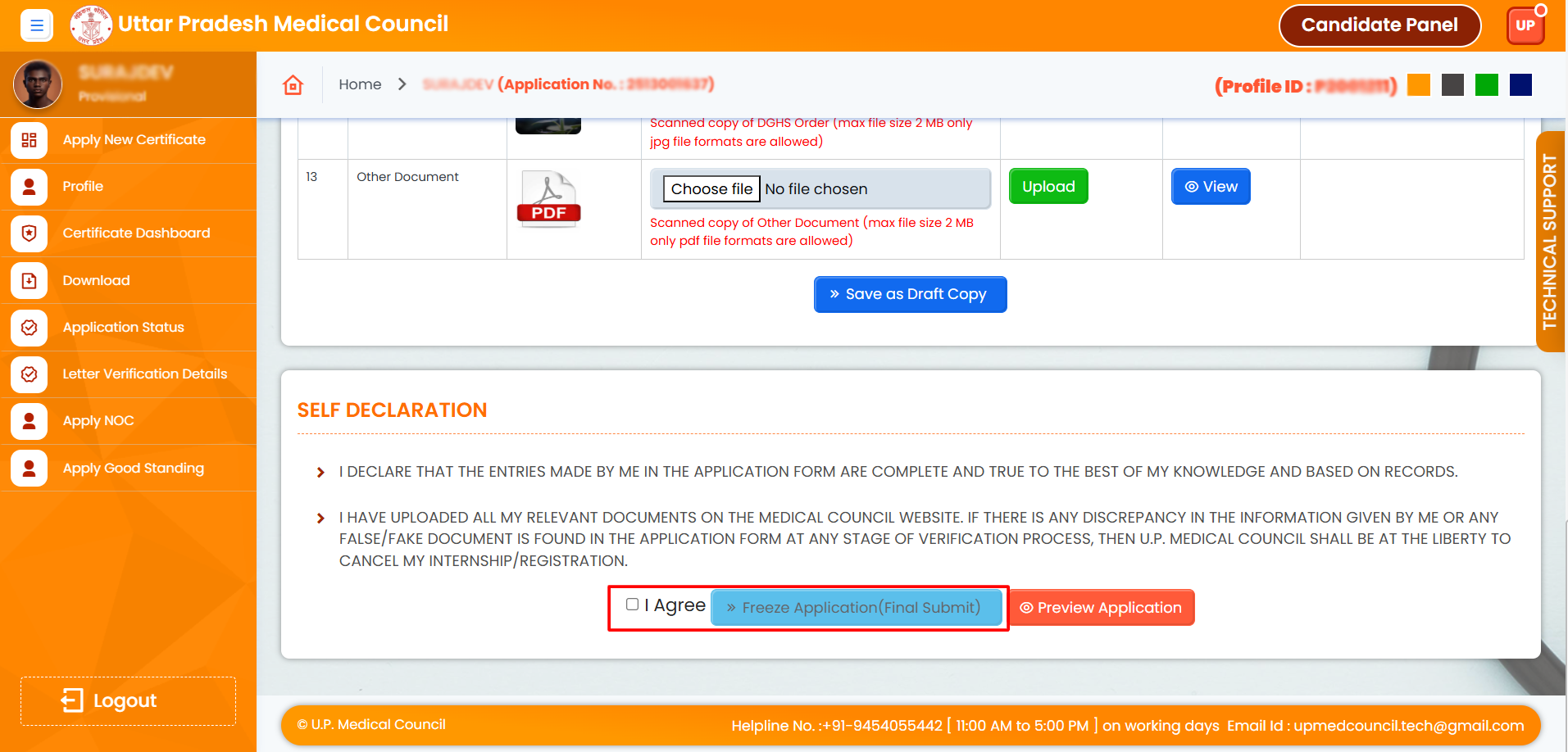
15. Agree and then finalize (freeze) the application. If you want to change your application type, you can deactivate your application. To follow the deactivation process, refer to point no. 28. Please note that once the application is frozen, you cannot deactivate it.
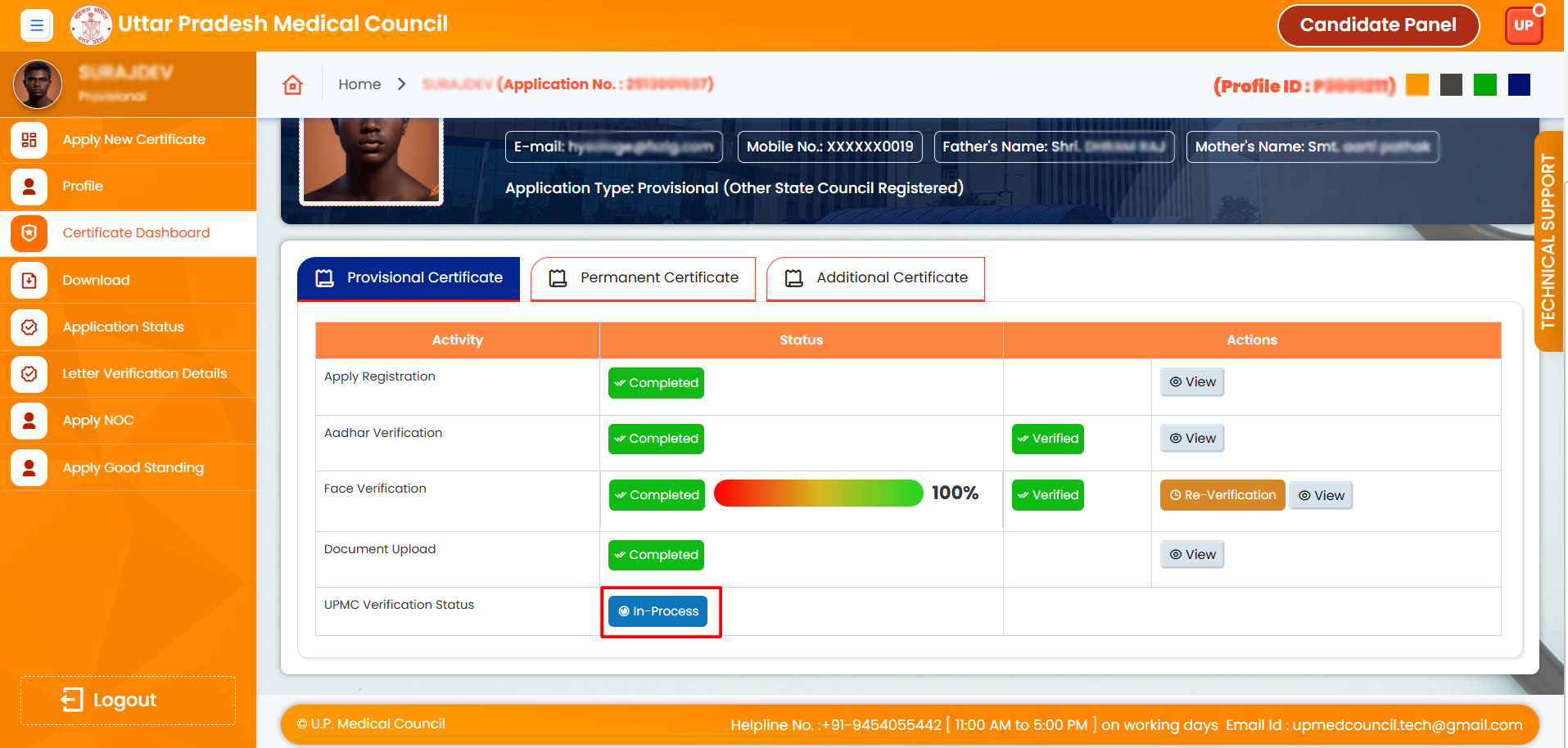
16. The ‘In Process’ button is now active under UPMC Verification Status. Your application has been sent to the UPMC panel. Please wait for UPMC’s action.
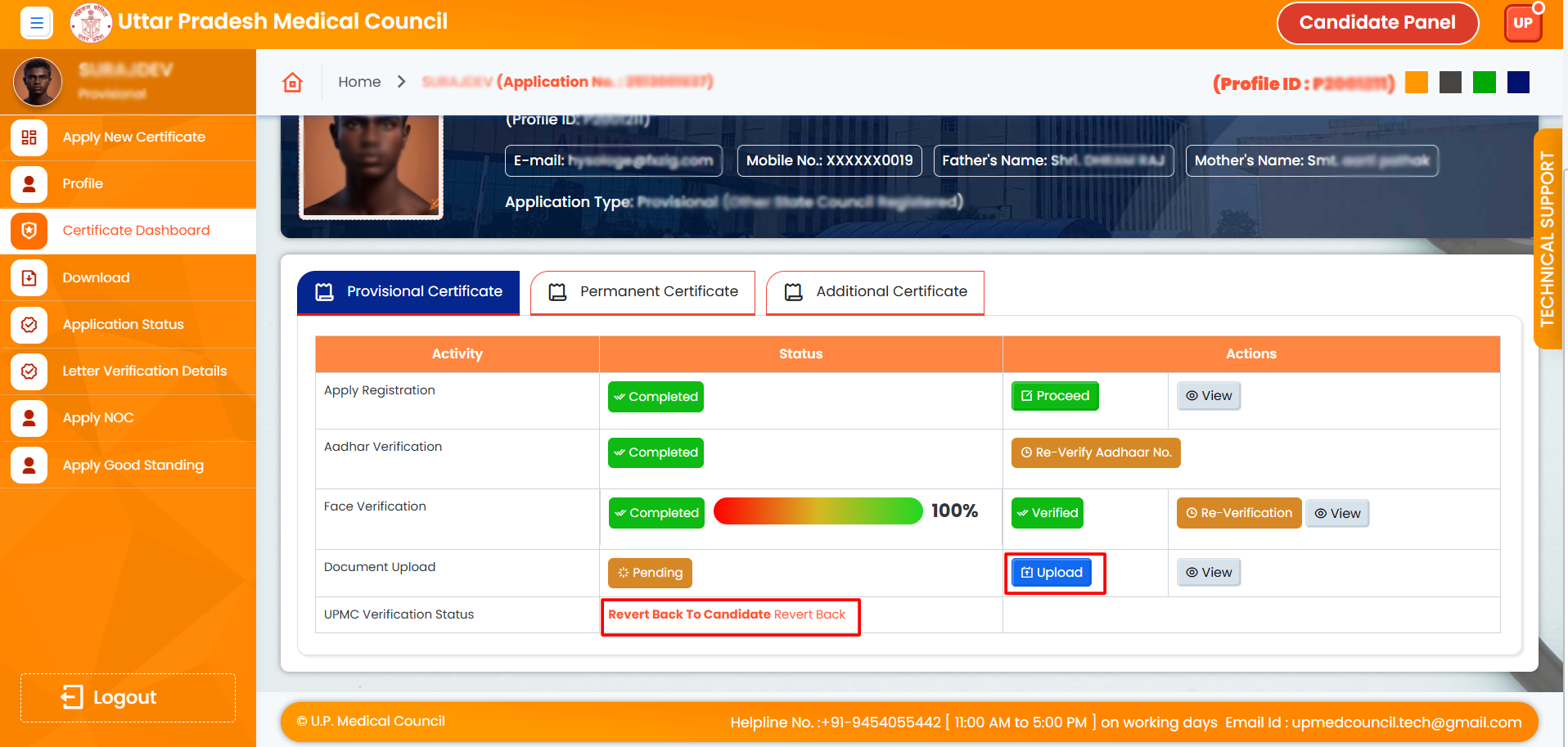
17. This has been reverted back to you by UPMC. Please read the message received from UPMC, then click on the ‘Upload’ button.
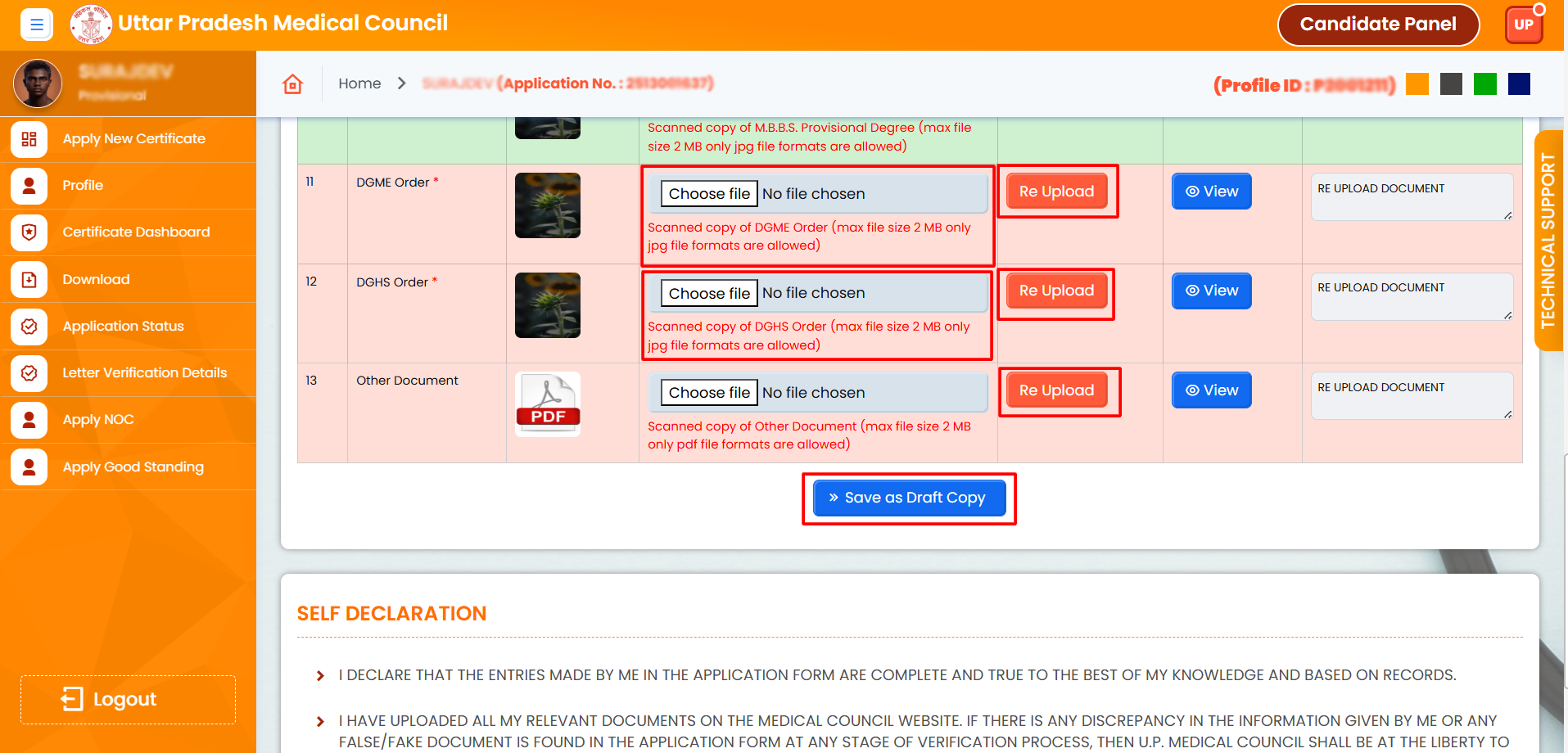
18. Check which document is active for re-upload, then choose the correct document and click on the ‘Re-upload’ button.
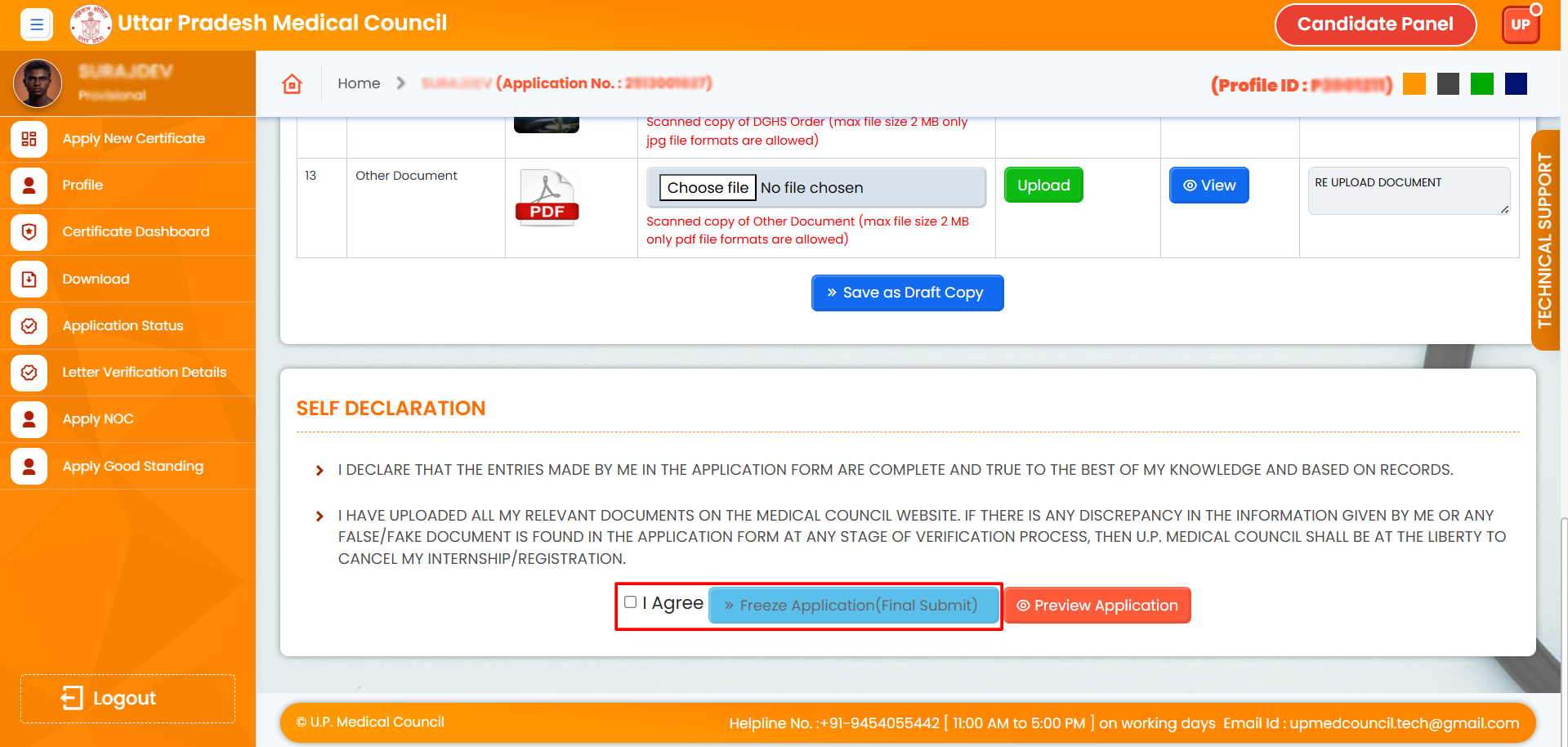
19. Check the ‘I Agree’ box, then click on the ‘Finalize/Freeze Application’ button to finally freeze your application.
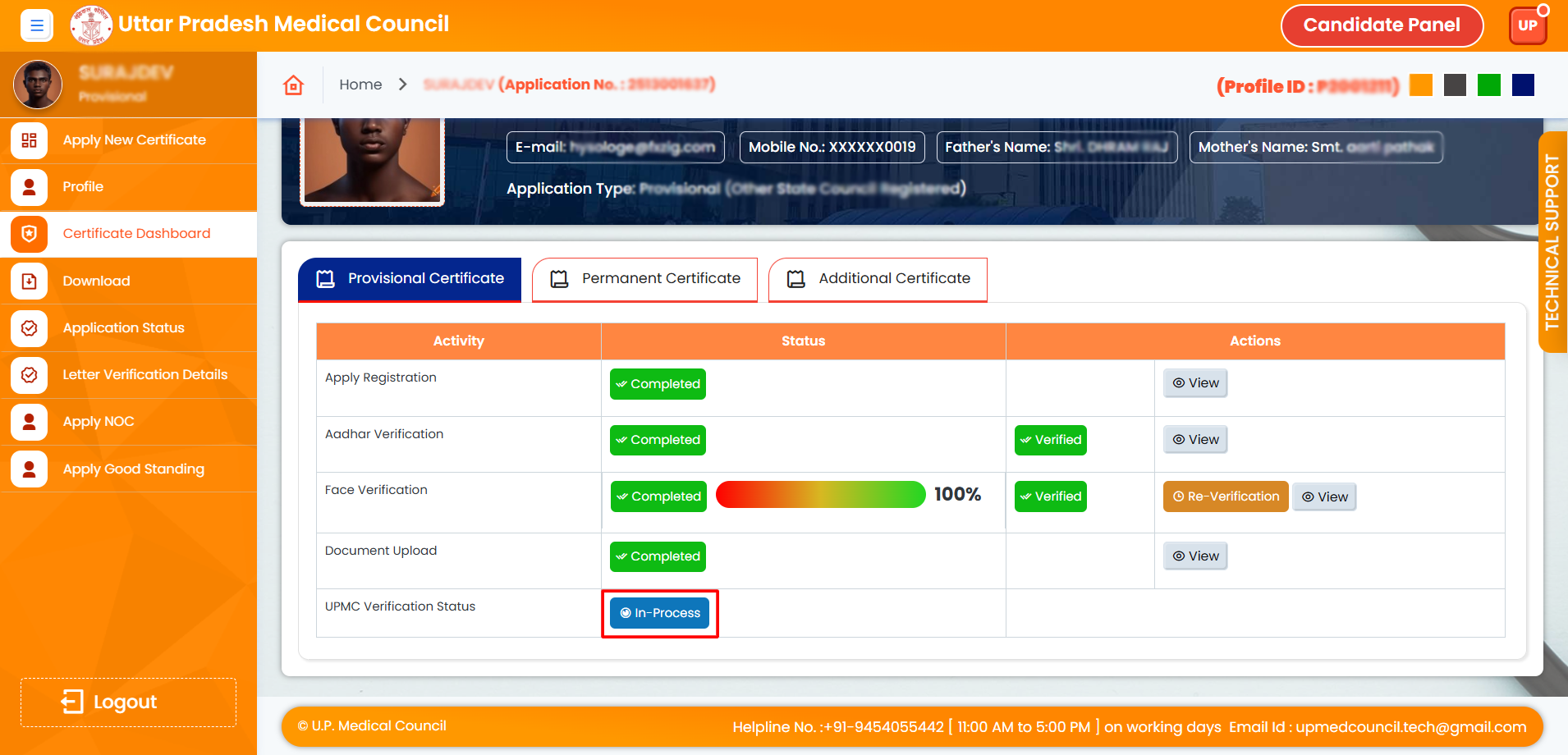
20. The ‘In Process’ button is now active under UPMC Verification Status. Your application has been sent to the UPMC panel. Please wait for UPMC’s action
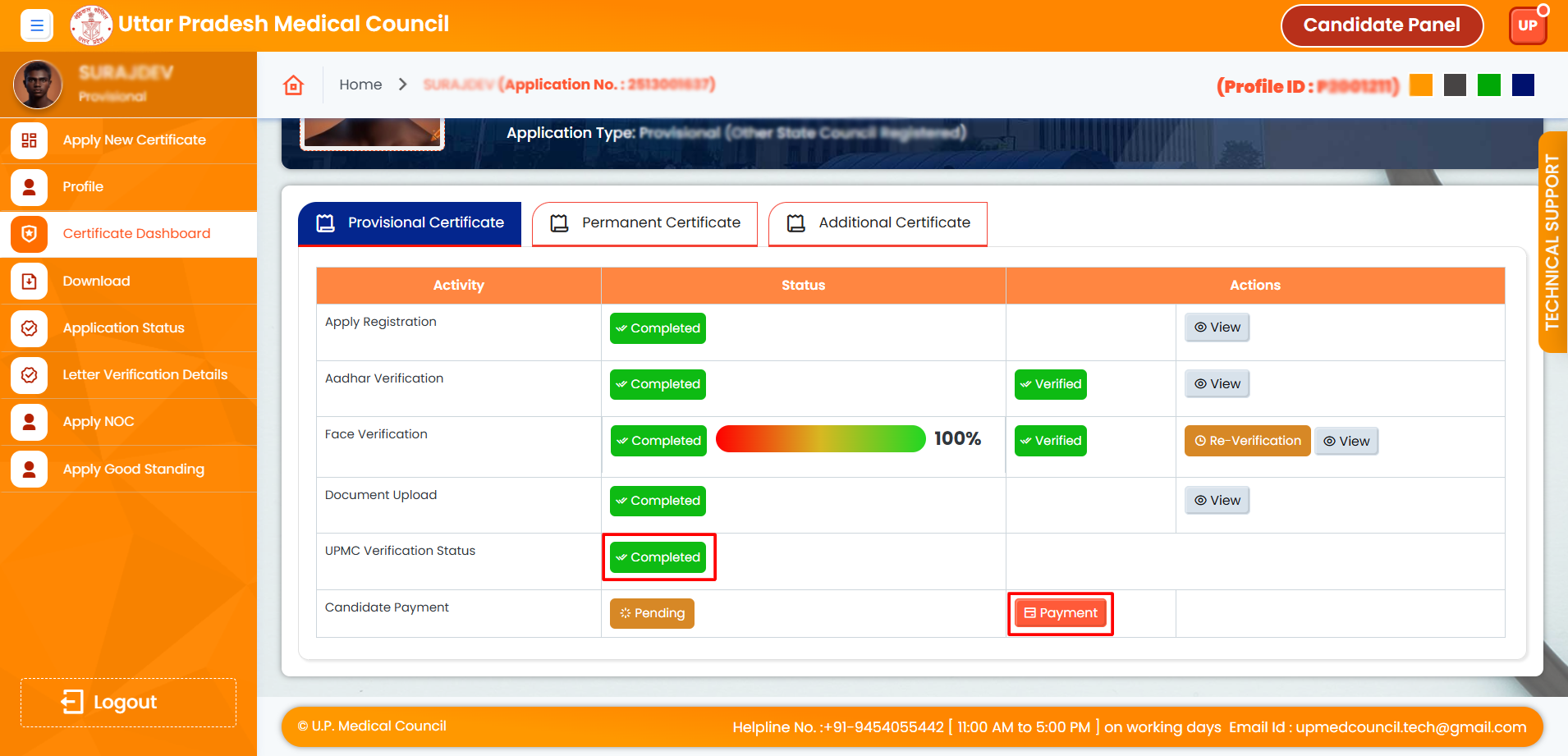
21. UPMC Verification Status is complete. Now, click on the ‘Payment’ button to complete your payment.
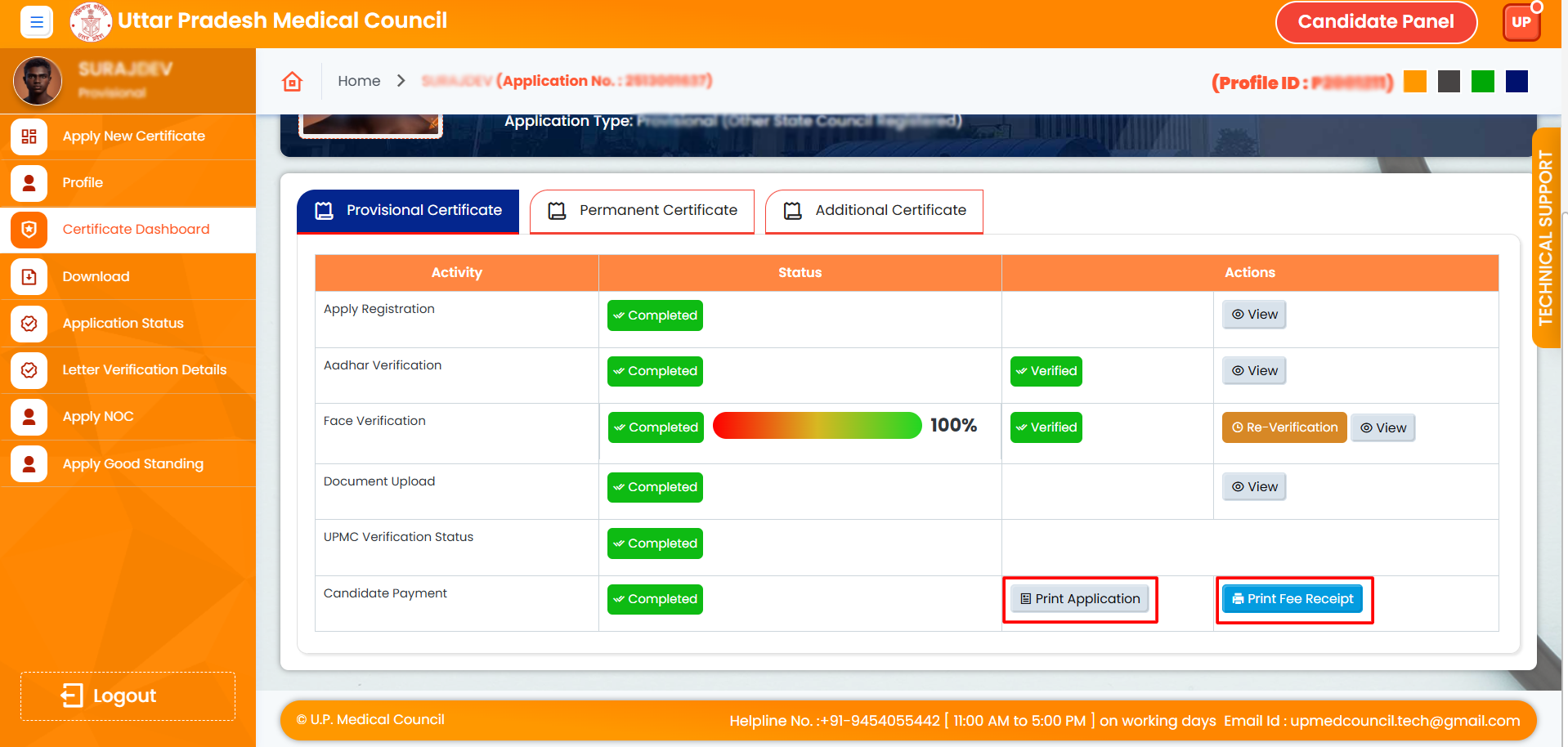
22. Click on the ‘Print Application’ button to print your application and on the ‘Print Fee Receipt’ button to view or print your fee receipt.
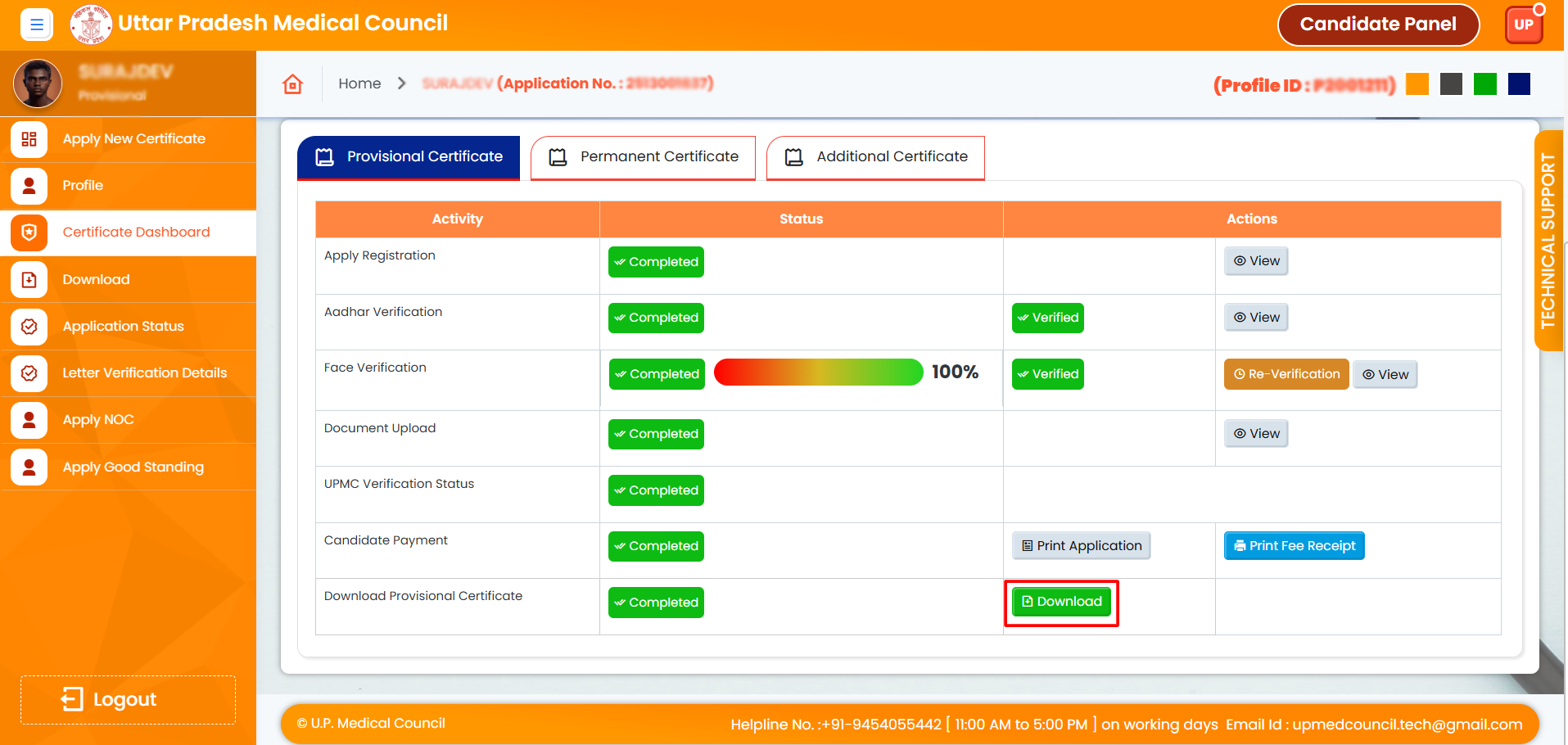
23. Click on the ‘Download’ button under ‘Download Provisional Certificate’ to download your certificate.
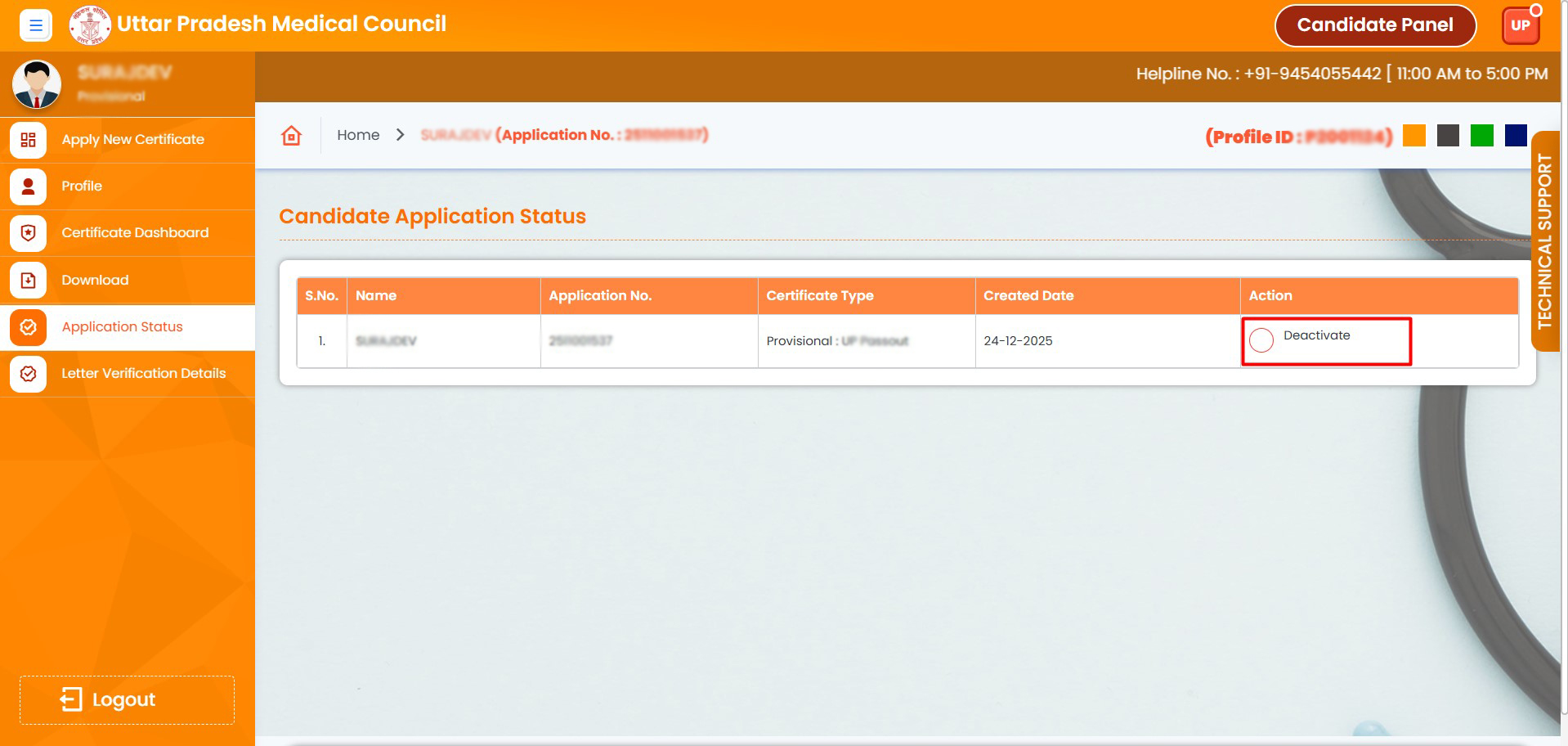
24. Please click on the "Deactivate" radio button to deactivate your application. Please note that once the application is frozen, you cannot deactivate it.
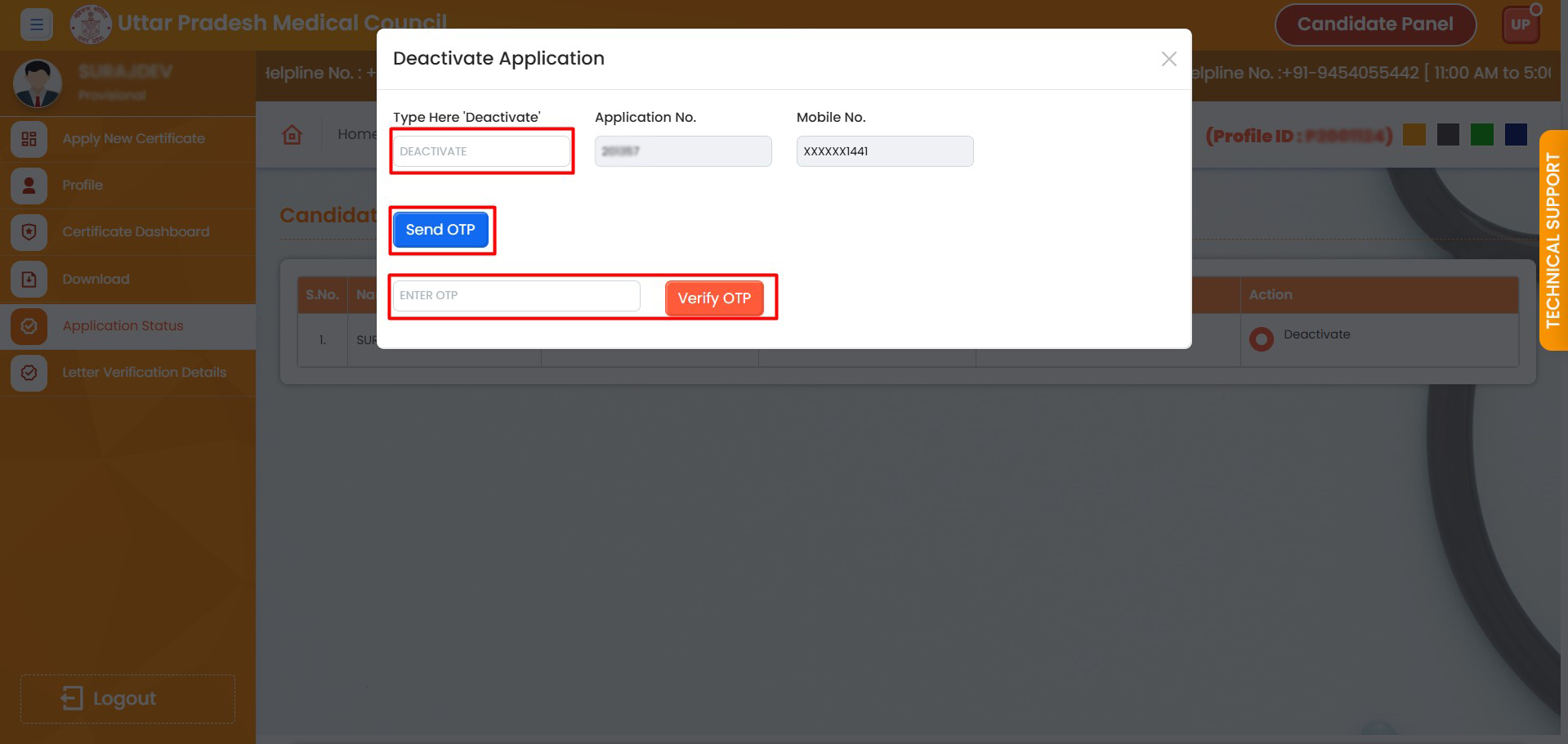
25. Enter "Deactivate" in the field, click "Send OTP", then enter the OTP and verify.
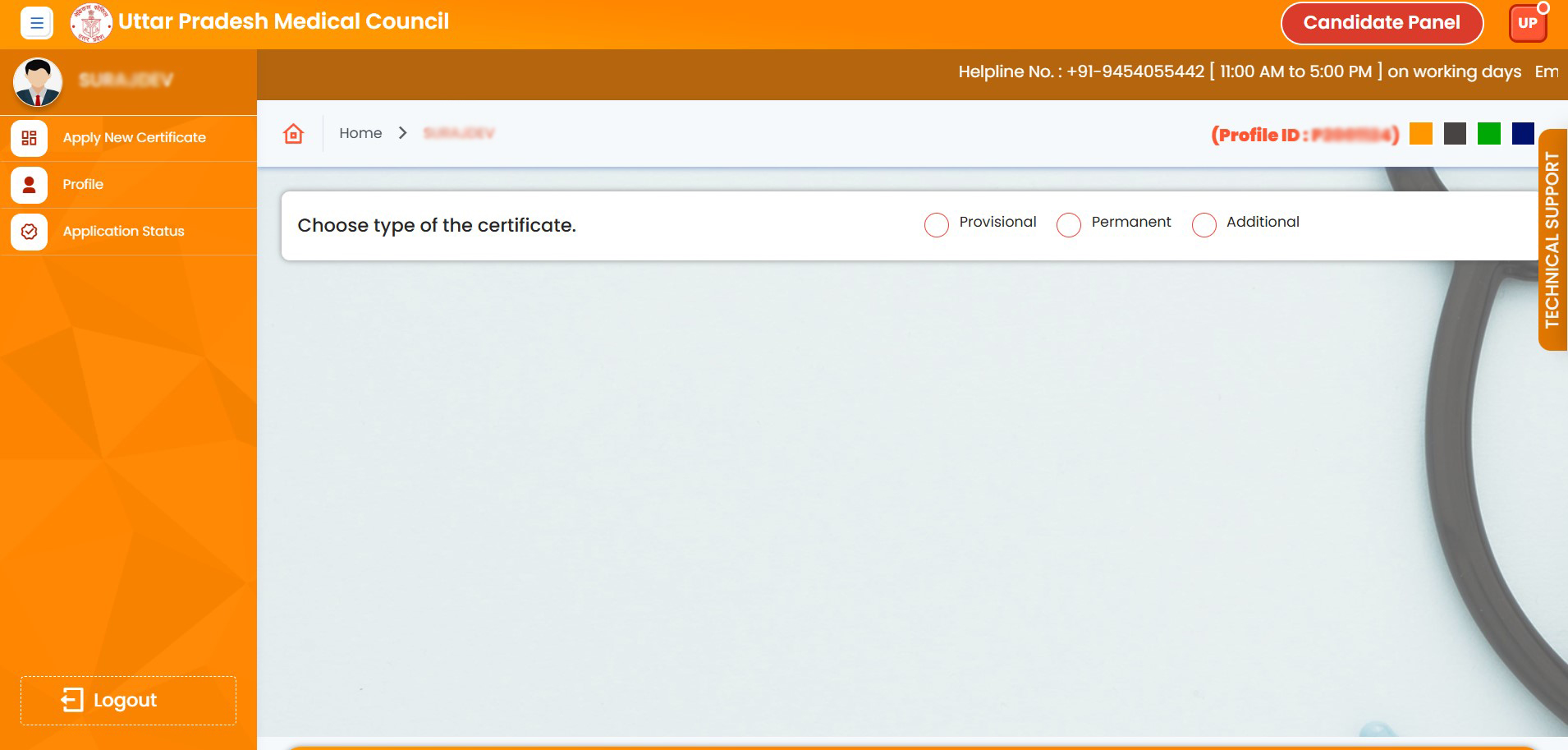
26. Your application has been deactivated. You can apply again for a fresh application