
User Manual for Permanent Up Pass Out
Help Desk
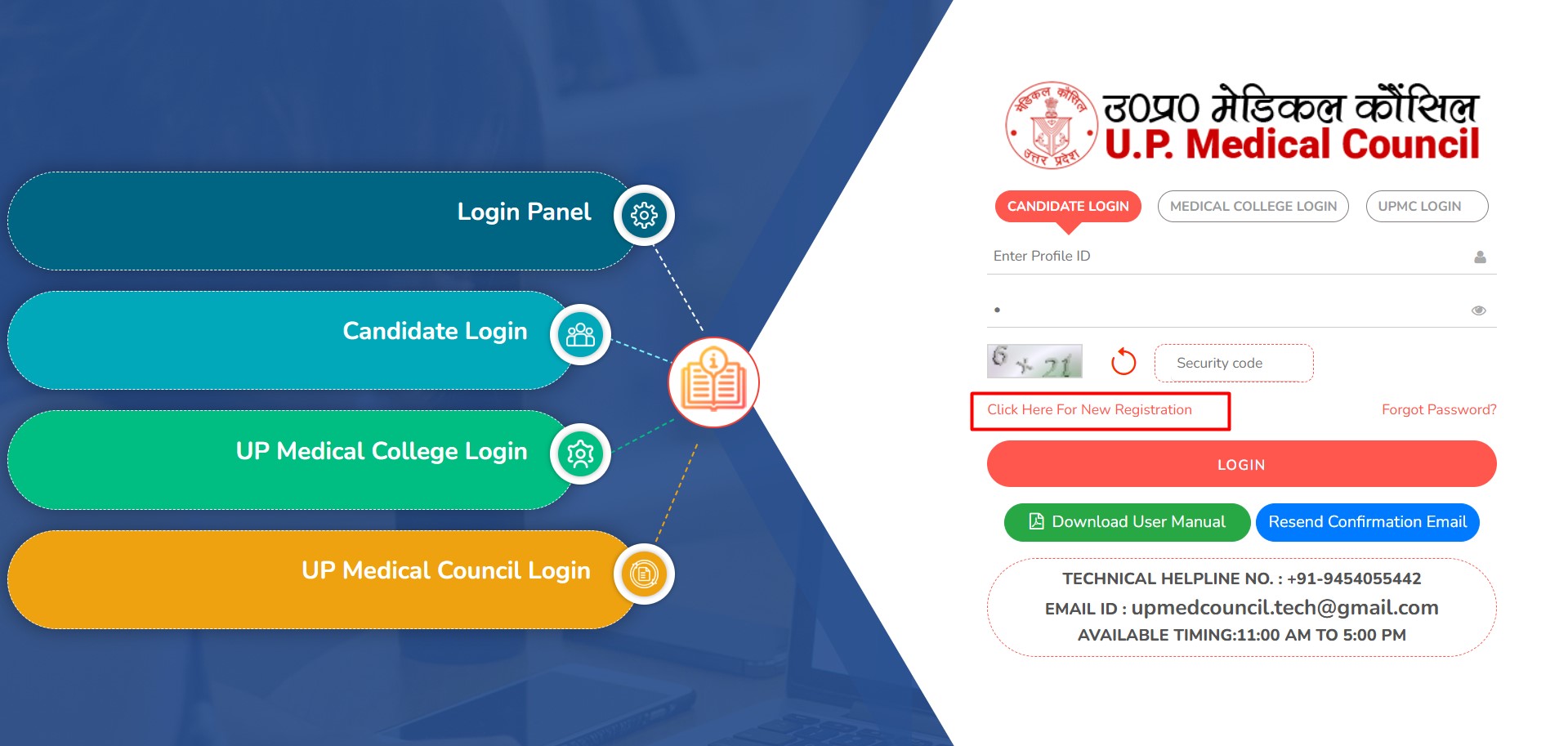
1. Click here for new registration
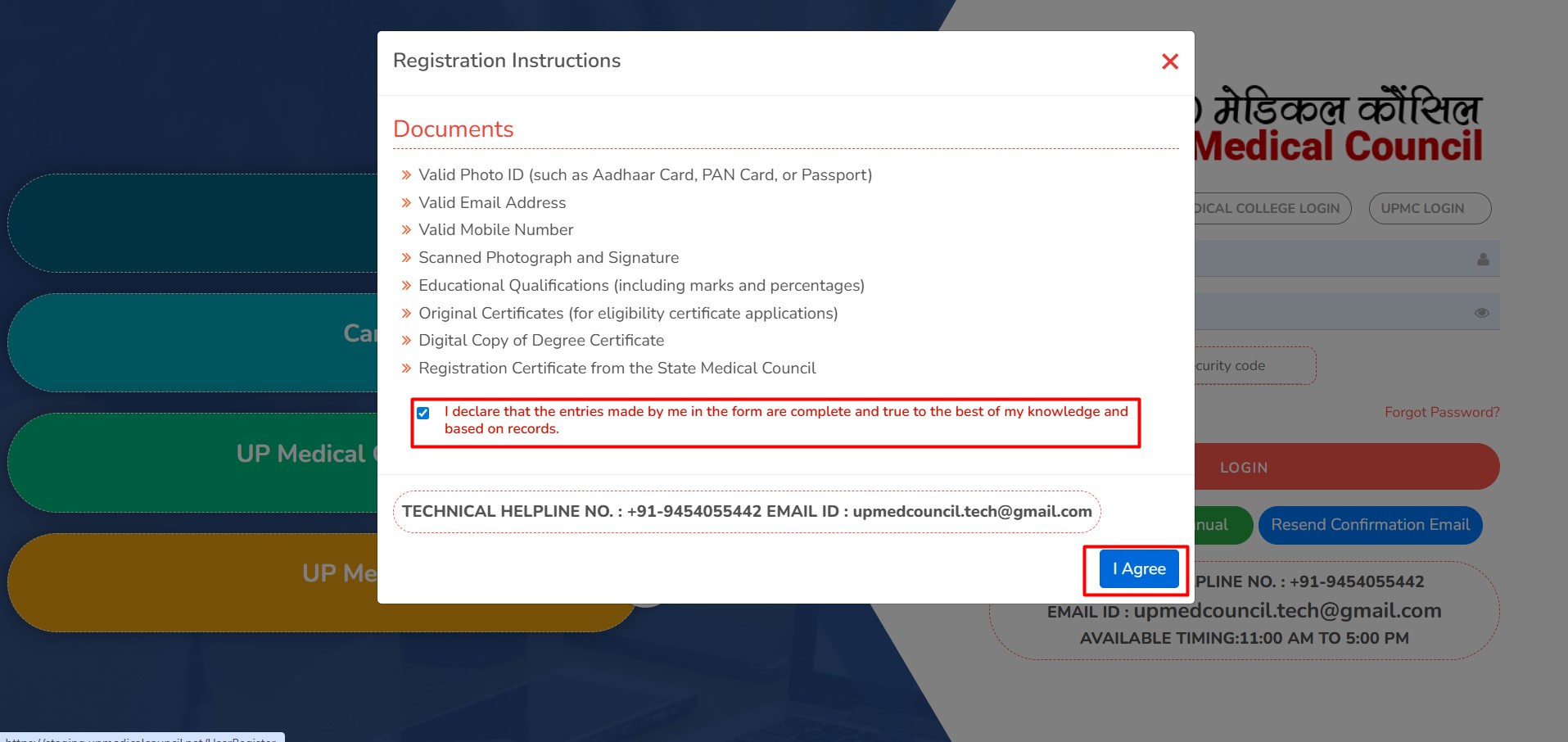
2. Please check the conditions and then agree
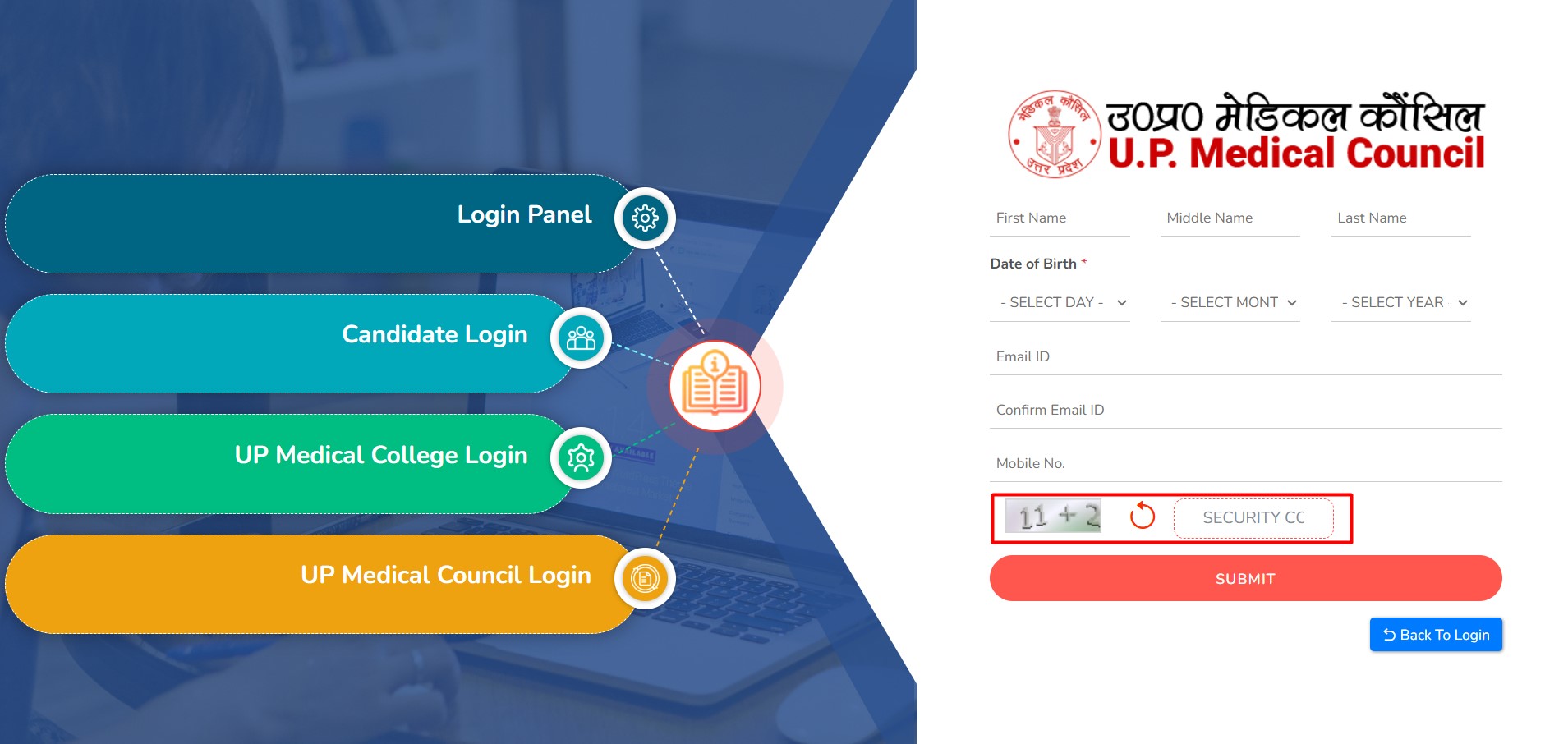
3. Please enter the details as per the fields, then enter the correct captcha and click submit

4. An OTP has been sent to your registered mobile number. Kindly enter the OTP and submit
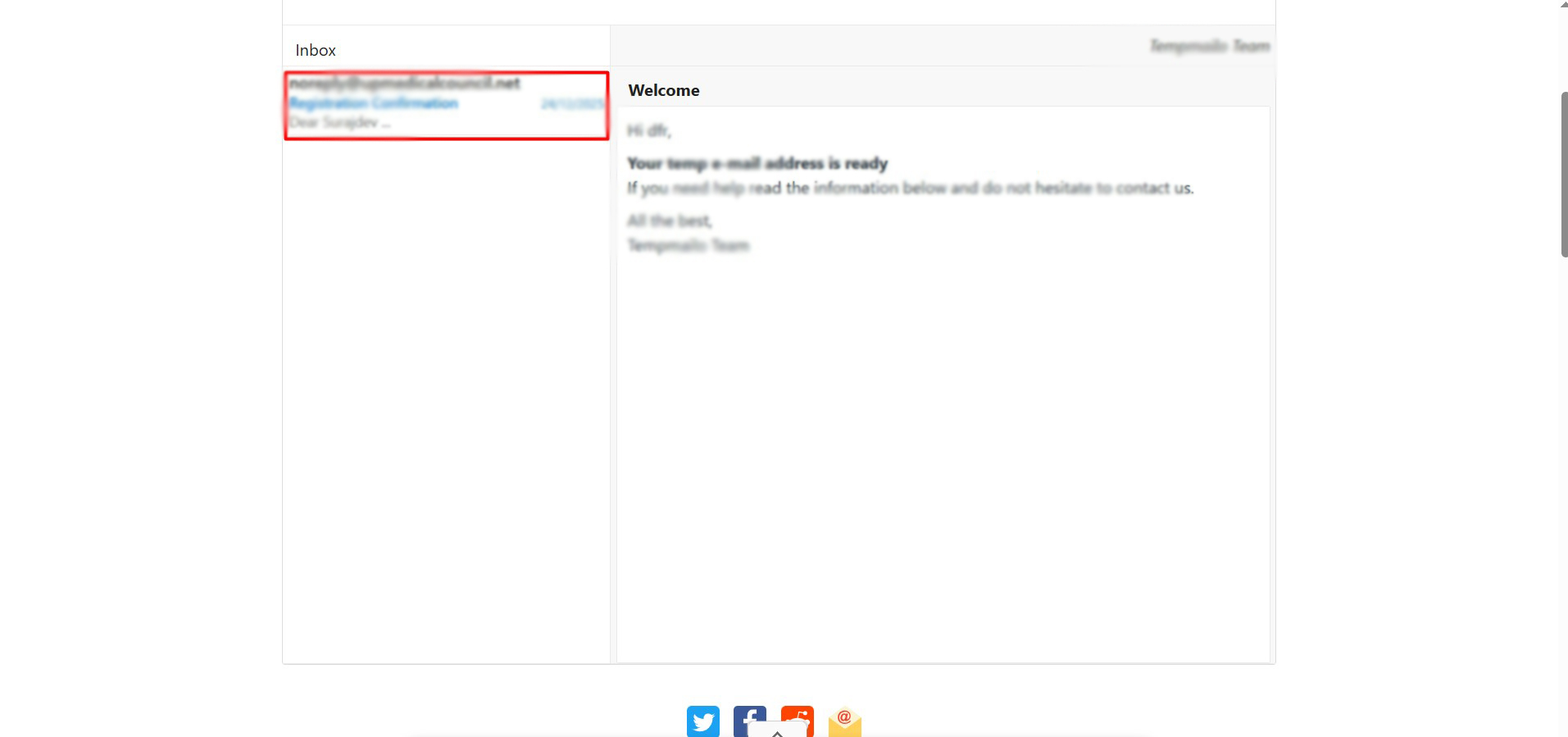
5. You have received an email from UPMC. Please click on it.
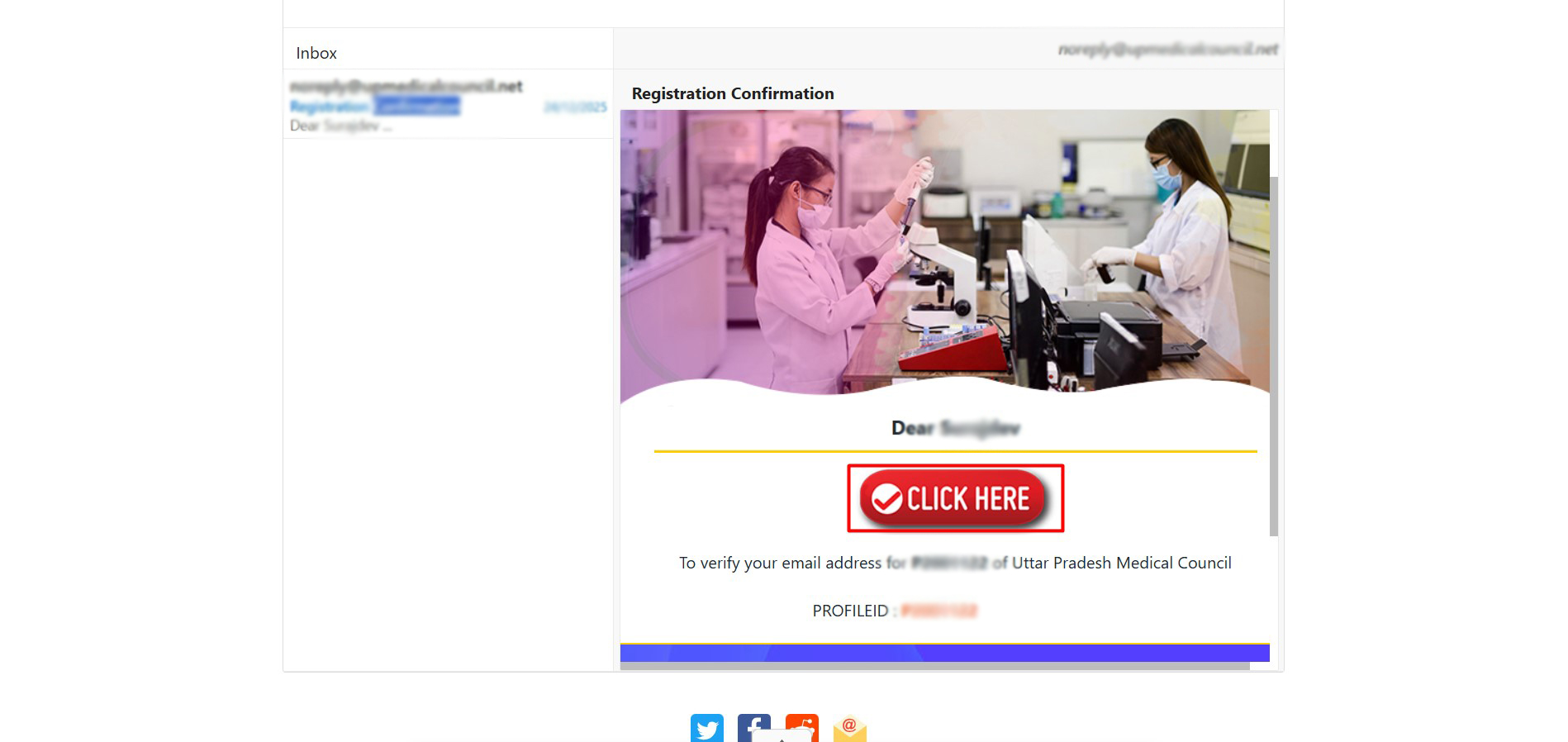
6. Please click here
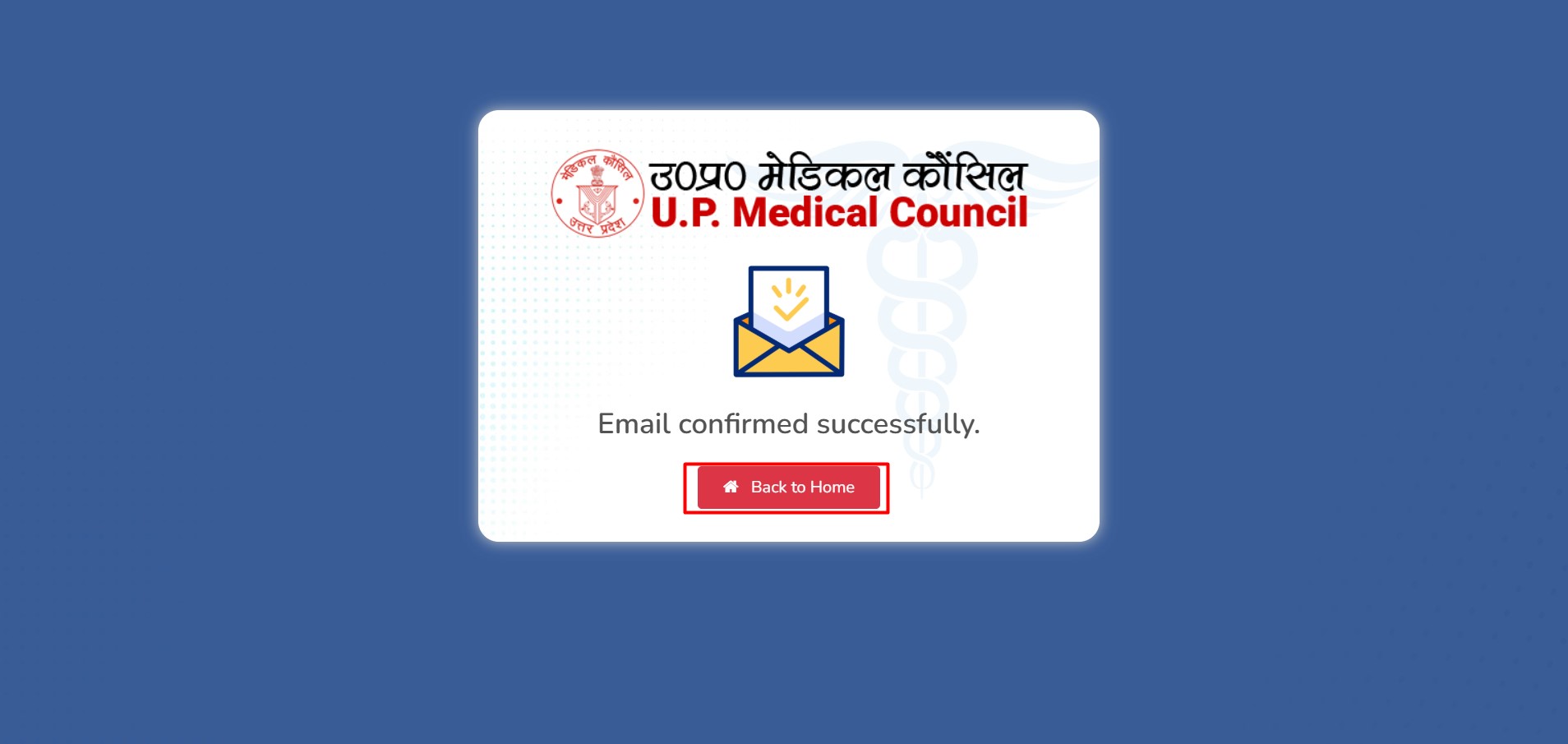
7. Please click on "Back to Home"
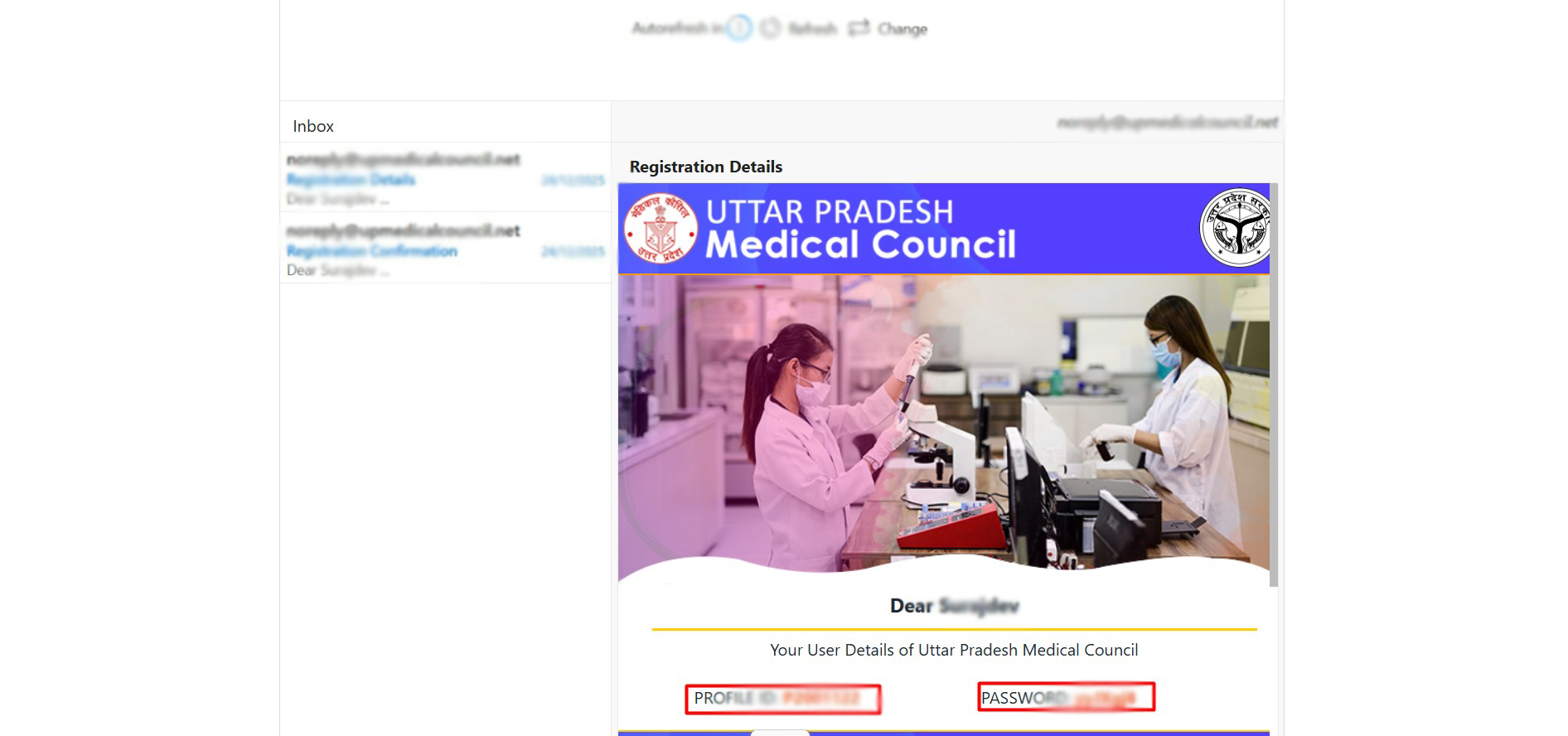
8. Your profile ID and password have been sent to your registered email address. Please use them to login.
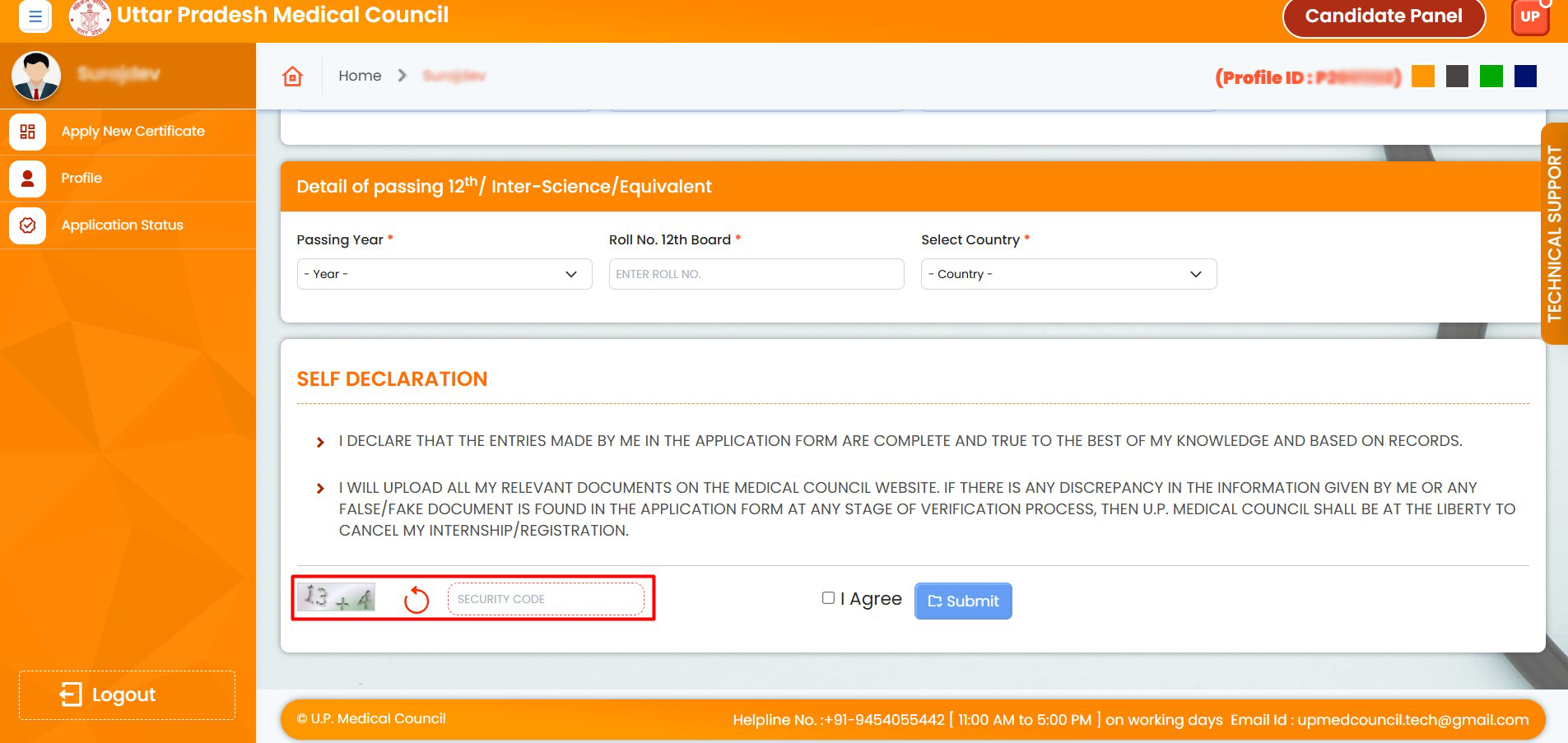
9. Please fill in all required fields and enter the correct captcha
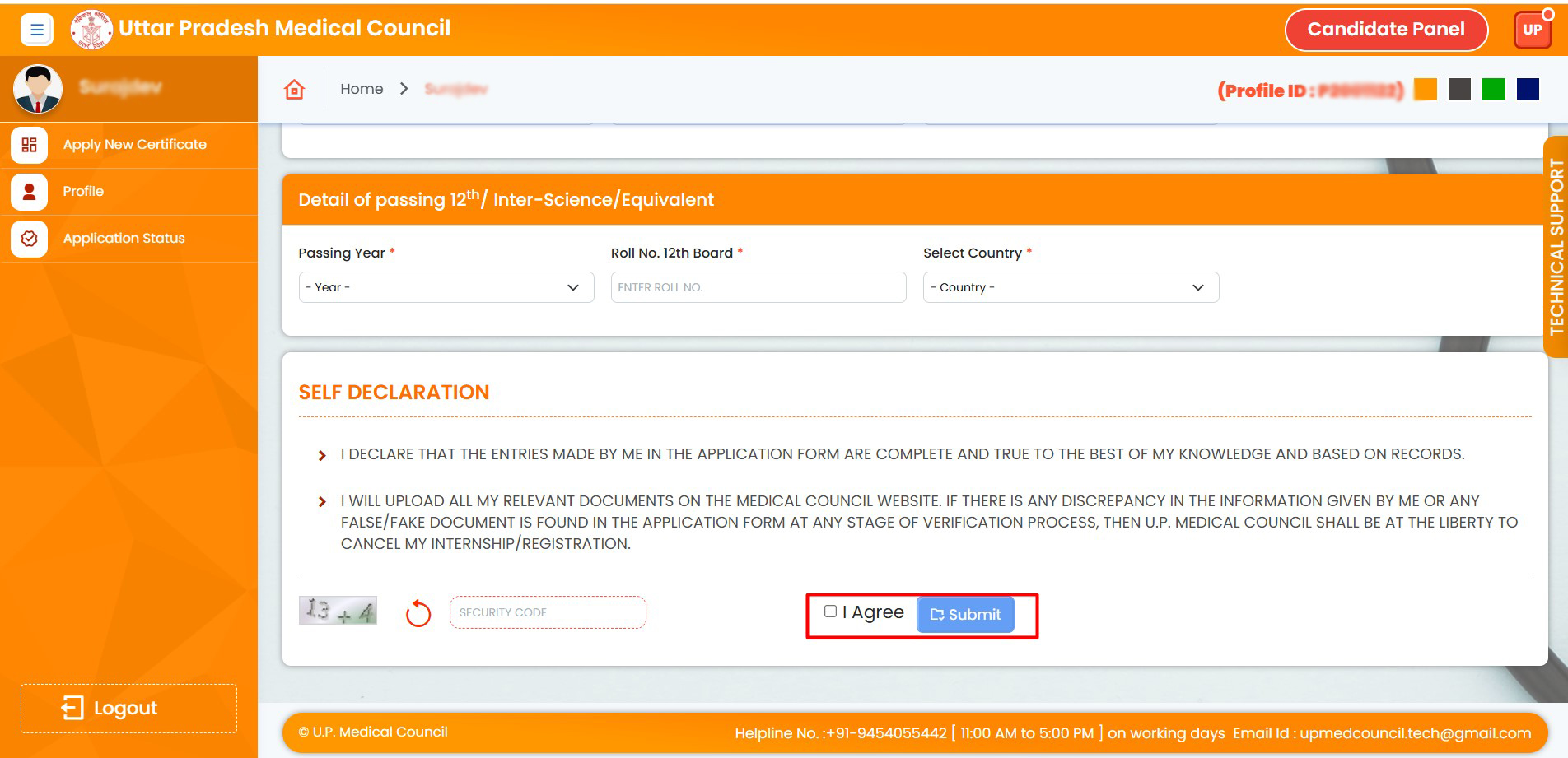
10. Agree and then submit
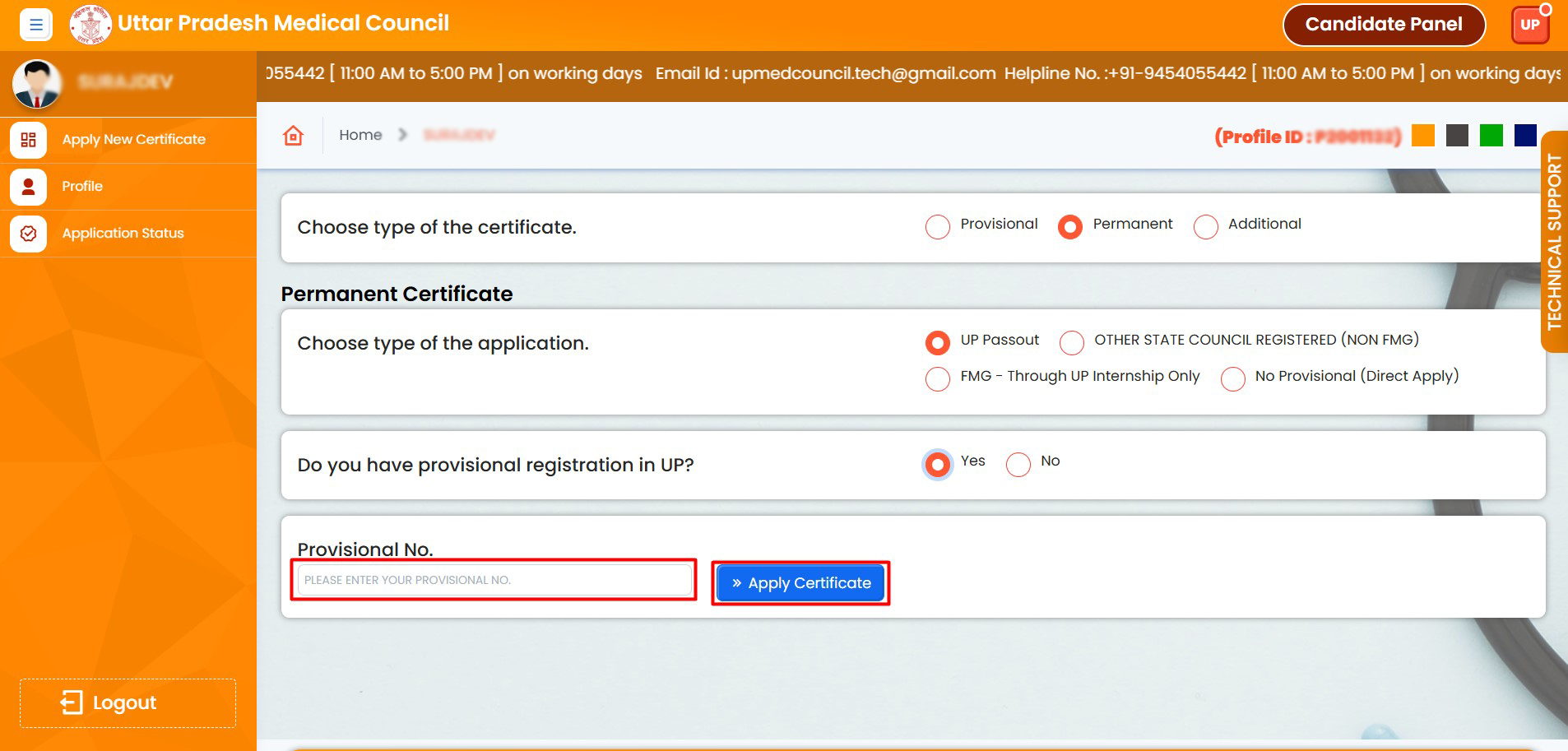
11. Click on the "Permanent" radio button, then select the "UP Pass Out" radio button, click on the "Yes" radio button, enter the provisional number, and finally click the "Apply Certificate" button.

12. Click on the "Proceed" button
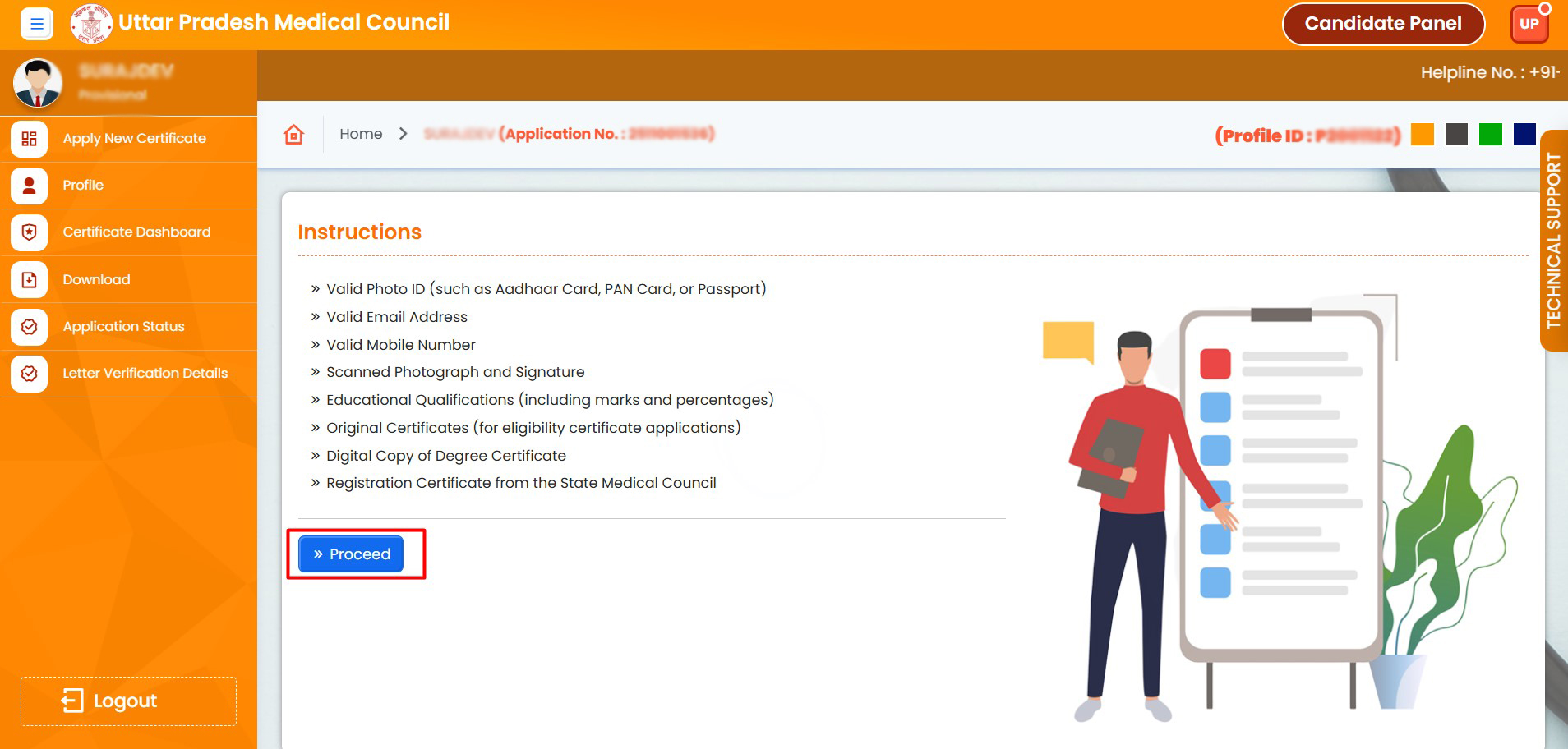
13. Click on "Proceed"
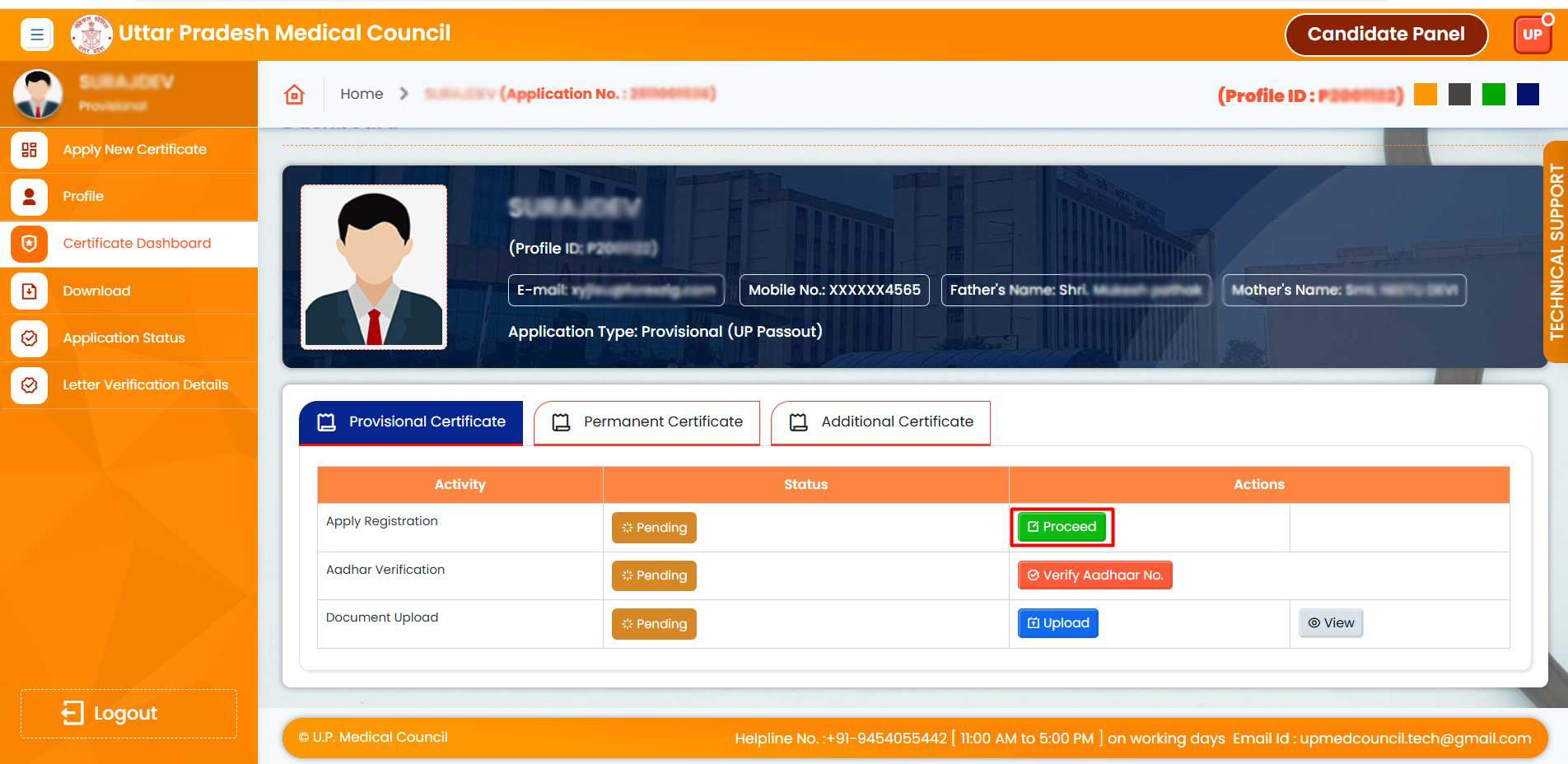
14. Open the Certificate Dashboard. (Click "Proceed")
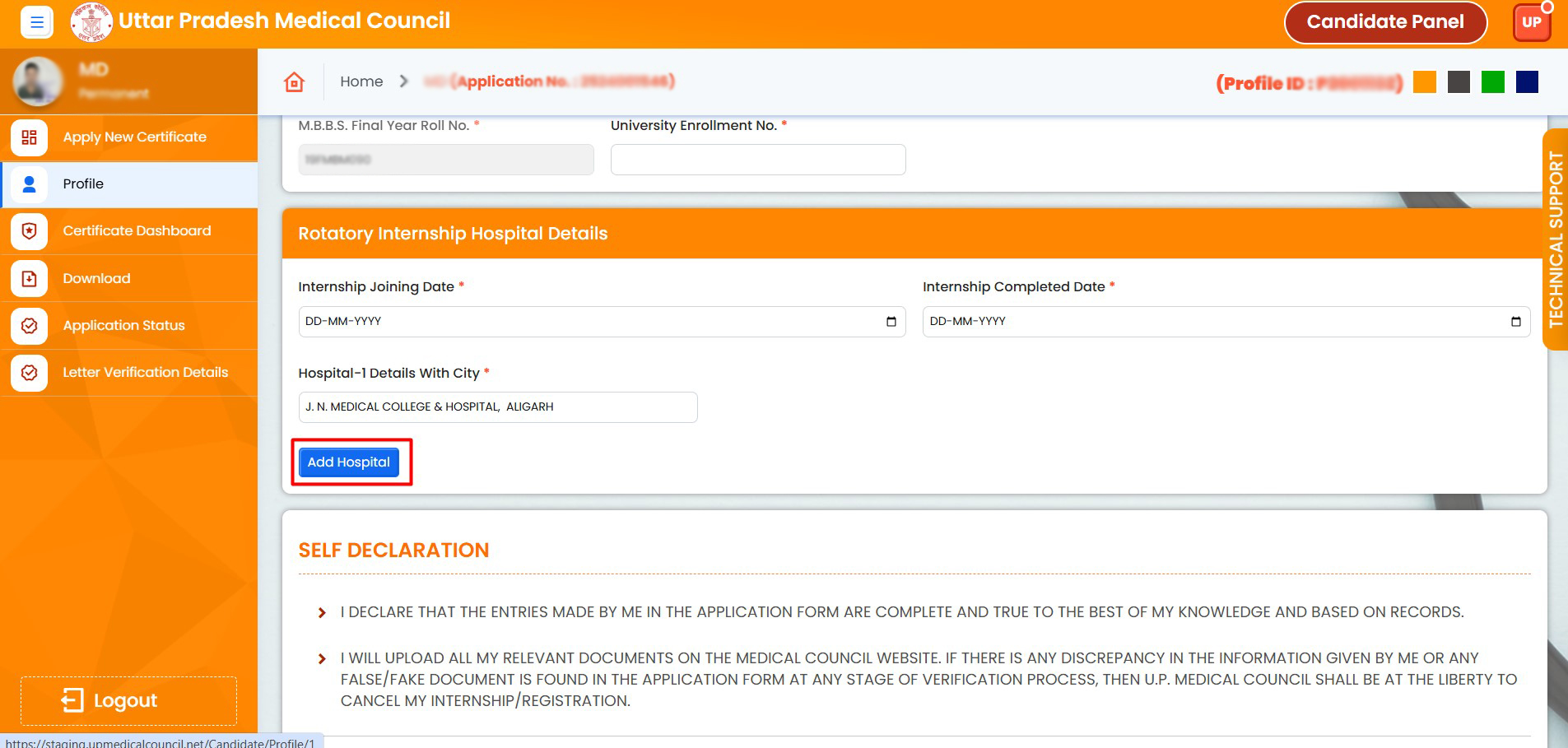
15. Click on "Add Hospital" to add up to a maximum of three hospitals where you completed your internship
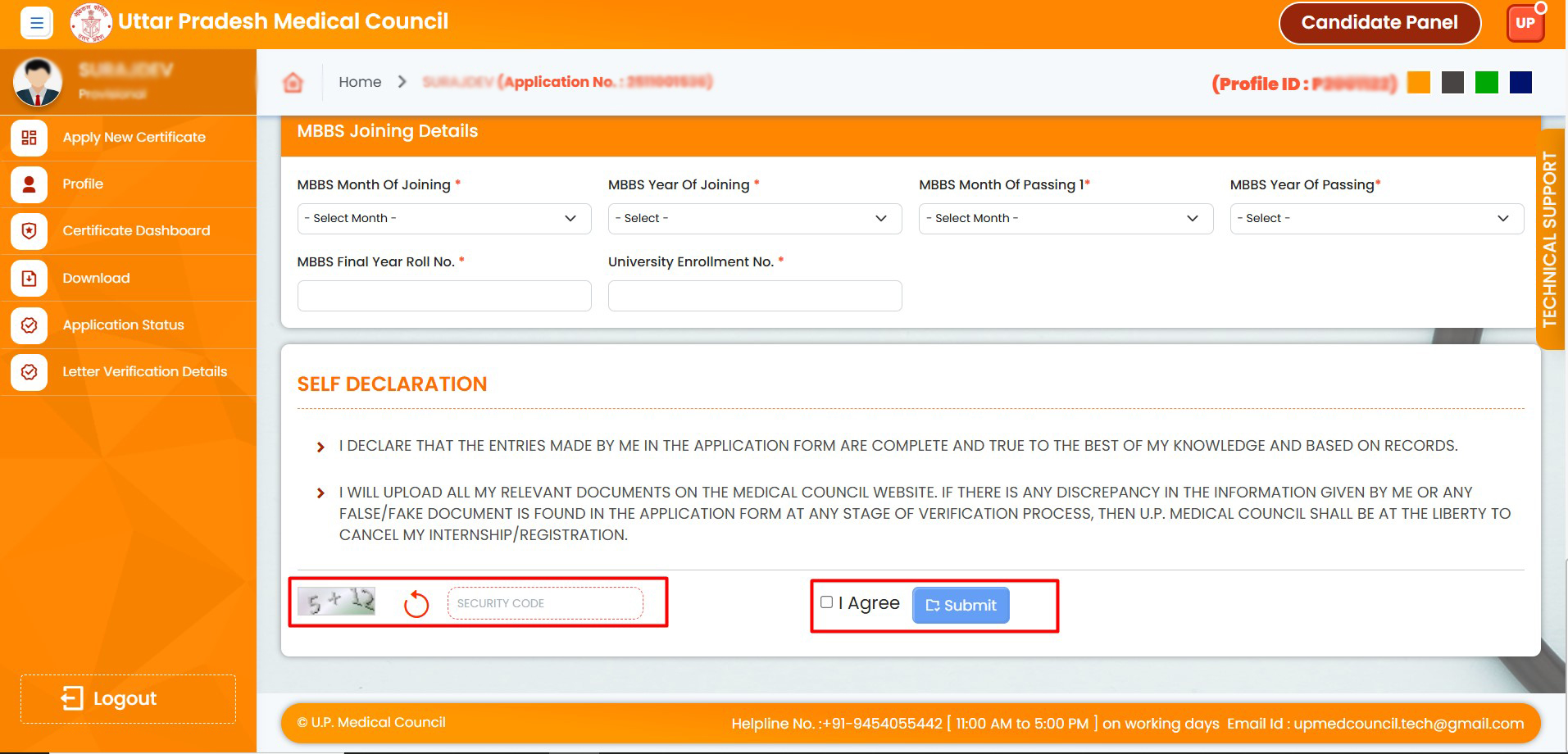
16. Some fields will be frozen. Please fill in the open and required fields, enter the correct captcha, agree, and submit
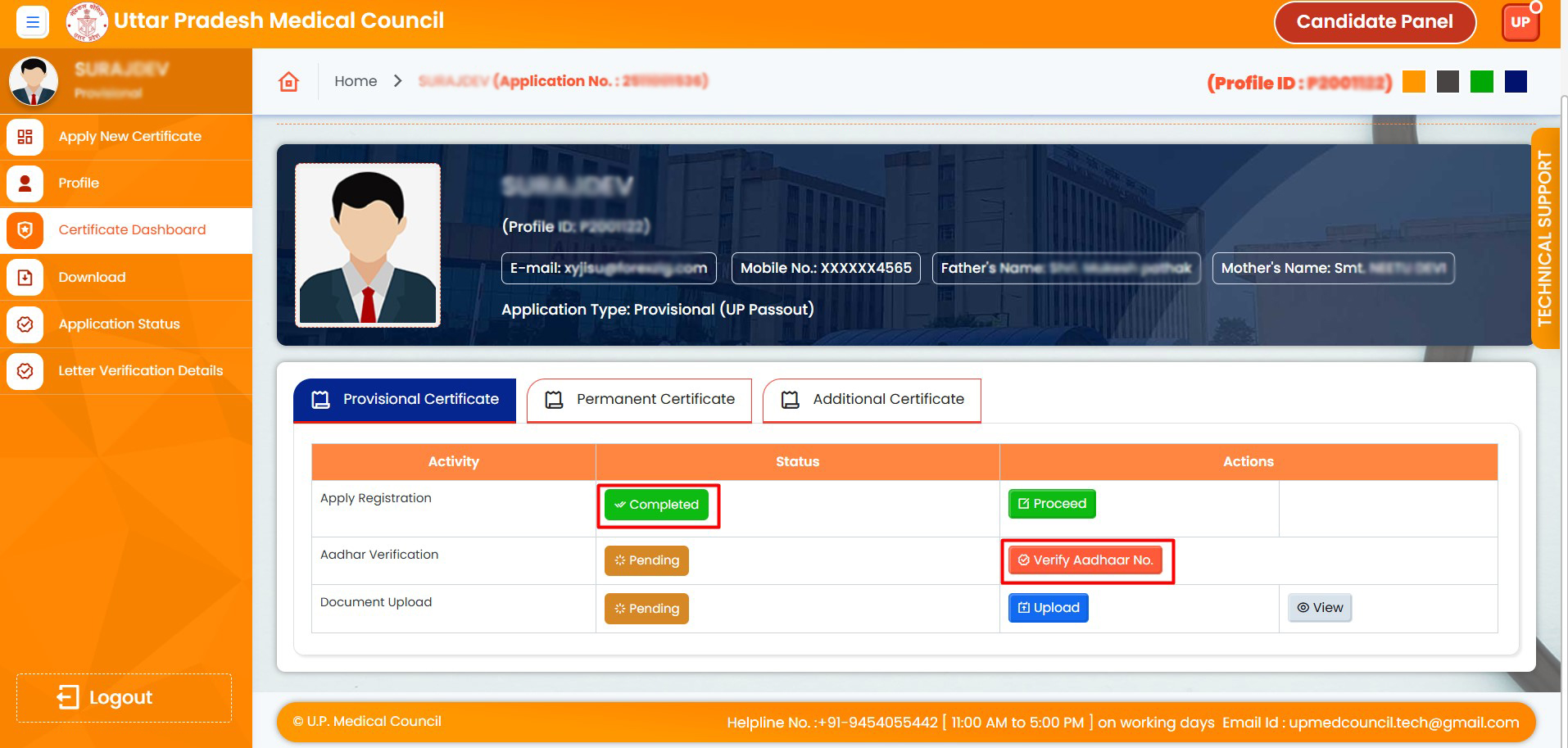
17. Complete the apply registration and click on “Verify Aadhaar No"
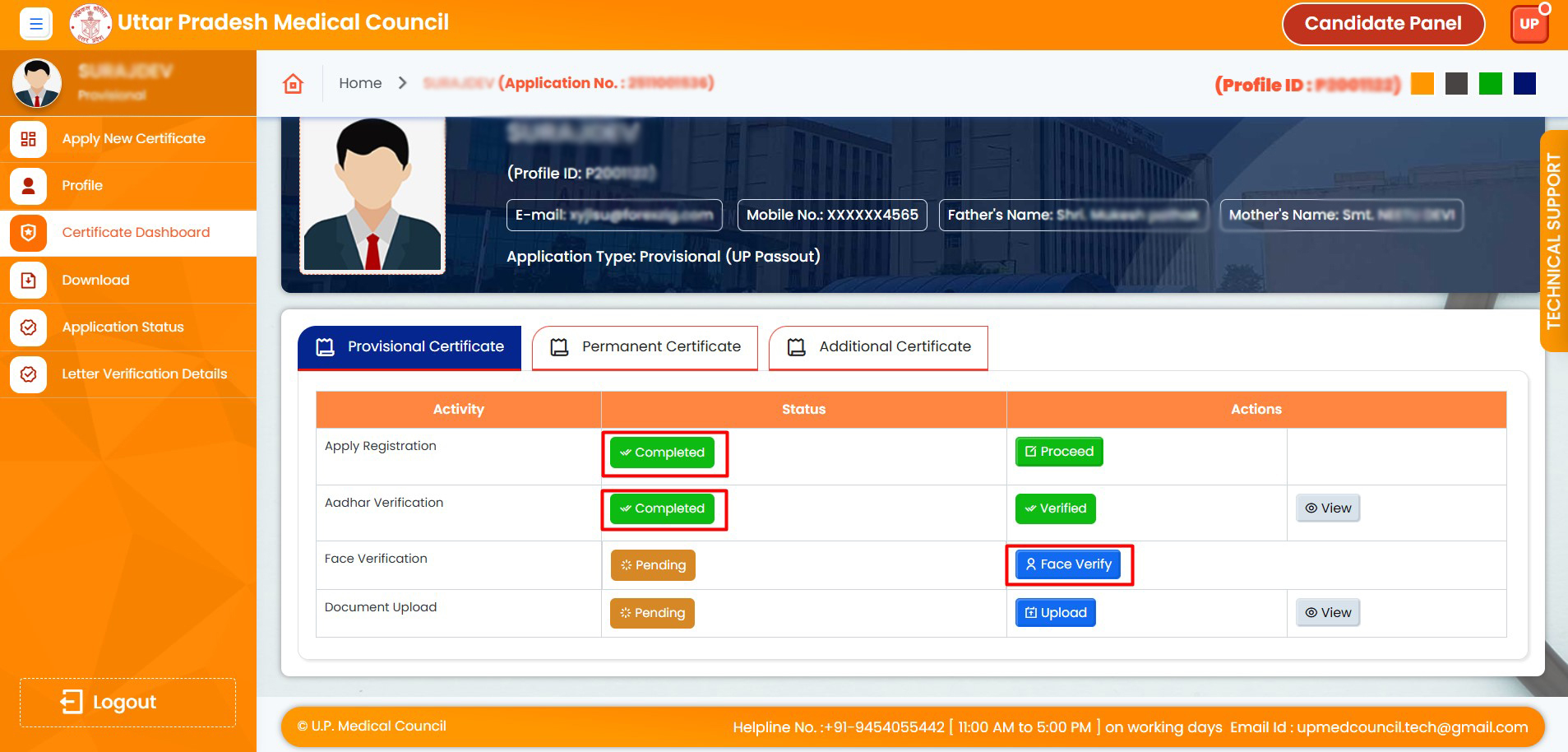
18. Complete the application registration and Aadhaar verification, then click "Face Verify"
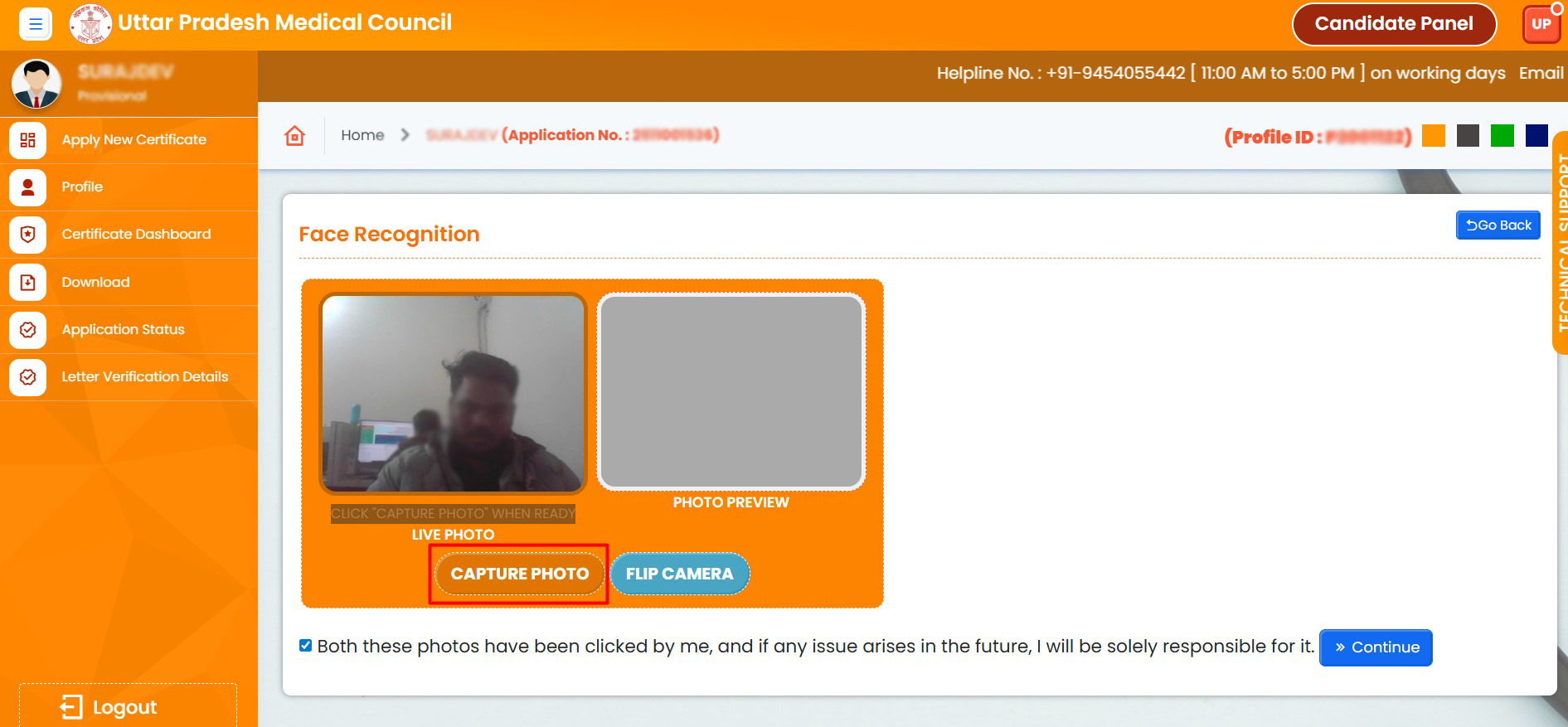
19. Click on "Capture Photo"
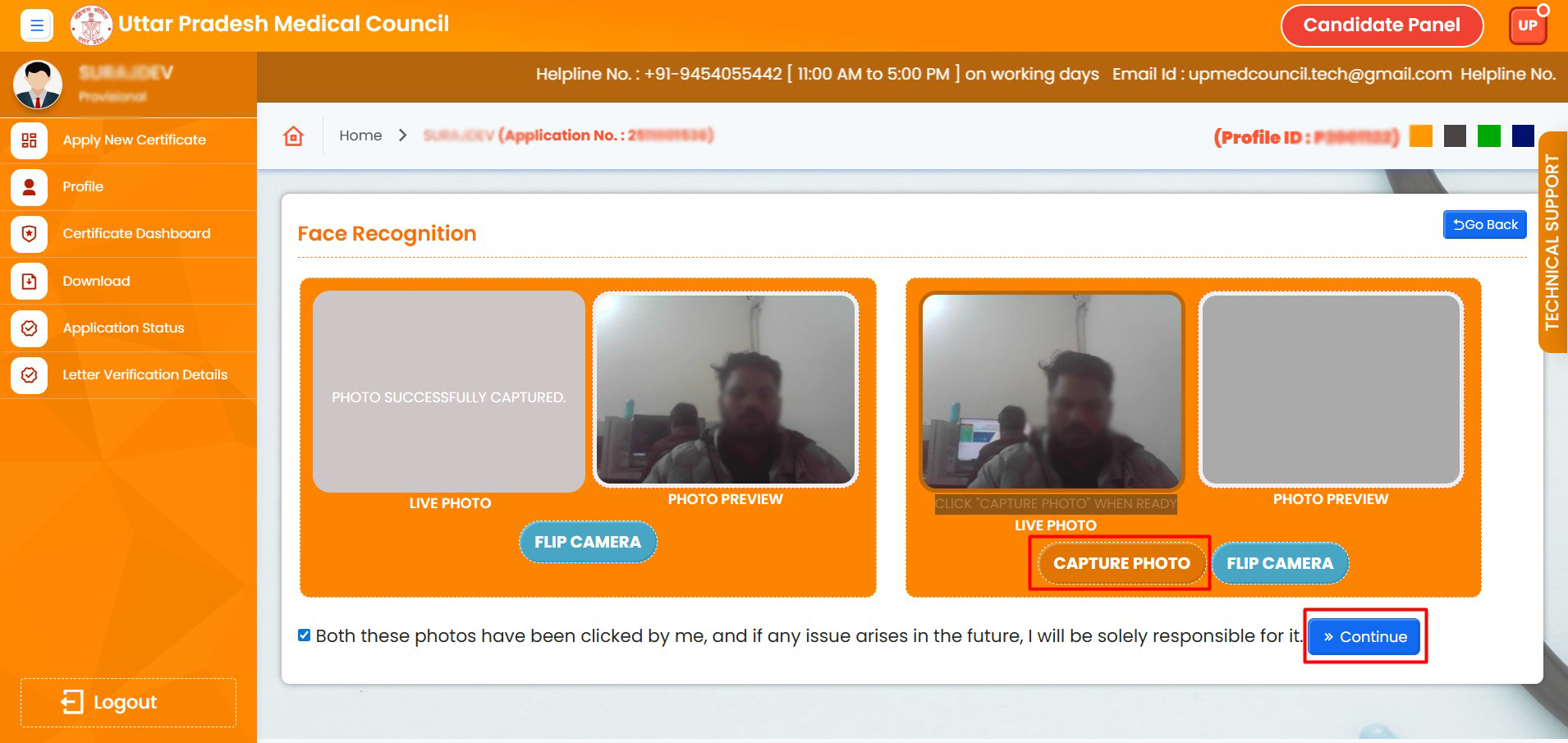
20. Click on "Capture Photo" and then click "Continue"
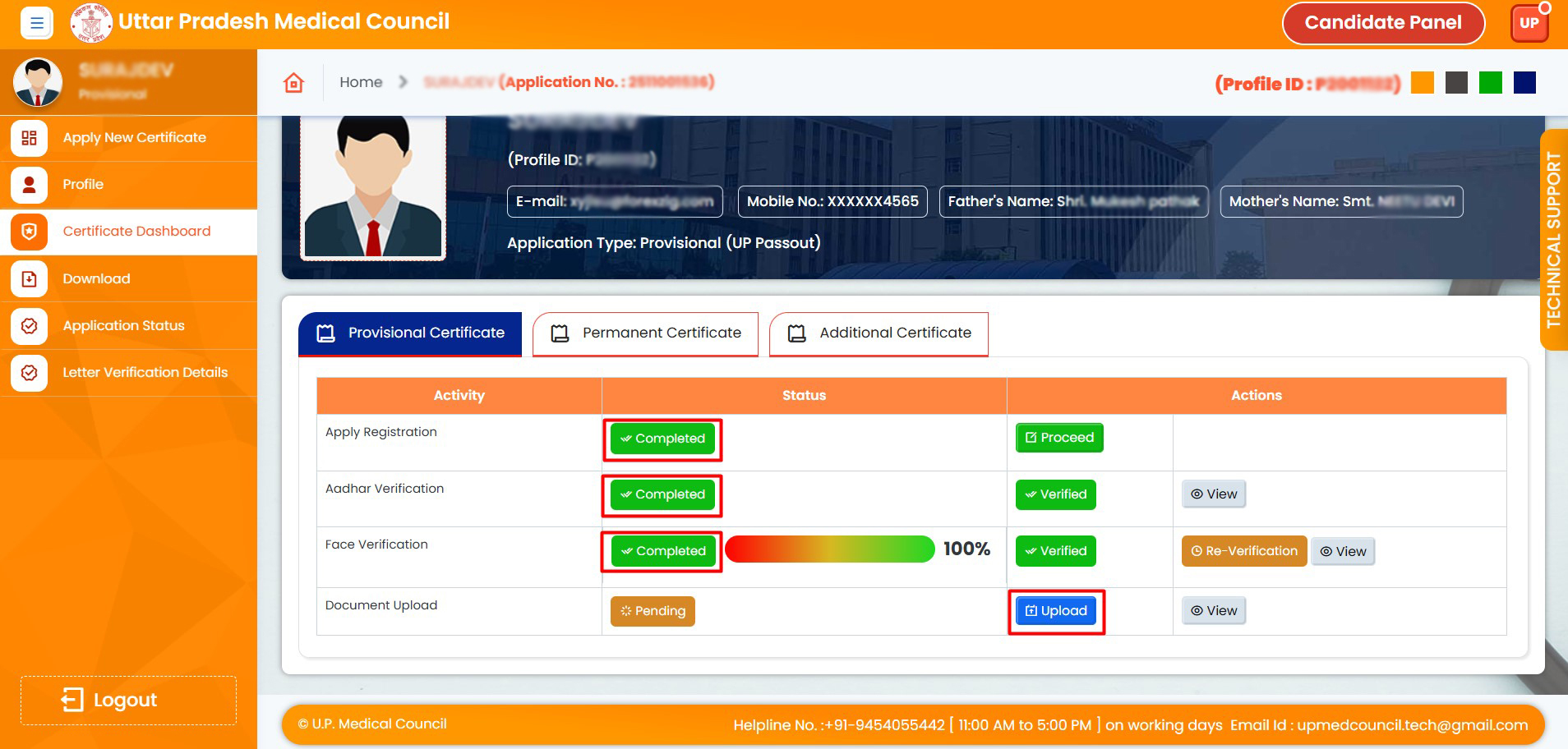
21. Complete registration, Aadhaar verification, and face verification, then click the "Upload" button.
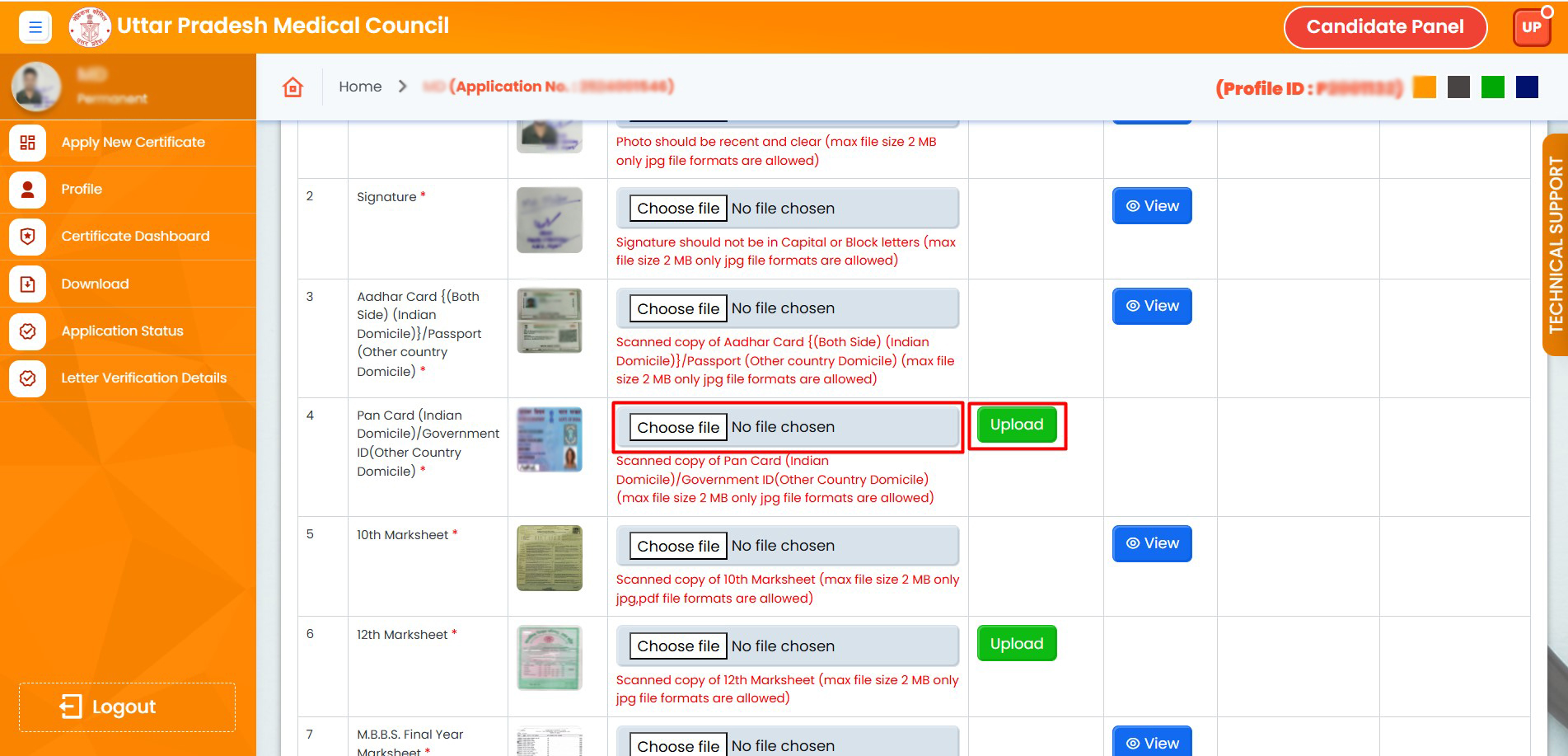
22. Some documents will already be uploaded. For the documents where the upload button is visible, choose the file and click the "Upload" button.
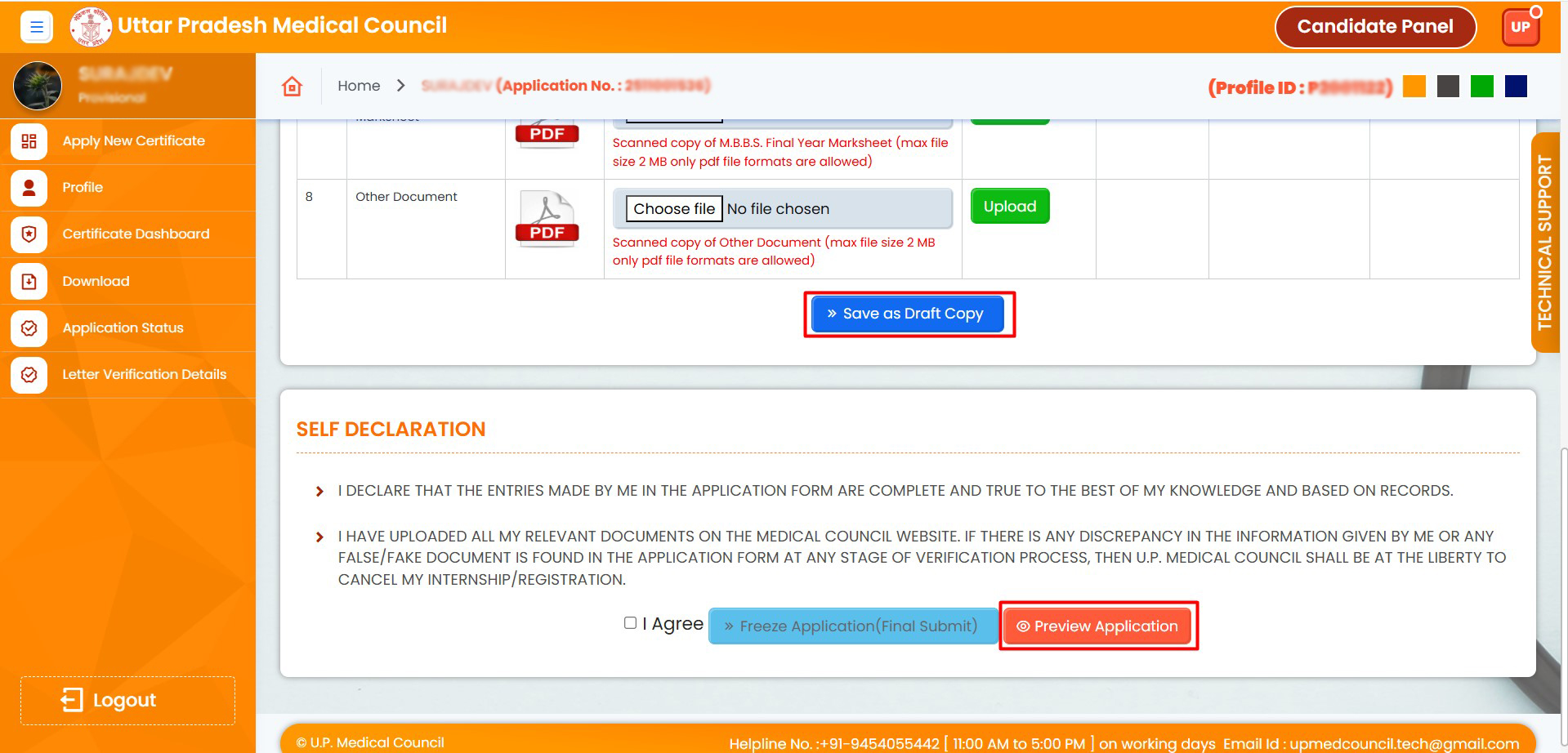
23. After uploading all required documents, click "Save as Draft" and then "Preview Application" to review your application
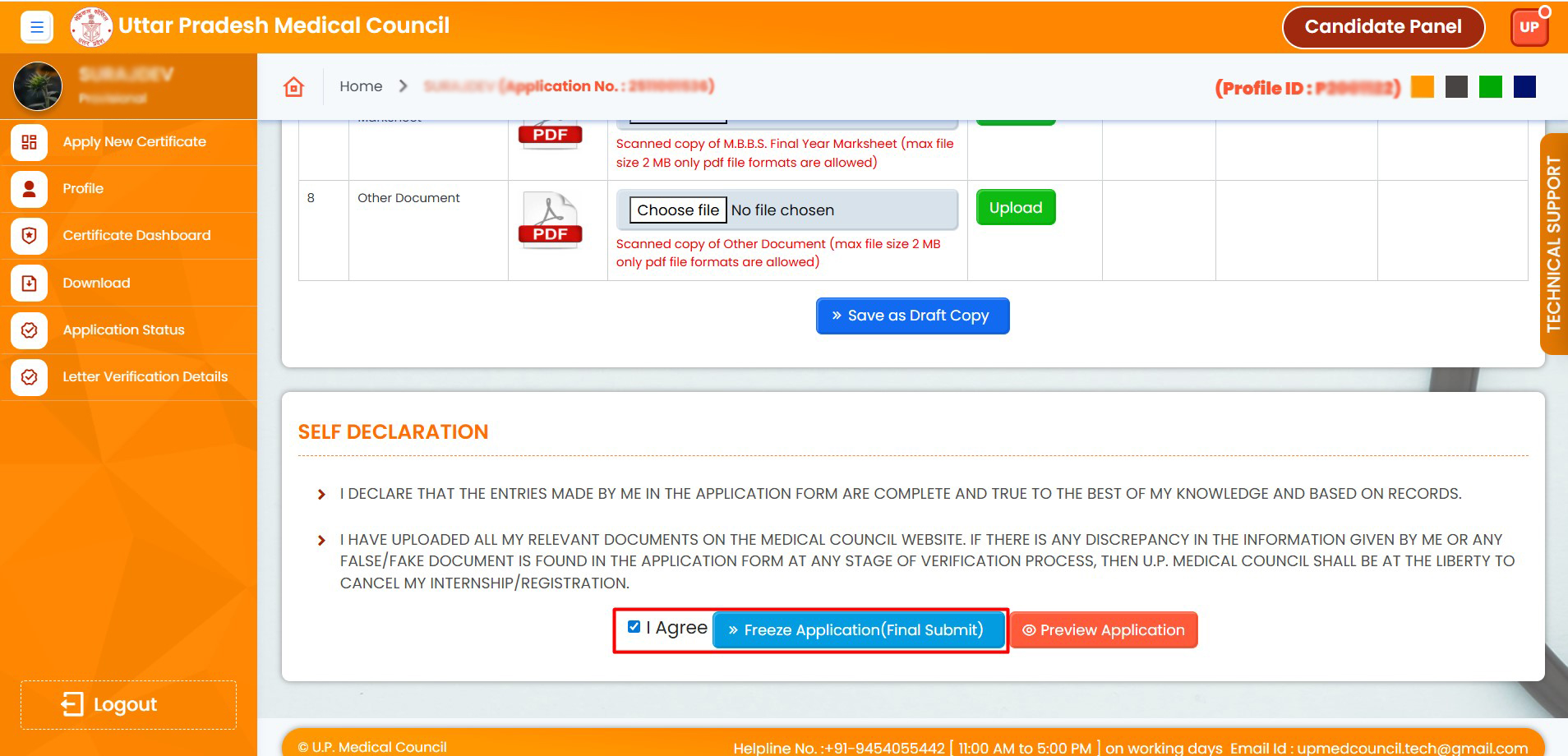
24. Agree and then finalize (freeze) the application. If you want to change your application type, you can deactivate your application. To follow the deactivation process, refer to point no. 32. Please note that once the application is frozen, you cannot deactivate it.

25. Your application has been sent to the college panel.
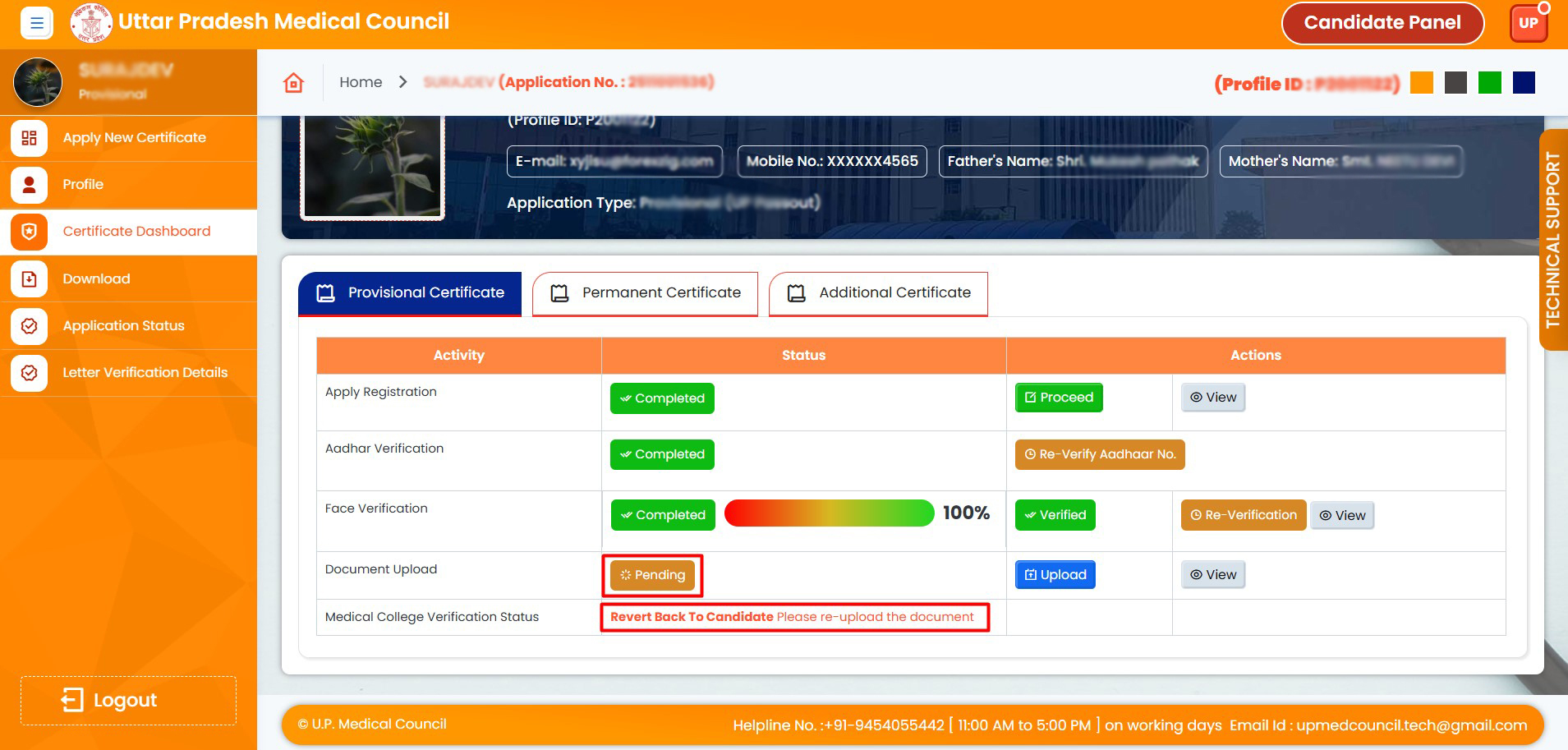
26. If there is an issue with your application or documents, your application will be returned by the college. Please re-upload your documents.
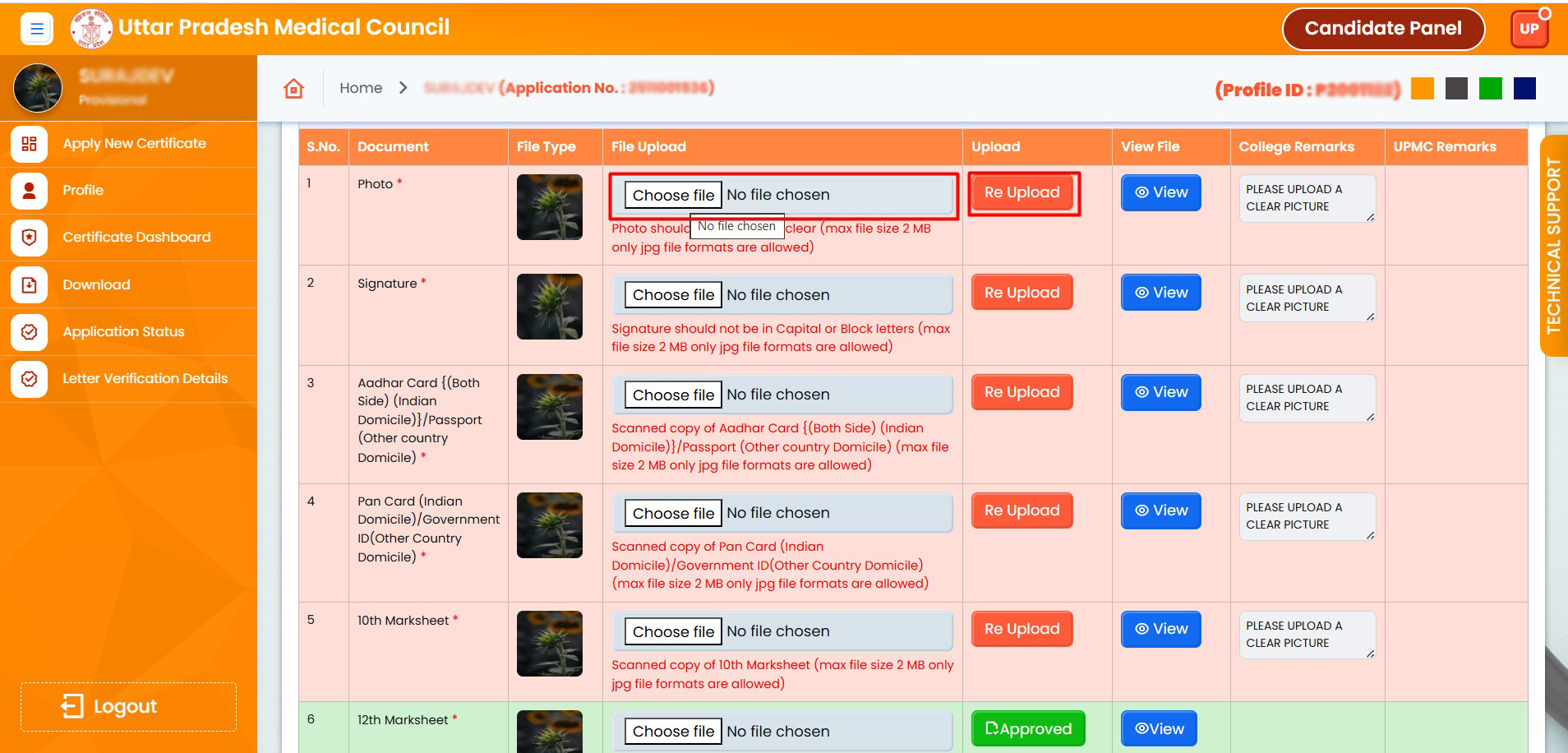
27. Choose the document, then click "Re-upload"
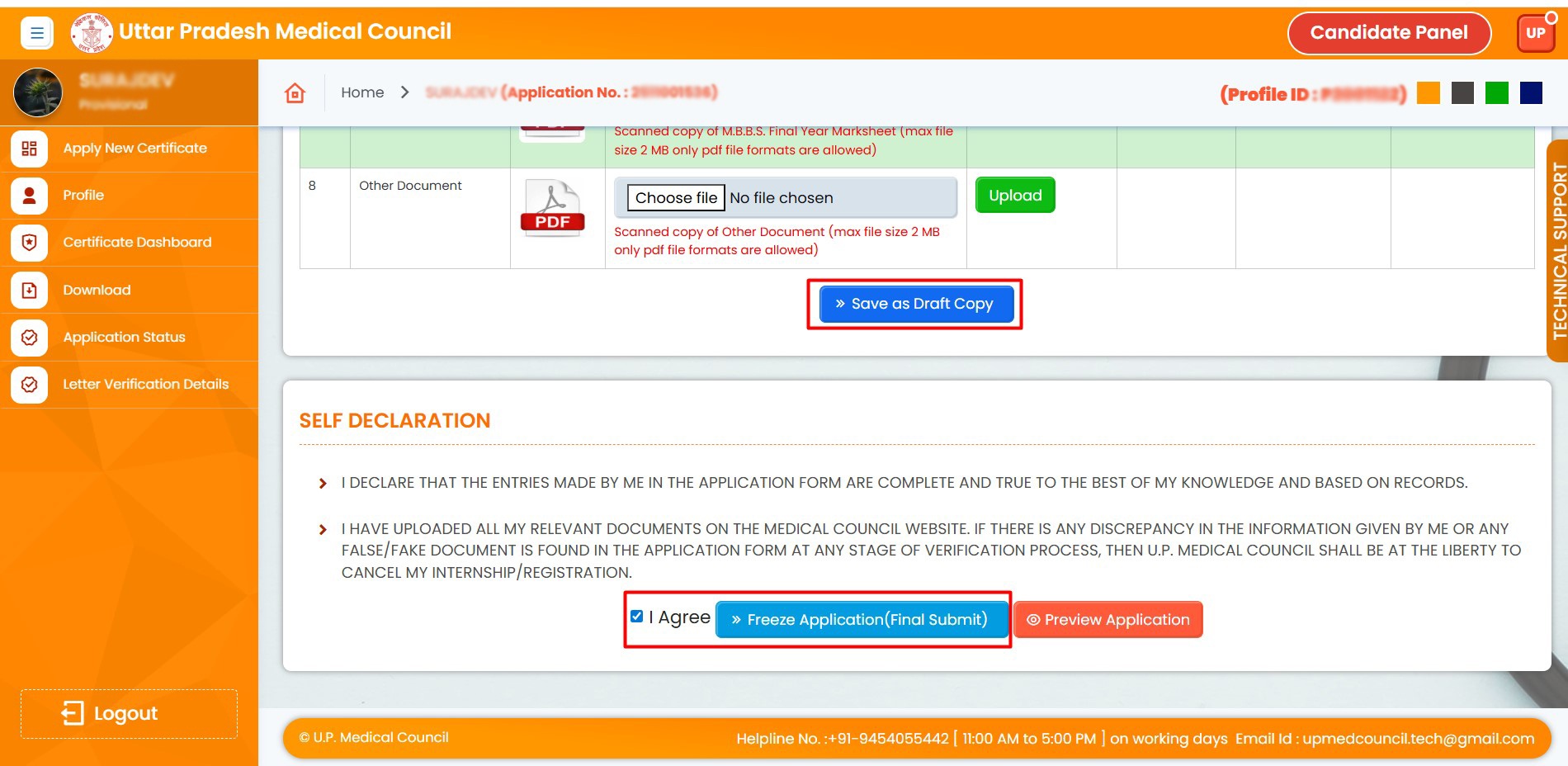
28. Upload all re-uploaded documents, click on "Save as Draft", and then agree to finalize (freeze) the application
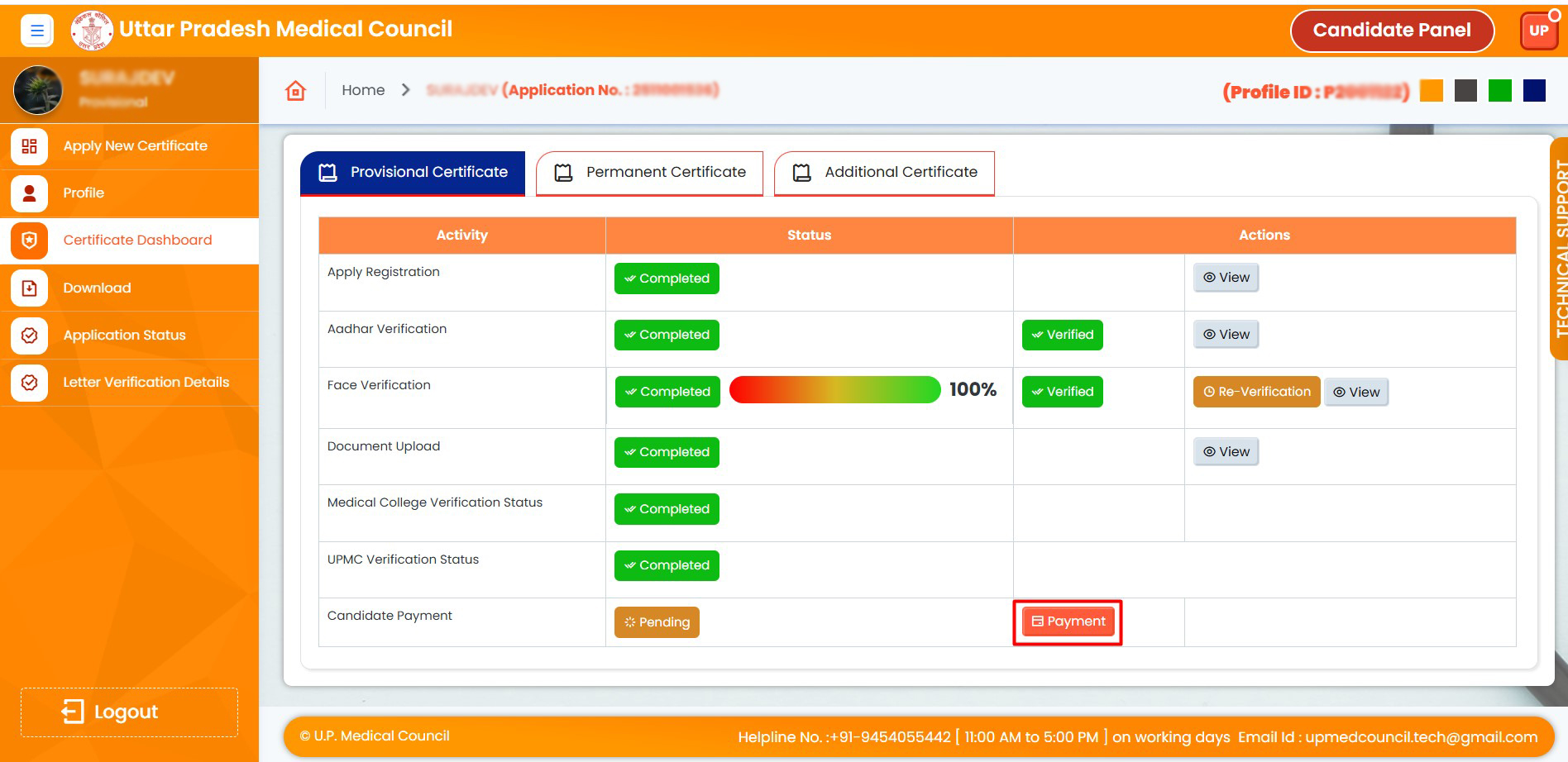
29. Please click on "Payment" and complete your payment.
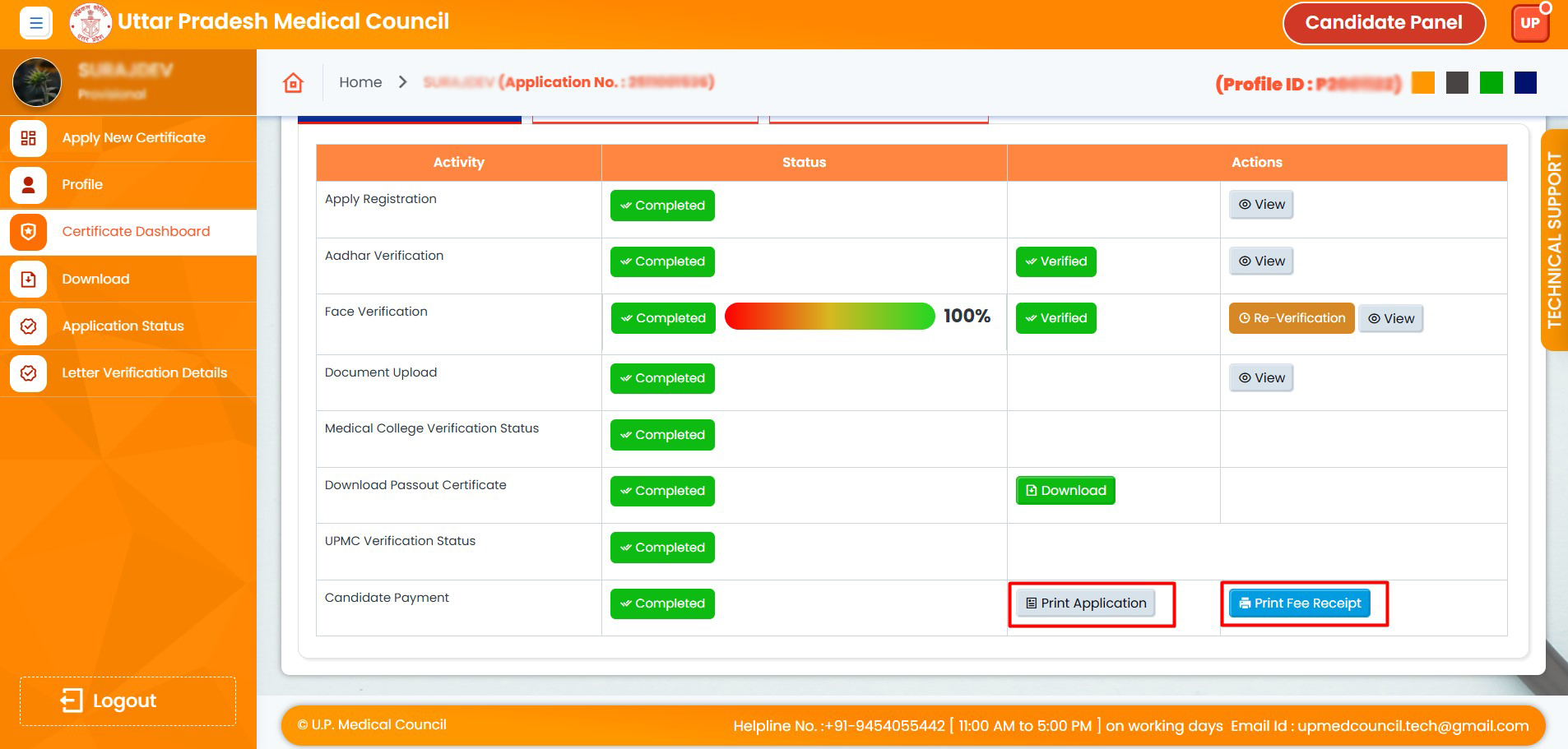
30. Click on "Print Application" to print your application. Click on "Print Fee Receipt" to print your fee receipt.
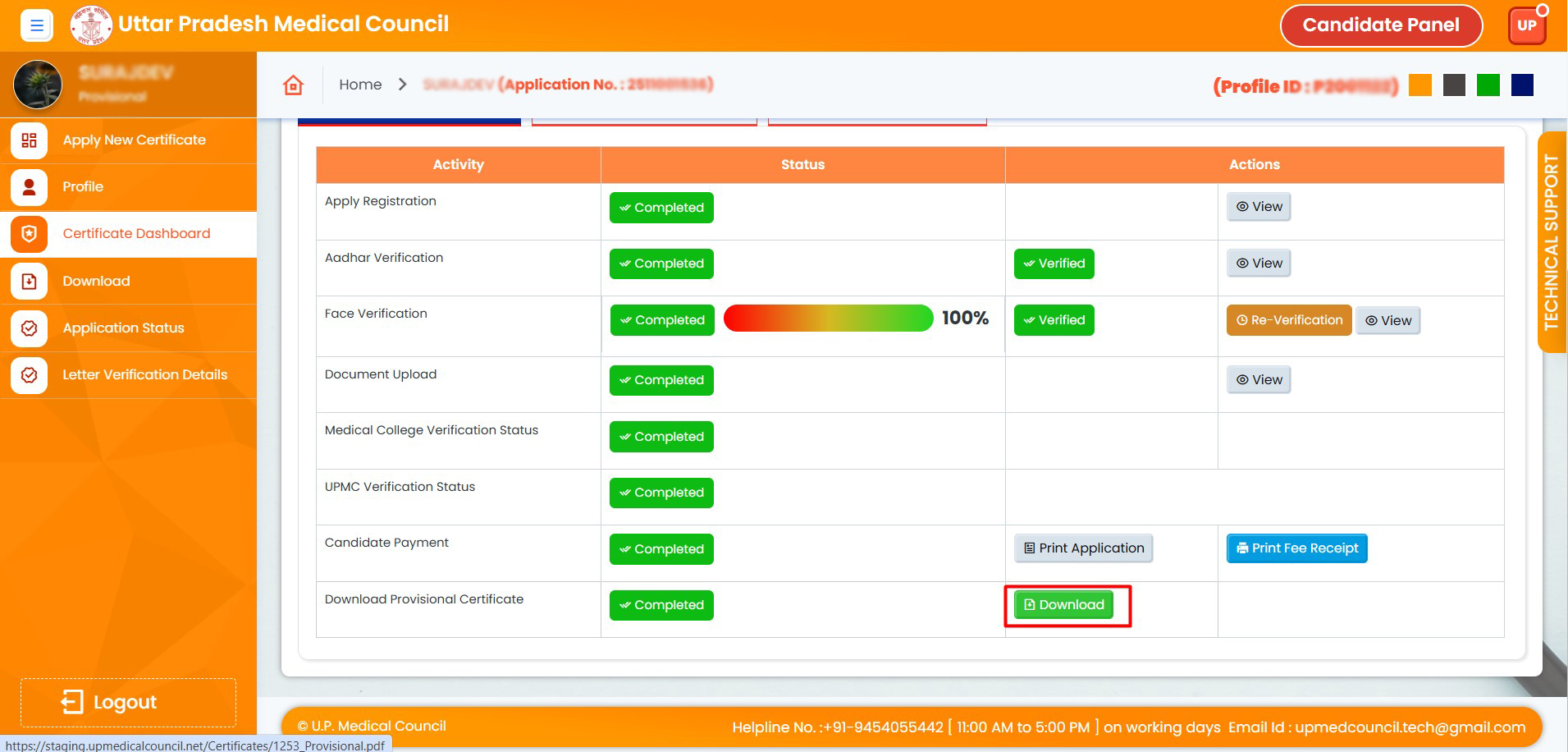
31. Click on "Download" to download your certificate.
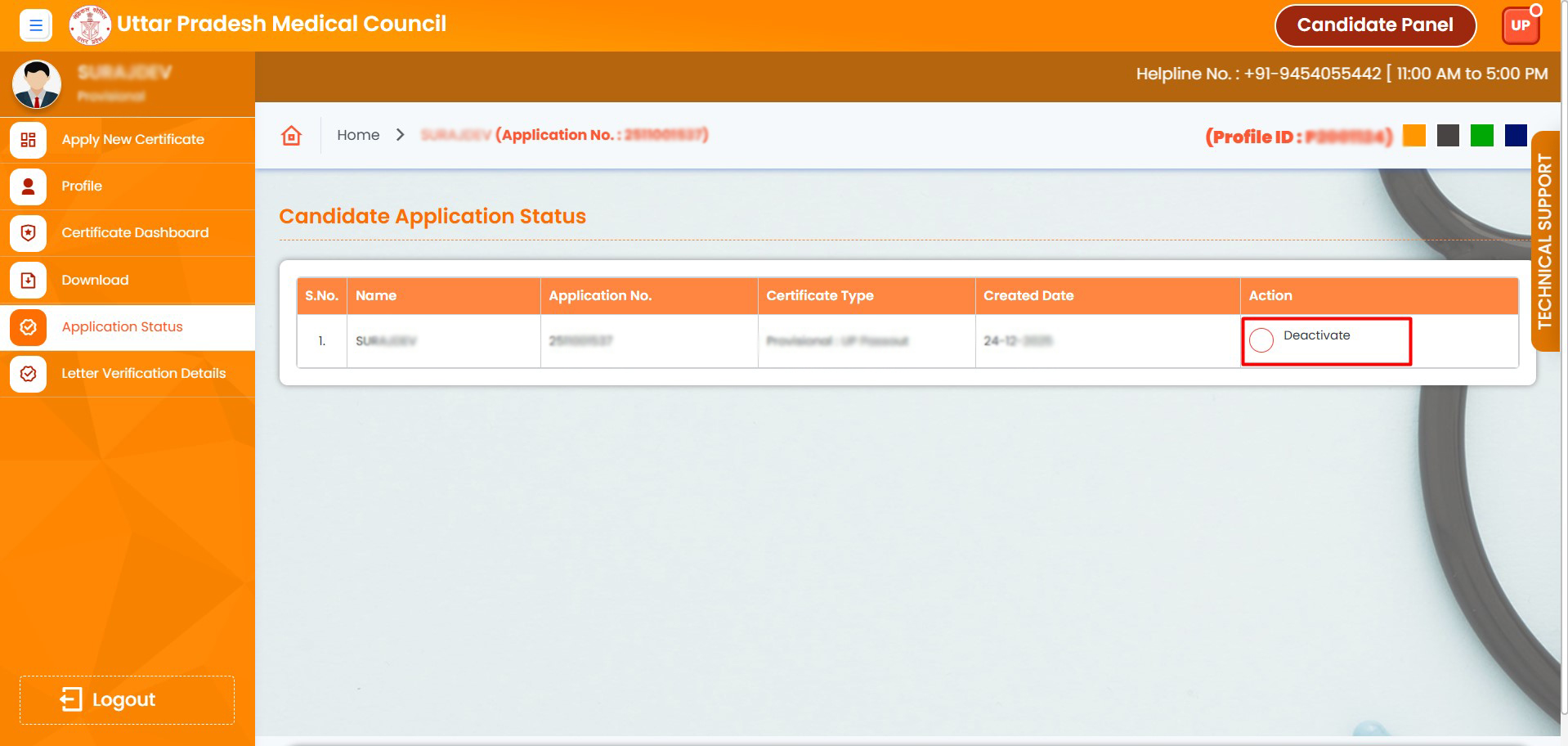
32. Please click on the "Deactivate" radio button to deactivate your application. Please note that once the application is frozen, you cannot deactivate it.
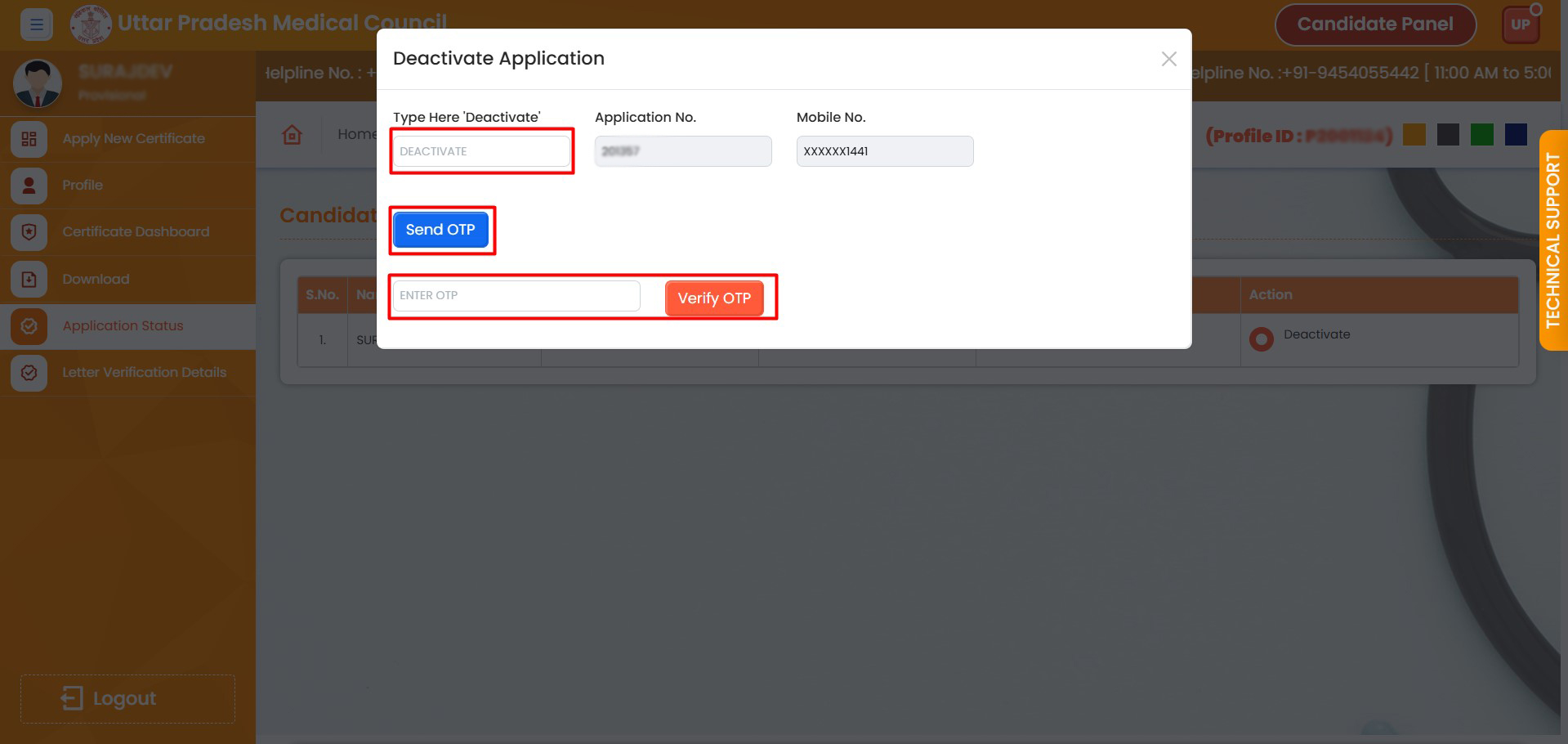
33. Enter "Deactivate" in the field, click "Send OTP", then enter the OTP and verify.
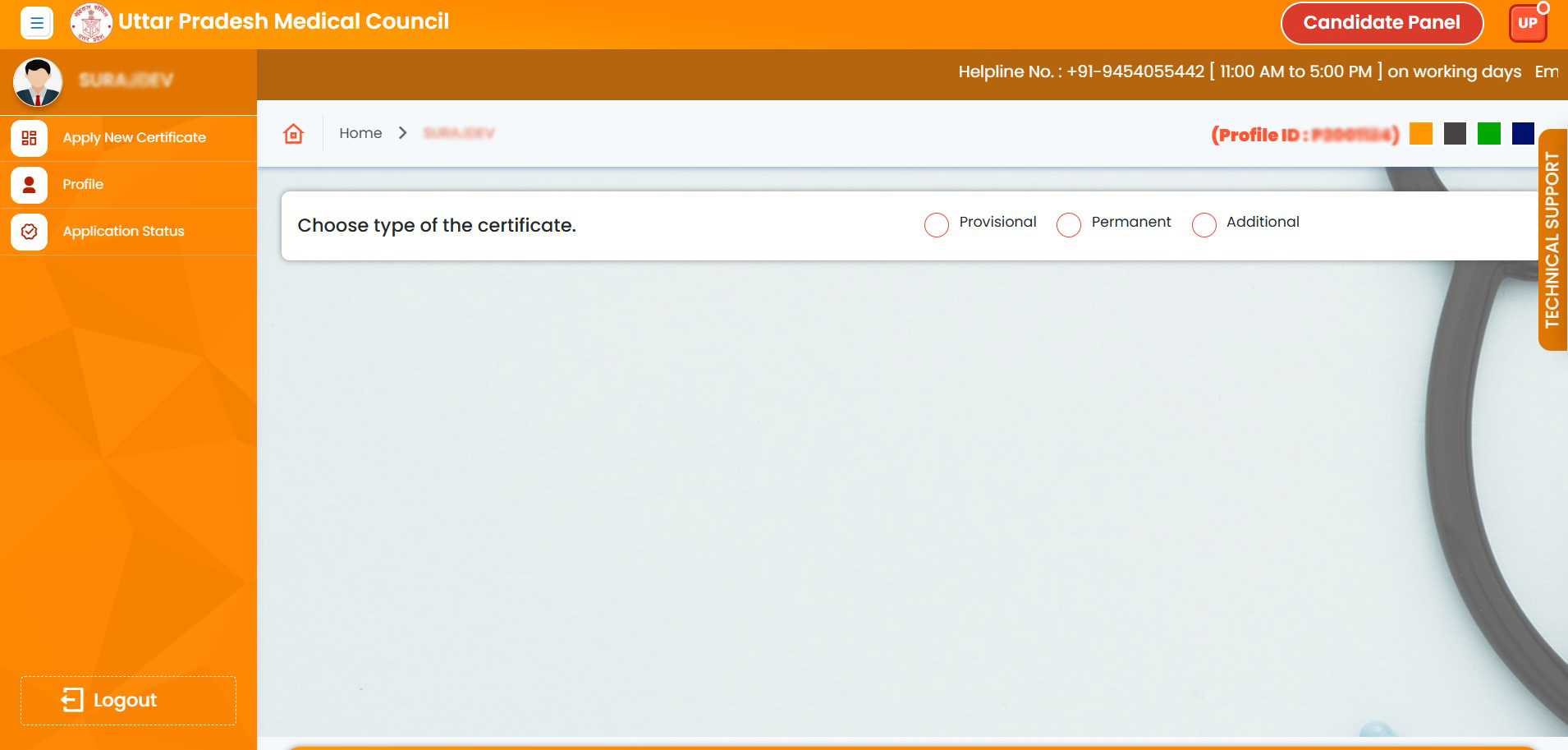
34. Your application has been deactivated. You can apply again for a fresh application